Vital Signs Simulator
Save and View Test Results
75
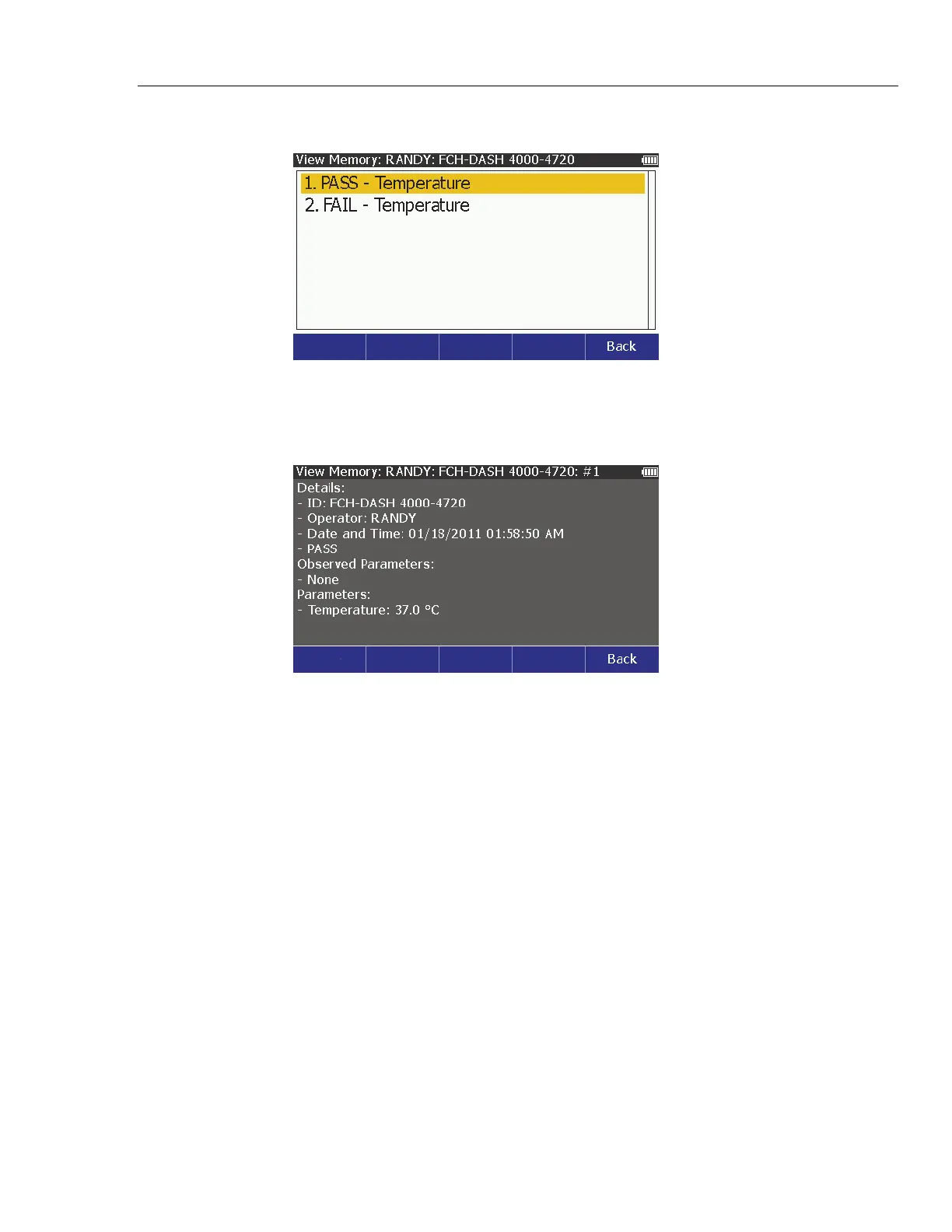
8. Push to show the test results data saved for the test ID. See Figure 57.
glh042.bmp
Figure 57. Test Results Screen
9. Push or to highlight a test results file.
10. Push to show the test results data shown in Figure 58.
glh043.bmp
Figure 58. Test Results Data Screen
Print Test Results
With a PCL5 compatible printer connected to the USB A Controller Port, you can
print a test results record.
Note
A compatible printer must be connected to the Product before the
Print softkey appears in the view screen of a test results record.
1. Do the steps in View Test Results to show a test results record on the
display.
2. Push the Print softkey.
The data in the test results record that show on the display is transmitted through
the printer port.


 To Next Page