Vital Signs Simulator
Save and View Test Results
73
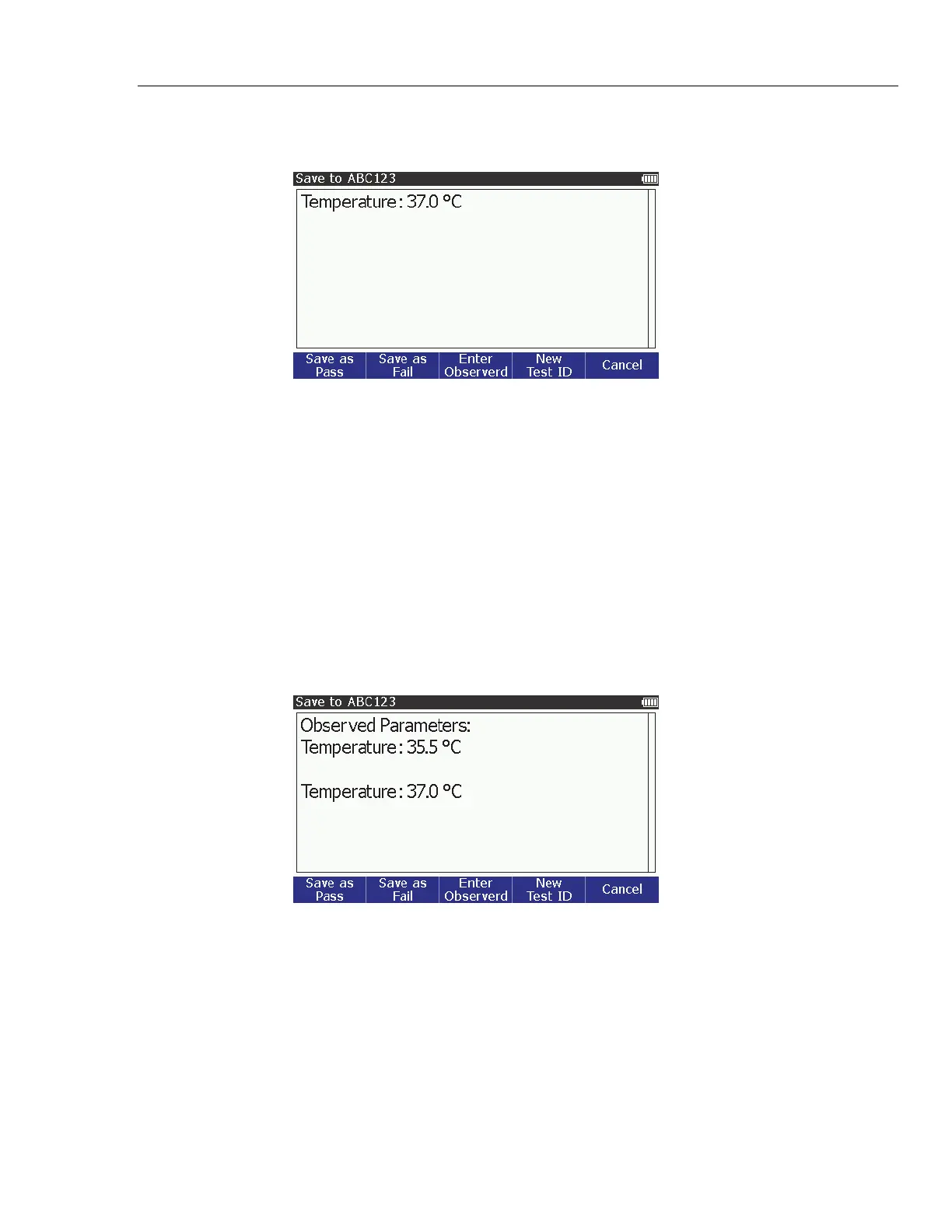
1. Push the Save softkey to show the Save screen. The screen in Figure 53 is
the save screen for the temperature simulation function.
glh039.bmp
Figure 53. Save Screen
Note
The next step is valid only when the Enter Observed softkey shows
on the display.
2. To add measurements shown in the UUT display to the test results record,
push the Enter Observed softkey.
Note
If there is more than one simulation parameter, you have to highlight
a parameter and push before the next step.
3. Push or to set the parameter to the value observed on the UUT.
4. Push to set the observed value and show the save screen shown below
on the display.
glh049.bmp
Figure 54. Observed Results Screen
Note
If the observed value is incorrect at this point, you can push the
Enter Observed softkey and change the observed parameter.
5. Test results are saved with a Pass or Fail prefix in their label. Push the Save
as Pass or the Save as Fail softkey. The save screen in Figure 55 shows on
the display.


 To Next Page