4 Navigation
In Earth’s orbit there is a network of navigation satellites. Using the signals from these global positioning
satellites (GPS), it is possible to very precisely determine your position anywhere in the world. Therefore, the
use of GPS receivers has become indispensable for flight navigation and competition.
4.1 Assessment of Reception Quality
The 6030 can receive 20 satellites at the same time, however
due to satellite constellation, on average, only 9 satellites are
visible (receivable) at any given time. When the 6030 is turned
on, the internal GPS receiver is automatically turned on. It is
necessary to receive at least four satellites in order to fix your
position initially, but once the current position is acquired,
three satellites are sufficient for further 2D navigation.
However, if you want to record GPS altitude in a flight record,
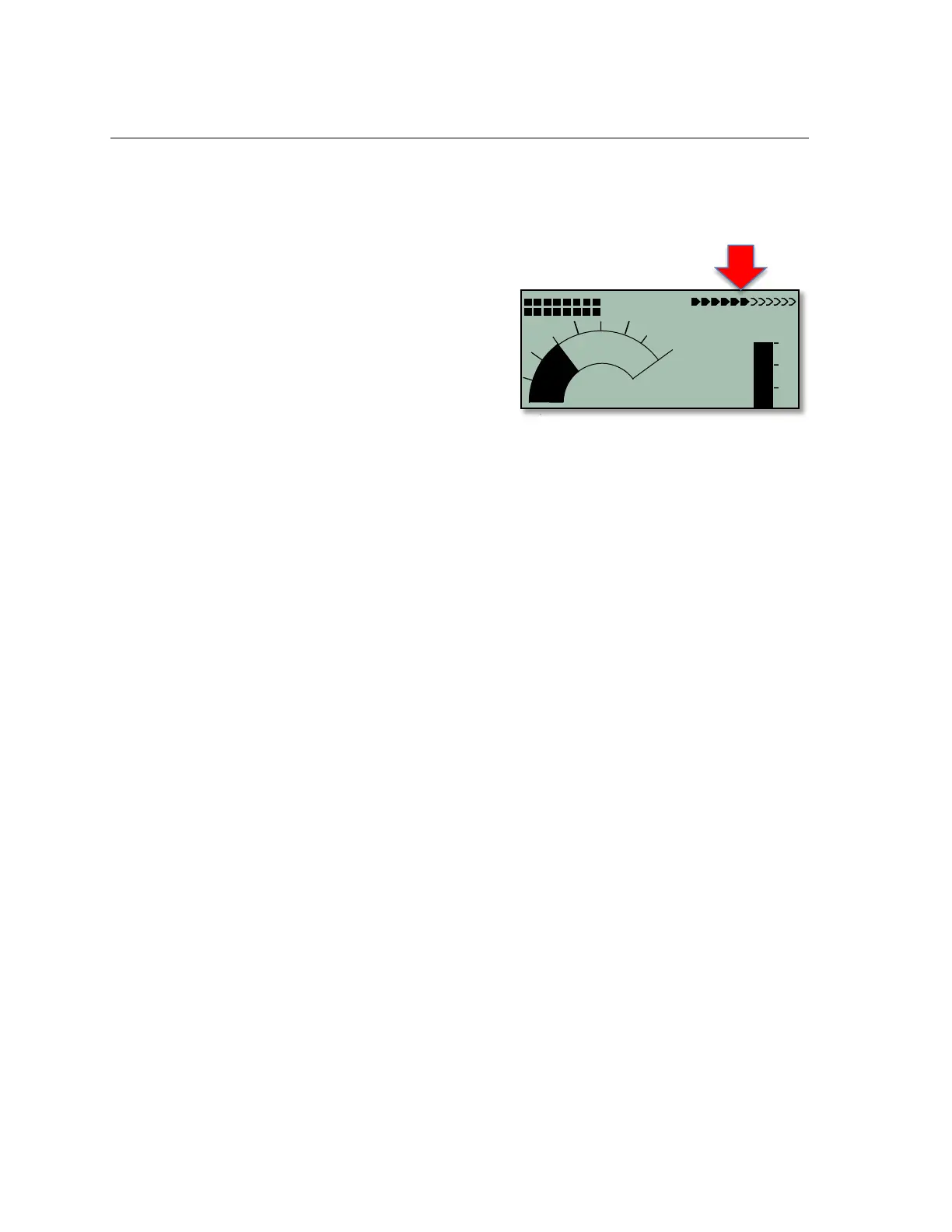
then four satellites are necessary. The arrowhead bar-scale in
the top right corner of the normal run-mode display shows the number of satellites being received. Each filled-in
arrow represents one satellite with good reception. The greater the number of filled in arrowheads, the better the
overall GPS reception. The compass cardinals (N, S, E & W) are only shown when the GPS has acquired
sufficiently to navigate.
A Satellite Almanac table in the GPS receiver keeps track of the path, location, and time of all satellites with
reference to the receiver. The Almanac is continuously updated during signal reception. However, if the signal to
the Almanac memory is disrupted completely, or if the 6030 is taken 125 miles or more from the last reception
point, then the Almanac must be re-established. In this case it can take ten minutes or more to determine your
new position. When the 6030 is turned off, power is still supplied to the almanac’s memory.
If the receiver is turned off for only a short period of time (less than 2 hours), it should take less than a minute to
acquire the location. Buildings, mountains or thick forest affect reception quality. Therefore, you should always
look for the clearest view of the sky. The antenna is located under the 6030 label and should face upwards, at
least until it has locked onto several satellites. Because the received strength of the satellite signal is only
1/1000 that of mobile radios, these radio receivers and other disruptive factors (like notebook computers) should
be kept as far away as possible from the 6030.
4.2 Compass and Flight Direction
In contrast to a normal magnetic compass that is oriented to magnetic north, the GPS compass can show
direction only when the user is moving. However, it has the advantage that it is not subject to any grid deviation
and does not show any deviation as a result of ferrous or magnetic material. Its zero point always corresponds
with true geographic north (0 or 360 degrees).
The compass rose appears in the inner circle of the analog vario dial. If you have selected a Goto point, then a
direction-to-destination pointer will appear inside the compass rose. However, if you are stationary the compass
and pointer are inoperative. Your exact course (i.e., the direction you travel over ground) is always at the top of
the compass, but can also be displayed in the Track user-field. When you are circling in a thermal the compass
rose appears to turn. In reality the pointer does not move; the instrument, along with the aircraft, moves around
the rose.
4.3 Real-Time Map Page
A short press of the Page/ESC key when the 6030 is in the run mode will bring up the real-time Map page
where your track, waypoints, the active route, and any restricted airspace you have defined will be visible. If a
Competition Route is active, start/turnpoint/goal cylinders will also be shown. There are three user-fields shown
just below the map, and an analog vario scale is along the left edge of the map. Your current position will
appear on the track as a direction arrow. The track is drawn backwards from the current position to the
beginning of the flight. This way you will not have to wait for the entire track to be drawn to see your current
section of the track. The view may be zoomed in and out with the F1 and F2 keys. When the zoom in/out keys
are pressed, it will take a few moments to redraw the map (“Wait” and “Ready” will correspondingly appear in
the Information Field). If a zoom key is pressed while a map is being redrawn, the original redraw will be
suspended and will start over again with new zoom selection. This allows you to quickly view the desired section



 To Next Page