8 Connection to a Computer
Using FlyChart, it is possible to download the waypoints, routes, Airspaces, recorded flights and user-settings
from 6030 to a PC. It is also possible to upload waypoints, routes, Airspaces and user-settings from the PC to
the 6030. You can view your recorded flights over real-world terrain in Google Earth directly from FlyChart. And
with a simple flasher program you can upgrade the 6030 firmware when new releases become available.
The 6030’s basic equipment includes a USB data cable. In order for the 6030 to communicate with a PC, the
appropriate USB driver must be installed on the PC. The driver name is PL-2303 and it is available at
http://flytec.com/Products/Software.htm. If you install FlyChart 4.52.36 or later, the PL-2303 driver will be
installed automatically.
8.1 Downloading Flights
To download a flight recording to a PC, go to the Flight Analysis Page for the desired flight (under Flight
memory in the Main Menu) and then follow the downloading instructions for the PC flight program. In FlyChart
simply click the download icon on the task bar.
8.2 Instrument Settings
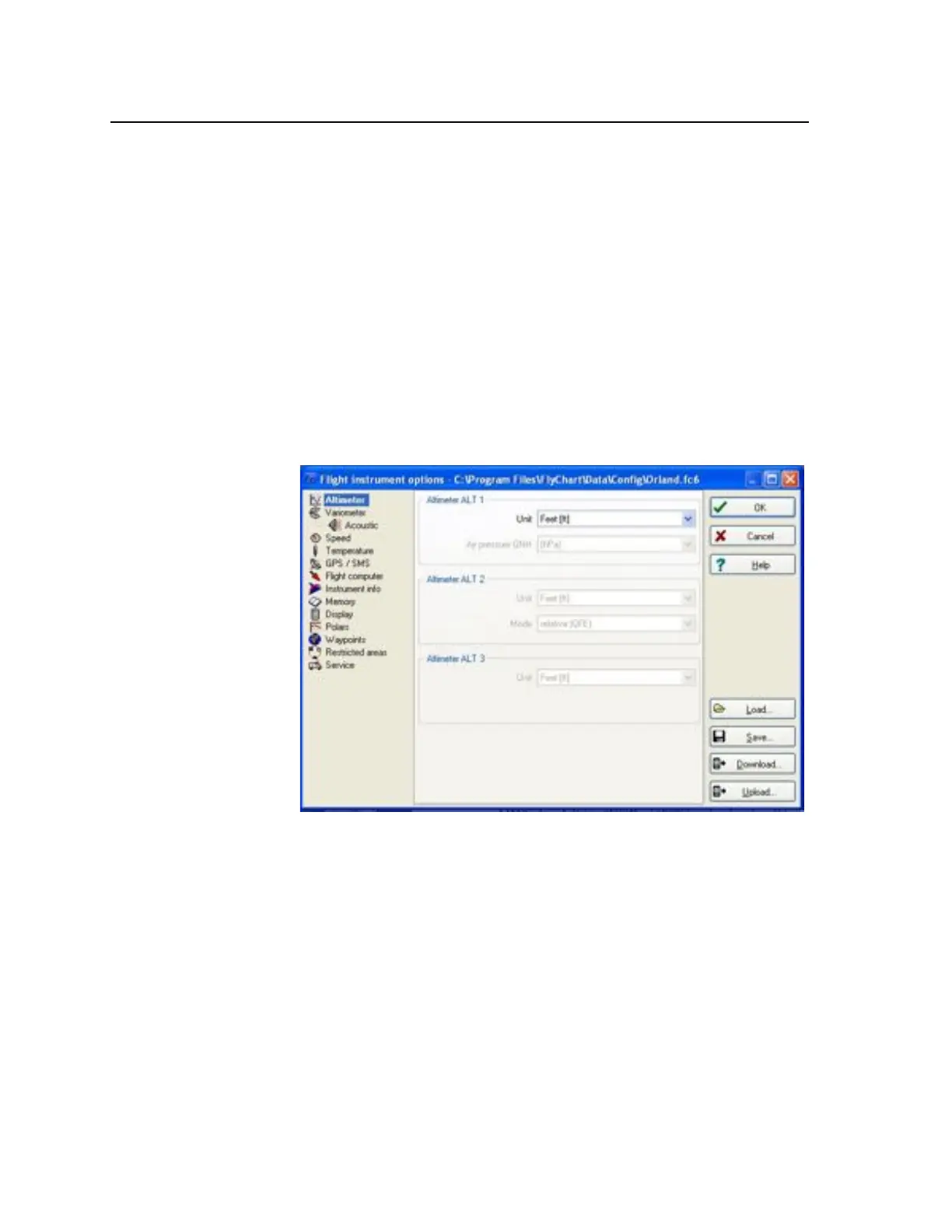
Using FlyChart it is possible
to easily configure the 6030
from your PC. To do this,
turn on the 6030 and enter
the Main Menu, connect the
USB cable to the 6030 and
your PC, then launch
FlyChart. In the FlyChart
Extras menu select Flight
Instrument Options and the
window shown at right will
open. Click the Download
button, and the current
6030 settings will be
downloaded. Click each of
the headings on the left to
see their associated
parameter settings and
make any desired changes.
When all of the changes
have been made, click the
Upload button. After the
status bar shows the
upload is complete, you have the option to save this configuration in FlyChart as the default 6030 configuration,
or to save it under a different name when you click the Close box. In this way it is possible to save multiple
configurations that can be quickly loaded into the 6030. To load a specific configuration click the Load button in
this window, browse to the desired configuration and then click Upload .
8.3 Upload/Download Waypoints and Routes
To exchange waypoints and routes between a PC and compatible flight software (e.g., FlyChart, SeeYou,
CompeGPS) enter the 6030 Main Menu and follow the instructions on the PC for the flight software. When
uploading waypoints and routes, the 6030 checks whether their names already exist, and if so the old names
are overwritten. This search can take a little while so there may be pause between the time you click the Upload
button and the beginning of the waypoint transfer. If the names do not already exist in the list, the new
waypoints/routes are added to the existing list. Note: You should make sure that transferred waypoints
show up in the 6030 waypoint list before you transfer a route from your computer that uses these
waypoints.



 To Next Page