With these features, the instrument is in compliance with Section 7 part D of the FAI Sporting Code. Important:
the characters $, *, !, \, ^, ~ should not be used in the pilot’s name, waypoint’s name, glider type, glider ID, etc.
since they are reserved for use in the .igc file: Failure to observe this can prevent the track log from being read
by scoring and flight software. More detailed information in regard to IGC file format is available on the FAI
website: http://www.fai.org/gliding/gnss/tech_spec_gnss.asp.
Once a flight has been download to a PC it is possible to view the raw data contained in the IGC file by opening
it with a text editor. It is also possible to import the data into a spreadsheet program like Excel for advanced data
analysis. For more on viewing IGC data, please see Section 8.7.
As of 2007, twenty-five countries have joined the Online Contest (OLC). Flights are submitted to the OLC via the
Internet and must follow the IGC format and include a digital signature. GPS receivers like Garmin or Magellan
do not create digital signatures for their track logs. Flight records from these devices must be downloaded to
flight evaluation programs like CompeGPS and SeeYou that create a digital signature when the recording is
downloaded from the GPS to the PC. However, a digital signature created by a PC does not provide very good
security against manipulation of the flight. In the future, it is likely that the regulations will be changed and the
signature will have to be generated by the recording device. To correctly classify and score your flight on the
OLC, the pilot’s name, glider type and glider ID must be submitted with the flight recording. This data can be
entered into the 6030’s memory, and thus be transmitted with the flight record, in Menu>Pilot settings>Pilot
name/Glider type/Glider Id.
7 Restricted Airspace (CTRs)
While flying, there are areas pilots must avoid such as regulated airspace,
danger areas, cables, wildlife protection areas or fields prohibited by a
competition organizer. The 6030 refers to these avoidances as Airspaces
(or CTRs) and it is possible to enter up to 300 airspaces into the active
memory of the 6030 and virtually unlimited CTRs can be stored and
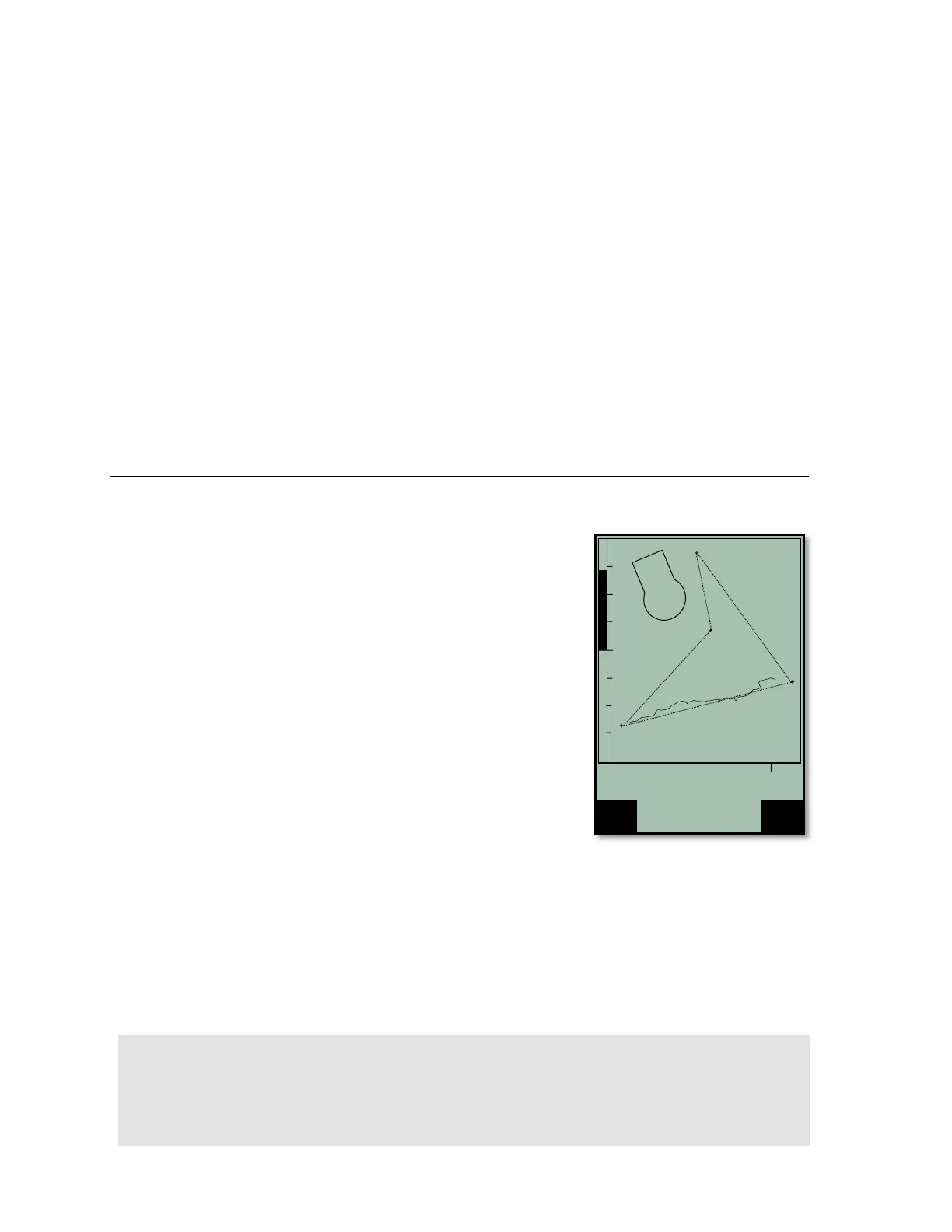
accessed using an SD card. Airspaces loaded into the 6030s active
memory will be shown on the Map page when you are flying in their
vicinity. The instrument will also provide proximity alerts and display the
airspace details when entering the warning distance and when entering the
actual airspace. The distance to the nearest airspace can be seen in the
user-field Dist CTR. If you fly under an airspace floor the user-field Alt
Allowed will show the maximum allowable altitude. Alt Allowed will show -
- if there is no airspace floor present or if you enter an airspace. Airspace
can be entered into the 6030 in three ways:
Direct upload via PC: up to 300 airspaces can be loaded into the
instrument memory using a PC and flight software like FlyChart, GPS
Dump, etc. This method is common at competitions where the meet
staff compiles an airspace file and uploads it via the USB connection.
No SD card is required. Instructions for this method are in section 8.4.
Pre-load CTR file on to an SD card: Airspace files are compiled on a PC and saved to an SD card. The
SD card is loaded into the 6030, the desired airspace file is selected in the SD-Card menu and the 100
closest airspaces of that file are automatically loaded into the airspace list (after the instrument gets a GPS
fix). With this method it is possible to build airspace files for entire states, countries, continents or even the
world and always have the correct airspace loaded when you move from one flying site to another.
Instructions for this method are in section 7.2
Manual entry: CTRs can be entered/edited via the 6030 keypad. This method is very tedious and would
likely only be used to edit an existing airspace or to add 1 or 2 airspaces to an existing list. Manual entry is
discussed in section 7.2.2.



 To Next Page