The most common air space file is OpenAir, which should have a .txt extension. Unfortunately the internal
format of these files is not standardized over the various sources. Consequently the air space file must first be
processed by a small Flytec program OpenAir2faf available on the Flytec website. This small program checks
to see if the format is correct and, if necessary, corrects any errors. In order for this file to be read by the 6030,
the file name must be 8 characters or less with the extension .faf and must be contained in a folder named CTR
in the root directory of the SD card. The .faf file created by the OpenAir2faf program is a standard text file and
can be viewed and edited using any text editor, however, care should be exercised when editing an airspace file
to avoid making an incorrect change to a airspace boundary. The 6030 will accept airspaces to a maximum of
100 vertices, the OpenAir2faf program checks the OpenAir file and will give a warning if any of the airspaces
exceed the 100-vertex limit.
Properly constructed .faf files may be available from fellow pilots, the local flying community, competition staff,
etc. In which case you can simply copy the file into a folder named CTR on an SD card and insert the card into
the 6030. The instructions for creating an .faf file and saving to an SD card are in the section 7.2.2.
7.2.1 Using Airspace loaded on the SD card
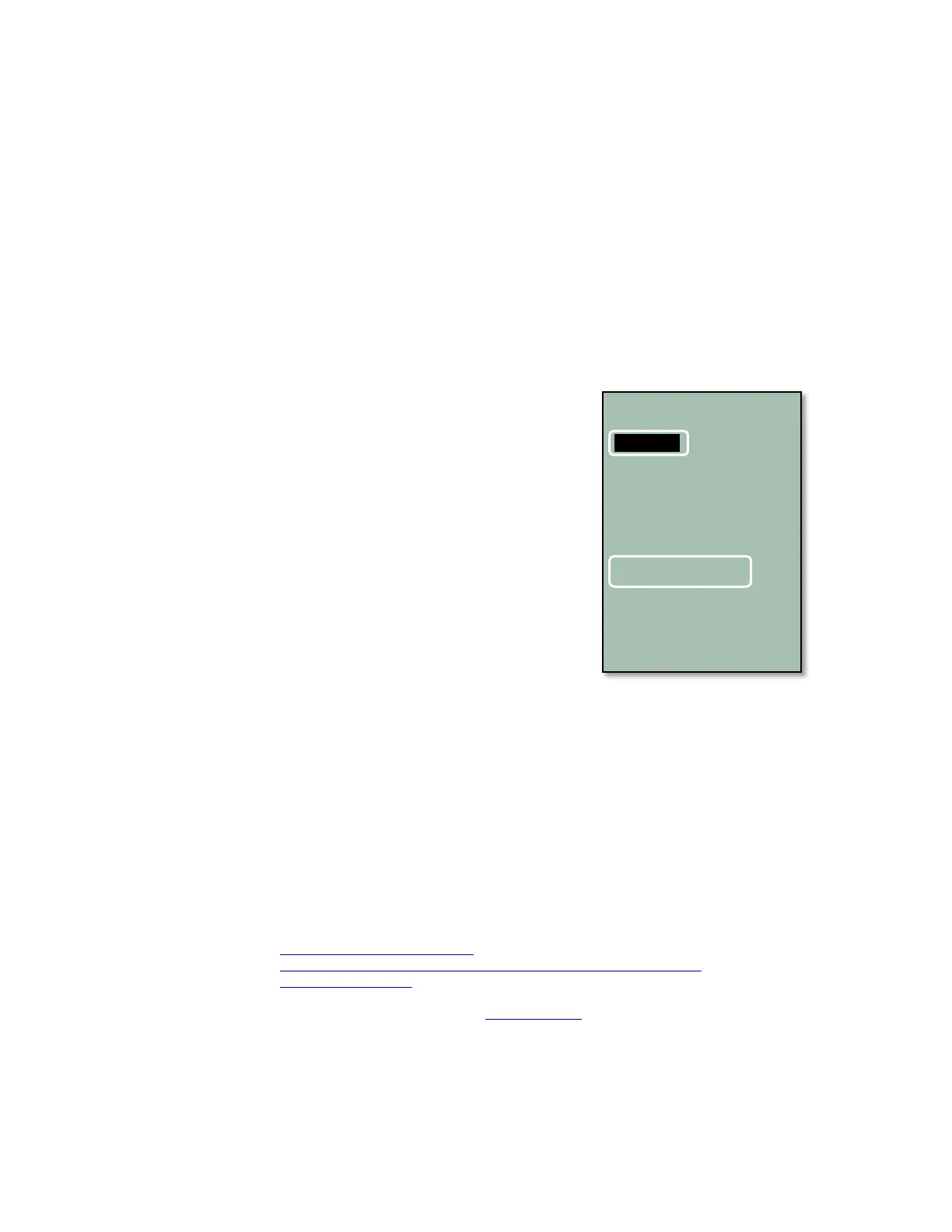
Since there can be multiple .faf files in the CTR folder. The selection as to
which file is used must be made in Menu>Main Setup Menu>SD-
Card>Select CTR file. Highlight the desired airspace with the ▲▼ keys and
press OK. The display will confirm the file you chose as “selected” in the
lower portion of the display. This selection can also be made during the
flight. This is useful if you cross a border for example and the file needs to
be changed.
If the selected file is valid, the instrument examines all the air spaces and
loads the closest 100 CTR's into the instrument memory. This can take up
to 10 minutes depending on the size of the .faf file. Once the 100 closest
airspaces have been loaded into the instrument memory the instrument
finds the 3 closest airspaces and their respective data can be displayed by
pressing the info key. This information is recalculated every second. The
6030/6030 periodically checks the distances to the unloaded airspaces in
the active .faf file on the SD card and if you have moved closer to any of
these, the instrument updates the airspaces accordingly. Consequently,
when the 6030/6030 is in use, the instrument memory will always contain
the 100 nearest airspaces.
If you add or change air spaces on the instrument the instrument will ask, when exiting the Airspace menu, if the
change is to be written to the SD card. If accepted, the updating of the file on the SD card can take several
minutes. The same also applies if you add new CTR's or make changes to the airspaces in the instrument
memory with FlyChart. If you read the airspaces from the 6030/6030 with FlyChart the 100 CTR's in the memory
will be transferred not the contents of the SD card.
Important! To avoid data loss or other malfunction, SD cards should only be inserted/removed when the
instrument is switched off or in the Main Menu. It is recommended that you save your .faf files to a PC since SD
cards are not infallible.
7.2.2 Create .faf file from OpenAir file and load to SD card
1. Locate and download an OpenAir text file for the region you want. Save the .txt file in a place where you
can find it again (e.g. Desktop, folder named Airspace, etc.). If the file is zipped, unzip the file to the folder
above. Some good resource are:
Worldwide: http://soaringweb.org/Airspace/
Germany: http://www.daec.de/fachbereiche/luftraum-flugbetrieb/luftraumdaten/
Switzerland: http://www.flyland.ch/ (SHV members only)
2. Download the airspace utility OpenAir2faf.exe from www.flytec.com. Double click the file and the install
wizard will guide you through the installation. After the installation is complete, three shortcuts (English,
French, German) to the program will be added to your desktop (of course the other shortcuts can be
deleted).



 To Next Page