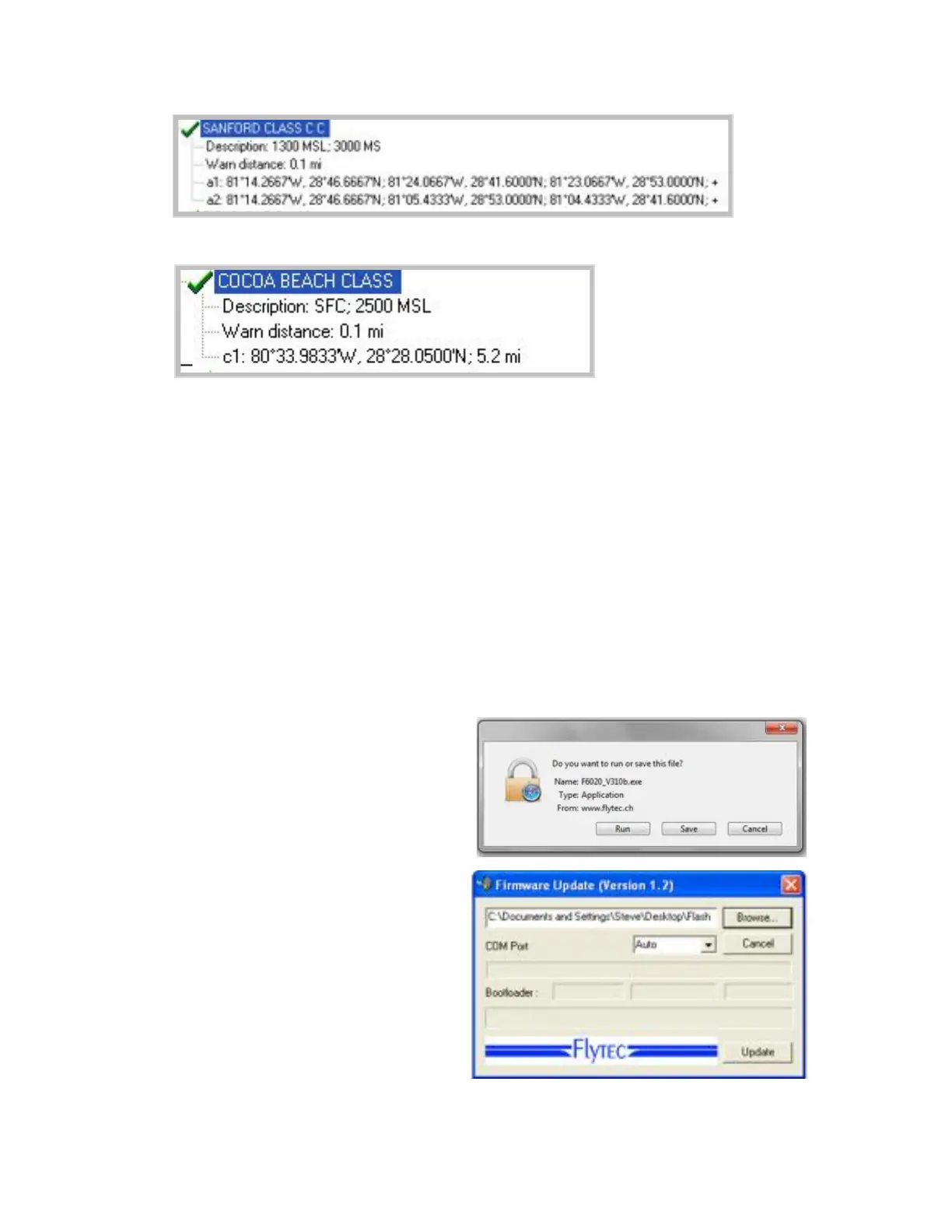
Circles: Circle are defined in the following format: Lat/Long of the arc center; radius in km
8.4.1 Creating an Airspace File with FlyChart
1. Obtain an appropriate regional airspace file in *.fas, *.fa5 or *.txt format
2. In FlyChart>Extras>Flight instrument options>Airspaces click Load, select the above file, and click
Open. All of the airspaces contained in the file will be shown.
3. Select the airspaces that are relevant to you and/or deselect the ones that are not relevant (as
described in item 4 of Section 8.4).
4. Alter individual airspace names, descriptions and warning distances to your preference.
5. If necessary, simplify complex airspaces by deleting points used to define parts that are not
approachable.
6. If necessary, combine airspaces that are nested into each other.
7. Click the Save button, assign an appropriate new name and click OK to store this airspace file in
FlyChart for future use.
8. Click the Upload button to send the airspaces to the 6030. If the speaker is turned on, the 6030 will
beep while the airspaces are being loaded. If a problem occurs during transfer, a lower-pitched beep
will sound.
8.5 Transferring New Firmware to the 6030
Flytec is continually improving, adding features and
enhancements to the 6030 firmware. Periodically Flytec
AG and Flytec USA will post firmware at www.flytec.ch
and www.flytec.com. To update the 6030 firmware, it is
necessary that the 6030 USB driver is installed on your
PC. If you have installed FlyChart 4.52.38 or later the
driver should already be installed. If necessary, you can
download the stand-alone driver from http://flytec.com.
To update the firmware, make certain the 6030 is
turned off and connect the 6030 to your PC with the
provided USB cable. The 6030 may start a high pitched
beeping when the USB cable is connected, if this
occurs, the cable must be unplugged and the 6030
turned off (if it turned on) before attempting to flash the
firmware.. Double click on the appropriate firmware file
on the website and the dialog above right will open.
Click Run, and the Firmware Update window shown
right will open. The Flasher should automatically find
the port that your 6030 is plugged into. Click the
Update button; the firmware upload begins and a status
bar shows the progress. Leave the 6030 undisturbed
until the “Firmware update is complete” message
appears.



 To Next Page