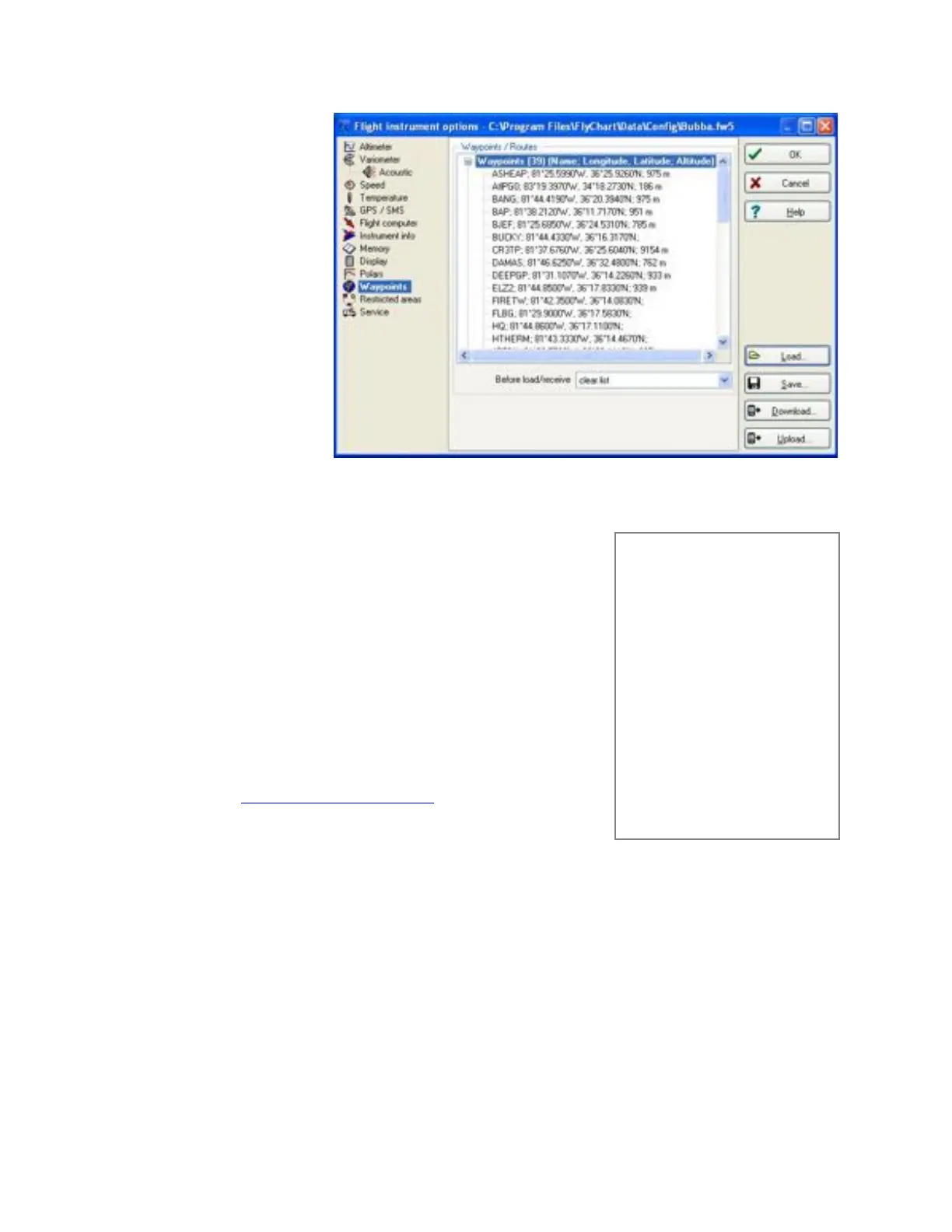
To transfer waypoints and
routes with FlyChart, open
the Flight Instrument
Options window (as
described in the previous
section) and click the
Waypoints heading on the
left side of the window.
Click the Download button
to pull the waypoints and
routes from the 6030 into
FlyChart. To load waypoints
into the 6030, click the
Load button in this window,
browse to select the
desired waypoint file and
then click the Upload
button. FlyChart can handle
FlyChart .fw5 files, SeeYou
.cup files, CompeGPS .wpt
and .rte files, GPS
eXchange .gpx files,
SwissMap 50 .smo files and Garmin files.
8.4 Uploading Airspace with FlyChart
Airspace to be avoided can be entered/edited/deleted in the 6030
manually as described in Section 7.3, or far more easily with FlyChart, as
discussed below. Generally airspaces are assembled into a file will likely
consist primarily of aviation authority airspaces (e.g., airports, MOAs,
etc.) but may also include high-tension lines, government lands,
unfriendly landowners, etc. Due to the processing power required for the
6030 to continually refresh the map and calculate distances, it is
recommended that airspace files only contain individual airspaces that
you could possibly reach during a flight. For this reason it is preferable to
load the airspace file onto an SD card and let the 6030 automatically
load, and update as needed, the 100 closest airspaces. For more
information on this refer to section 7.2
Airspace files can be obtained from the Internet, fellow pilots, competition
staff, etc. or can be built in FlyChart (see section 8.4.1). FlyChart is able
to open airspace files in OpenAir format (*.txt files) available from
resources like http://soaringweb.org/Airspace/. These files are normally
derived from an open database called DAFIF (see the disclaimer at the
beginning of the *.txt file). At right is an example of a airspace taken from
a DAFIF file. The relevant airspaces within your flying area can be
selected and saved to a file in FlyChart. You can create and save different airspace files for use when flying
different flying sites. Other avoidances like power lines, wildlife refuges, etc. can be added to these files as
needed. Airspace files saved with FlyChart will have the suffix *.fa5 and can be quickly loaded to the 603.
Please see section 8.4.1 for more information on creating an airspace file.
Once an airspace list has been built and saved with FlyChart (*.fa5 file) it can be uploaded to the 6030 as
follows. The following assumes that you have installed and set up FlyChart on your PC and have connected the
6030 with the USB cable.
1. In FlyChart select Extras>Flight instrument options.
2. In the Flight Instrument Options window select Restricted Areas, and an empty frame will open.
*## (CLASS B) ORLANDO (C1)
###
AC B
SB 0,150,255
AN MCO: 124.8 MHz
AL 1600AMSL
AH 10000ALT
DP 28:44:00 N 081:25:30 W
DP 28:45:45 N 081:25:00 W
DP 28:47:20 N 081:25:00 W
DP 28:48:40 N 081:25:20 W
DP 28:50:00 N 081:24:30 W
DP 28:50:00 N 081:02:30 W
DP 28:44:00 N 081:02:30 W
Note: the starting point and the
ending point do not have to be
identical.



 To Next Page