Important: Due to memory reorganization that may occur during firmware updates, it is recommended that
the 6030 be reinitialized after loading new firmware This can be done with the Clear/Initialize memory in the
Main Setup Menu. Flights, waypoints/routes, loaded airspace and user settings can be downloaded and
8.6 Optional Software
With the help of a release code obtainable from the Flytec AG or Flytec USA, additional special functions can be
activated. To enter a release code:
• Select Optional SW-Packages from Device settings in the Main Menu and press OK.
• Highlight the appropriate software package from the Optional Software Packages list.
• Press OK and the code 30000 will start blinking.
• Press the " key; the code will jump to 30000.
• Use the !" keys to set the code obtained from Flytec and press OK.
• The 6030 display will display “Package released”.
Note: If you enter a wrong code, the instrument will be blocked for 5 minutes or longer!
8.7 Viewing the Contents of an IGC File
To view the raw data contained in the IGC file, download the instrument with a flight evaluation program such
FlyChart or SeeYou, save the flight as an IGC file and then open the desired flight file with a text editor. Or if
technical analysis of data is desired, the IGC file can be imported into a spreadsheet program such as Excel. It
should be noted that any changes made to an IGC file will void the Digital Signature contained in that file and
created by the instrument to insure against manipulation. Consequently an IGC file that has been altered will not
be accepted by scoring software. The steps for importing an IGC file to Excel are:
1. Select the Import command from File>Menu in Excel.
2. Select the Text file radio button in the dialog box.
3. Browse to the desired file, make sure All Files is enabled and click Open.
4. Select Fixed Width as the data type and click Next.
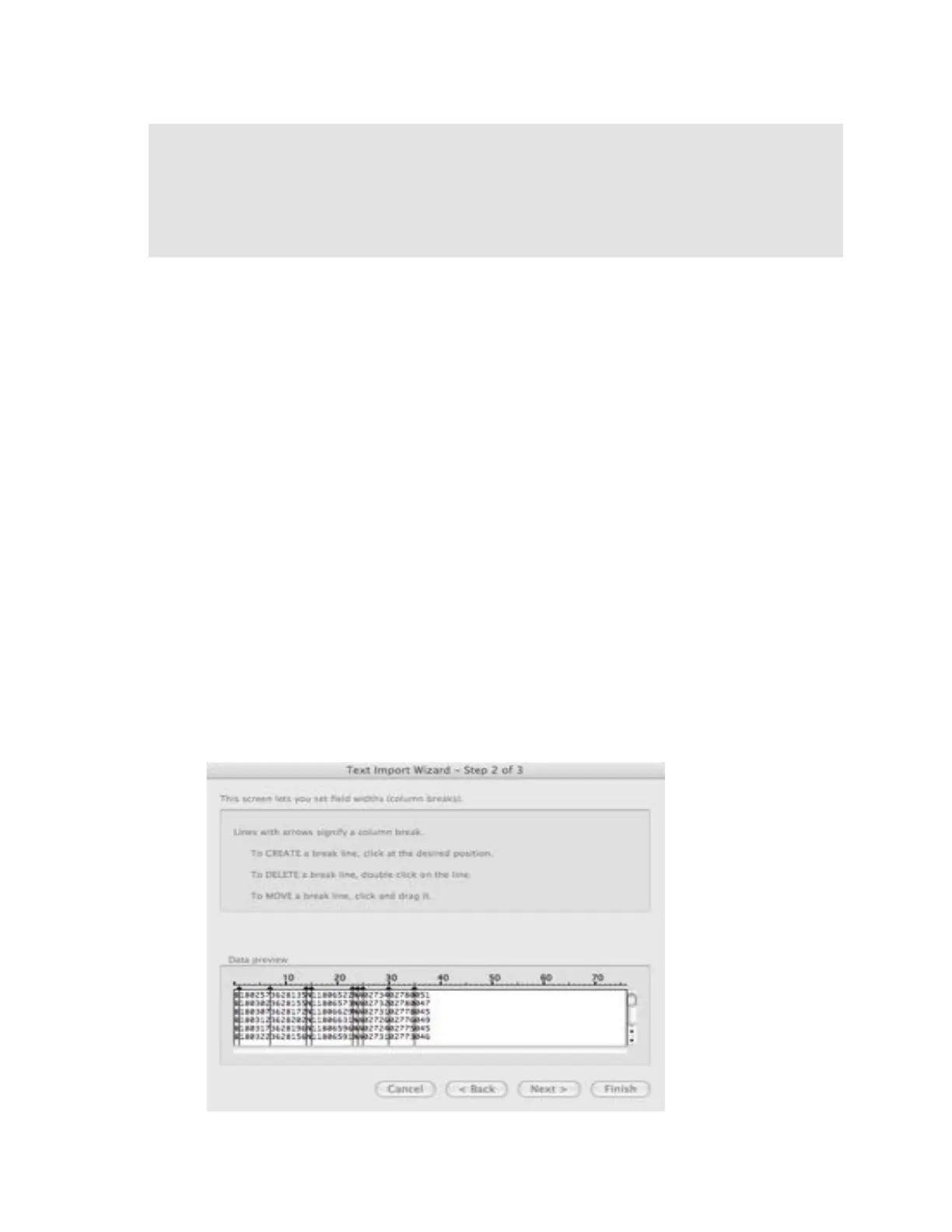
5. Set column breaks at 1, 7, 14, 15, 23, 24, 25, 30 and 35, and click Next. (see figure at right).



 To Next Page