8
1 INTRODUCTION
Learn more in Section 10: Layouts & Switches.
The Master Layout menu automatically assigns different layouts to different footswitches in order. Footswitch
1 loads Layout 1, Footswitch 2 loads Layout 2, and so on. If your layouts have names, these will be shown in the
Mini-Displays. When you activate any switch to select a layout, it is loaded immediately. The currently selected
layout will be shown with a bright LED ring, while other options are dimmed. To exit the MLM without changing the
current layout, just select the bright switch to go to the current layout again.
If the lower right switch has a Tap function, this function will not be activated by the MLM Switch Combo. If
the lower right switch has a Hold function, you can still easily execute the MLM Switch Combo quickly, before
the Hold function res. If the Hold function should re, the Master Layout Menu will still be displayed after you
execute the combo stomp. Learn more in “The Rules of Switch Timing” on p. 14.
When you design your own layouts, avoid using a hold function on the
lower right switch, or consider one that doesn’t change your sound,
just in case you accidentally re it while activating the MLM.
A layout can also include Tap or Hold switches that change to other
layouts without the MLM. You can also “piggyback” a layout change on
another switch function using a “Layout Link.”
LAYOUTS
The FM9 is based on our popular FC controllers. The central concept behind all of these products is the Layout.
A layout is a set of footswitch denitions. You can change the layout to change what the footswitches do. All
layouts and switches can be completely customized. The FM9 provides eight layouts in total, plus one special
“Master” layout (covered below). Layouts have both numbers and names to make them easier to manage.
There are multiple ways to change the layout on the FM9. The easiest is probably to turn knob E on the Home
page of the Home Menu. You wouldn’t be able to do this easily while you are playing, however, so we created the
Master Layout Menu and Layout Switches so you can change layouts with your feet.
The FM9 Factory Default Layouts also include some pre-programmed footswitches to change layouts in a way
that is easy, convenient, and intuitive. See Section 10: Layouts & Switches for more on this subject.
THE MASTER LAYOUT MENU
Switching from one layout to another is the key to the versatility of the FM9. There are many ways to do this, but
the built-in Master Layout Menu (“MLM” for short) will be the rst method you’ll want to understand. The Master
Layout Menu grants instant access to other layouts, one per footswitch.
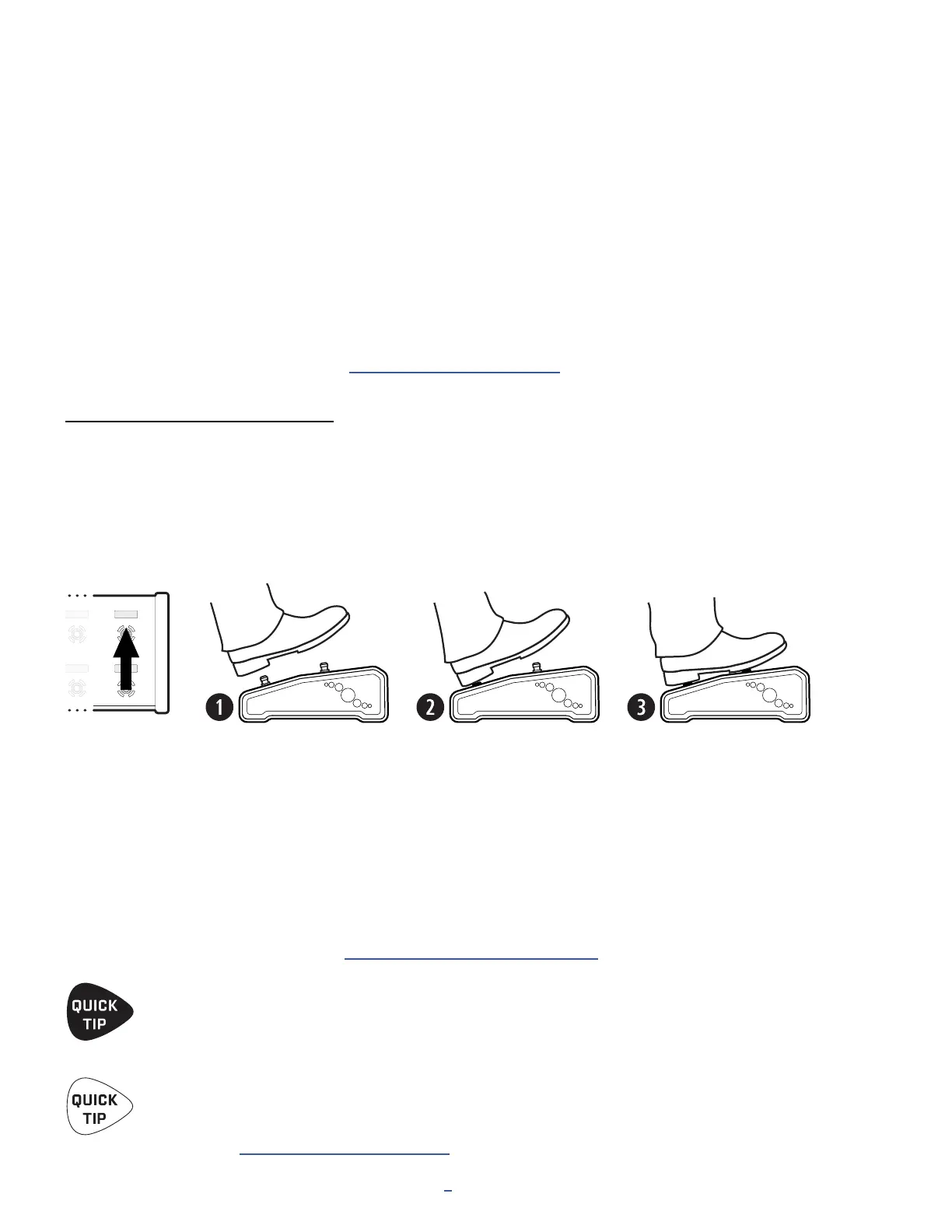
To show the Master Layout Menu, rock your foot from heel to toe over both of the two right-most footswitches on
your FC, as shown in the following illustration of the “MLM Switch Combo.”


 To Next Page