79
10 LAYOUTS & SWITCHES
STAND-IN SWITCHES
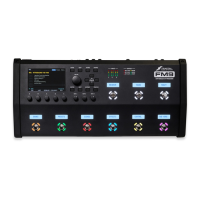
Stand-In Switches allow an external switch to re the function of a switch in any layout. This requires you to have
one or more external switches. These can be connected directly to the FM9 (see p.12) or to an FC Controller
(see your FC Owner’s Manual).
Without the Stand-In Switch feature, the capabilities of an external switch are very limited. Modiers and global
functions, for instance don’t have any press-and-hold capabilities, and they can’t, for instance, change a Bank,
switch a Layout or View, or have any kind of per-preset capability.
To make such switches more powerful, we created Stand-In Switches. This feature allows a connected external
switch to operate like a remote control for any switch that you have already programmed in a layout on your FM9.
For example, you might normally have Layout 3, Switch 12 set to bypass/engage the Trem Pan 1 block on tap,
and toggle the block’s channel from A to B on hold. When you set up an external switch Stand-In for Layout 3,
Switch 12, it now performs these functions. This even allows an external switch to perform per-preset functions
as described on the previous page. Be aware that the stand-in is just a pointer. If you change the switch under
remote control, the function of the stand-in will change too.
TO CREATE A STAND-IN SWITCH:
1. From the Home page, open SETUP: FC Controllers/Onboard Switches
2. Page to the Stand-In Switches tab.
3. Navigate up or down to the switch you want to set up. For example, “FM9 SW2 Tip”
4. Select the desired Layout and Switch using the B and C or Value knobs.
5. Set up any other Stand-In Switches and press Home when nished.
6. Test your switch.


 To Next Page