9
1 INTRODUCTION
FOOTSWITCHES
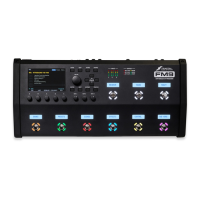
The FM9 has nine built-in footswitches, each with its own mini-display and vari-color LED ring. Footswitches
can be used to change presets, select scenes, toggle effects, and much more. This page introduces the basic
concepts, while Section 10: Layouts & Switches covers the topic in greater detail.
SWITCHING PRESETS
Let’s begin with how to explore the factory presets and scenes using the footswitches. When the FM9 starts up,
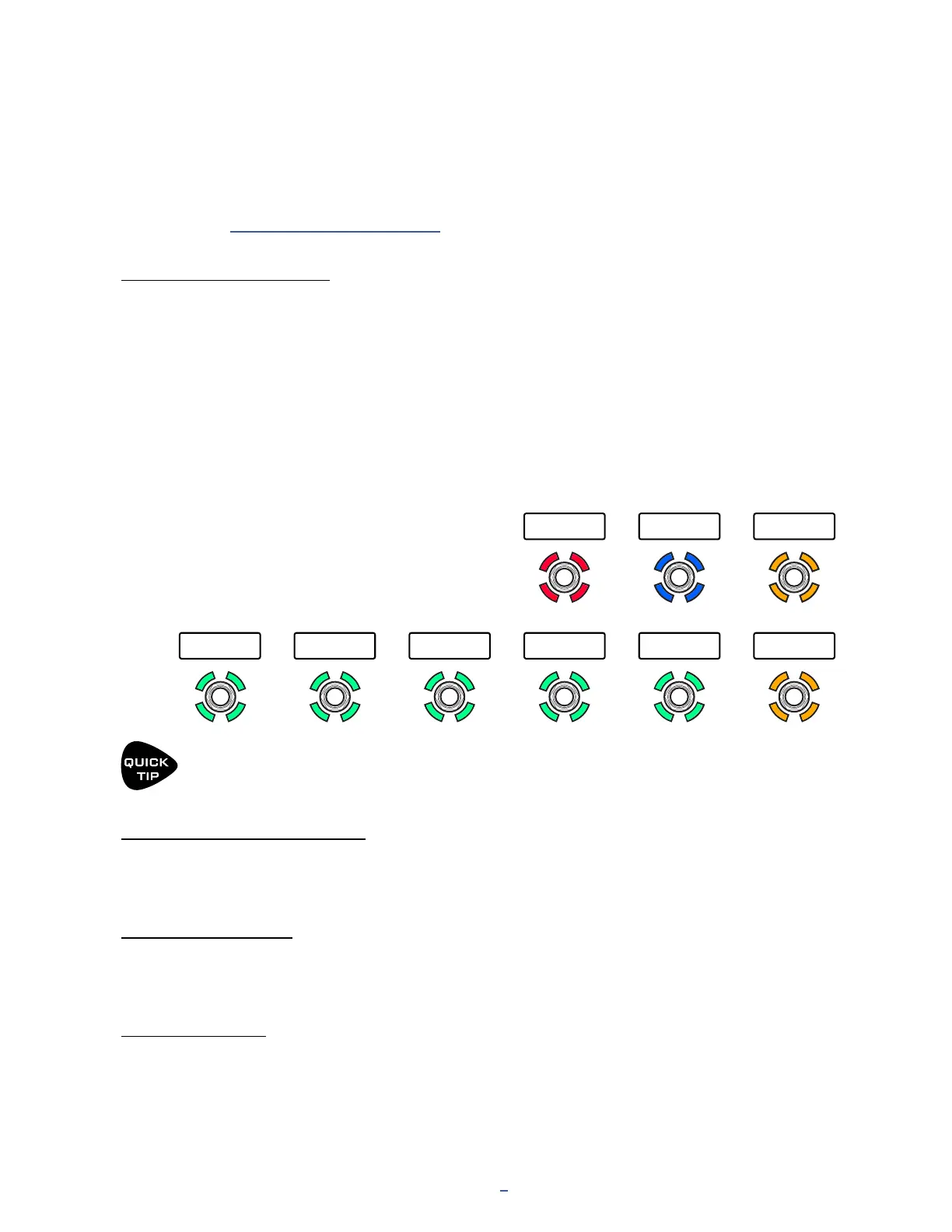
it loads the Presets Layout, shown below. In this Layout, the rst ve footswitches (green) each select a single
preset. Preset names are shown in the mini-displays. The current preset will have a bright ring and the others will
be dim.
A “bank” is a group of presets. To change to the next bank of ve presets, tap the Bank +1 footswitch. To change
to the previous bank, tap the Bank -1 footswitch.
The extra top two switches can be used to jump to the Scenes Layout and for Tap Tempo. Press and Hold the Tap
Tempo switch to show the TUNER. Once you change to the Scenes Layout, the same switch that got you there can
be used to return to the Presets Layout.
You can use the MANAGE PRESETS feature of FM9-Edit to drag and drop presets of the FM9 into any order
you wish. Put your favorites in groups of ve so you’ll have what you need without a lot of bank changes.
59 Bassguy Plexi 50W Friedman Class-A 30W 5153 BANK -1
SCENES Tap Tempo BANK +1
(Hold for Tuner)
FOOTSWITCH FUNCTIONS
Every footswitch in every Layout can have its own independent Tap Function and Hold Function. Functions are
arranged in Categories like “Presets”, “Scenes”, or “Effects”. A special “EZ” mode makes these simple to assign.
LED RING COLORS
Every footswitch category has its own default LED ring color. You can change the default colors in SETUP: FC
Controllers: Ring Colors. You can also change the color of any individual switch.
MINI DISPLAYS
The Mini-Display for each switch shows a label for the Tap function. While the switch is depressed — even for a
normal “tap” — the label changes momentarily to show the Hold function. Each function has several options for
the mini-display, and you can even use your own custom labels.


 To Next Page