25
3 USB
BASIC RECORDING
BASIC PLAYBACK
The specic steps for recording on a given computer will vary based on its operating system and recording
software, but the basic idea is to select the FM9 as your audio interface, set the project sample rate to 48k, create
a track, assign the desired input, and begin recording. Remember that USB 1+2 will record what you hear at the
main outs of the FM9.
The specic steps for playback on a given computer will vary based on its operating system and software, but the
basic idea is to select the FM9 as the audio interface and begin playback.
On Mac OS, no driver is needed.
Connect the FM9 to an available USB port.
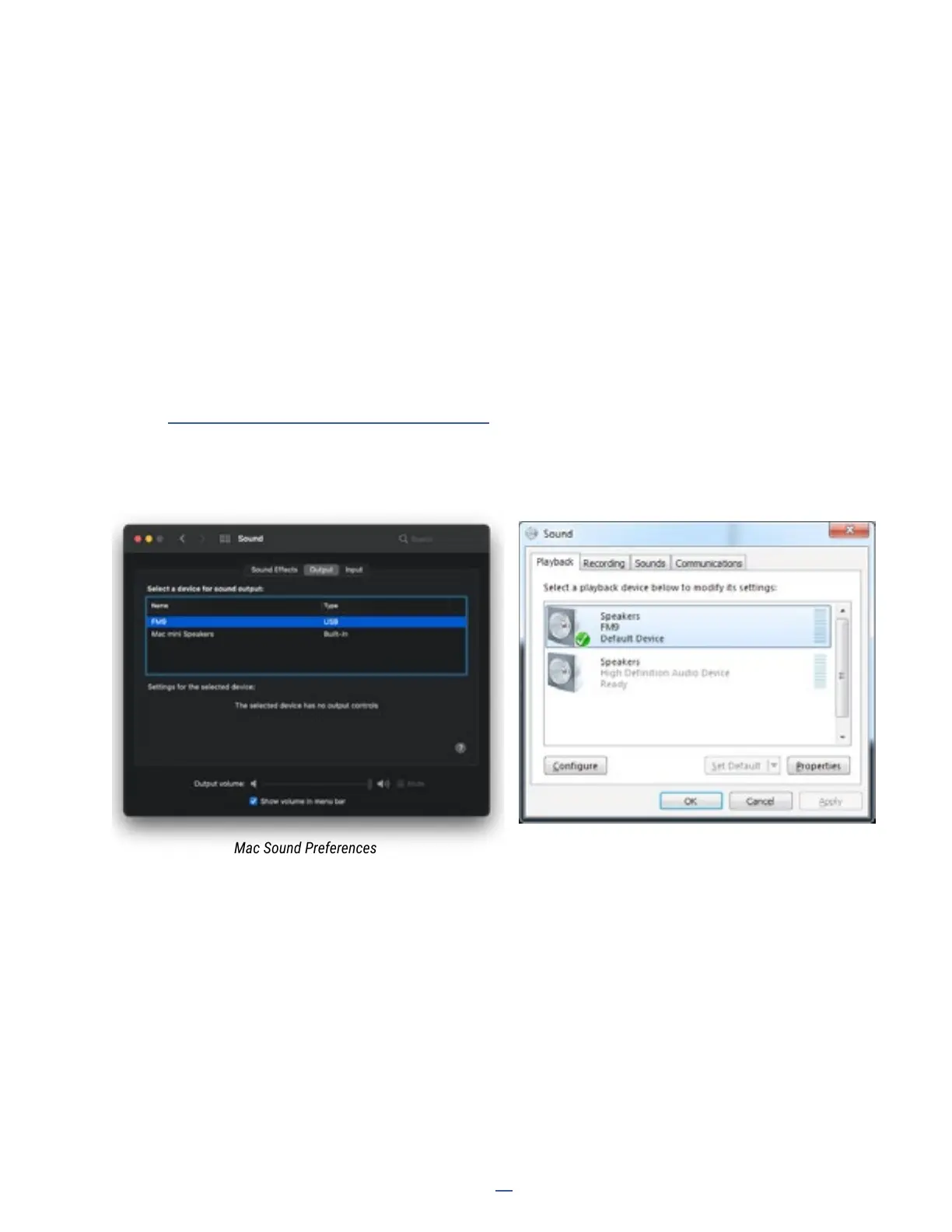
On your Mac, open System Preferences: Sound and select the FM9 as the output device (shown below).
System audio such as Apple Music will be be played back through FM9 Output 1 (Left and Right.)
On Windows you must install the driver rst.
Find FM9 USB Audio Setup at:
https://www.fractalaudio.com/FM9-downloads/
Once the drivers are installed, open Sound under Control Panel.
Select the FM9 and then click “Set Default”.
System audio such as Microsoft Music Player will be played back through FM9 Output 1 (Left and Right.)
Whichever OS you are using, you can conrm that the FM9 is receiving audio by viewing the Meters page of the
Home menu, where you should see meter activity on USB IN 1L and 1R. If you turn up the OUT 1 LEVEL knob, you
will also see meter activity on ANALOG OUT 1L and 1R and hear audio at the connected speakers.
Mac Sound Preferences Windows Sound Preferences


 To Next Page