26
3 USB
USB RE-AMPING
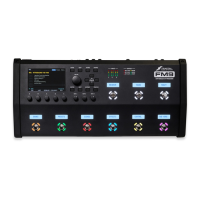
The FM9 USB Audio capabilities are perfect for “re-amping,” a method in which the raw, unprocessed DI output of
a guitar is recorded and then re-processed later through the amp, cab, and effects of your choice.
Re-amping has many benets. First, it allows you to record when inspiration strikes, capturing a DI instead of
obsessing over the nal tone. Later, you – or a mix engineer – can redesign the sound as your track’s production
advances. Punches and edits made on the DI track are also made virtually inaudible by the re-amping process.
The FM9 allows you to dial in new tones while simultaneously listening to the track for context.
STEP 1: RECORDING
The following tutorial assumes that you have connected Output 1 L/R to monitors or headphones. The details
may vary from one DAW to another, but this guide should be easy to adapt to your own environment.
1. In your DAW, select the FM9 as the main audio interface. Set the main outputs to FM9 Outputs 1+2.
2. Create a new project in the DAW, and set its sample rate to 48kHz.
3. OPTIONAL: Record or insert any backing tracks and test their playback at FM9 Output 1.
4. Connect your guitar to the Instrument input of the FM9 and select any preset desired.
5. Now record the DI:
Create a mono track. Name this track something like “Guitar DI”. Set its input to FM9 Input 5.
This will record the signal at the Instrument jack with no processing.
Arm this Guitar DI track for recording, making sure that Software/Input Monitoring is NOT enabled.
Start RECORDING. You will hear the processed guitar but record the DI.
Note: You can simultaneously record processed guitar on a different track at the same time by arming a
separate stereo track to record FM9 Inputs 1 and 2.
Be aware: while a processed track will show “hot” levels, the level of a DI track will appear to be very low.
This is NORMAL! You are recording the raw signal exactly as it comes out of your guitar.
YOU HAVE NOW RECORDED YOUR DI.
STEP 2: RE-AMPING
Before re-amping, we must rst check some settings on the FM9. Press HOME and open SETUP. Navigate to the
I/O menu, and change Digital Input Source to USB (CHANNELS 5/6). Then change Input 1 Source to “DIGITAL”
(remember to change this second setting back when you nish re-amping.)
6. Change the output of your “DI” track to FM9 Output 5.
7. NOTE: You may wish to turn down the volume of your studio monitors before testing playback!
To test playback, optionally solo the DI track, rewind to where the DI clip begins, and press PLAY. You should
hear the DI being processed by your FM9 preset.
8. Now prepare to record the processed output of the re-amp:
Create a stereo track. Name it something like “Guitar Re-Amp 1”.
Set its inputs to FM9 Inputs 1+2.
Arm your re-amping track for recording, making sure that Software/Input Monitoring is NOT enabled.
9. Rewind, press RECORD, and roll the track. The DI plays into the FM9 and its output is recorded.
Again, the method described here is very basic, but it should serve as a guide to get you started.


 To Next Page