76
10 LAYOUTS & SWITCHES
EDIT A SWITCH
Select any switch on the Edit Layout page (p. 75) and press
EDIT SWITCH or ENTER to open the selected switch for deep editing.
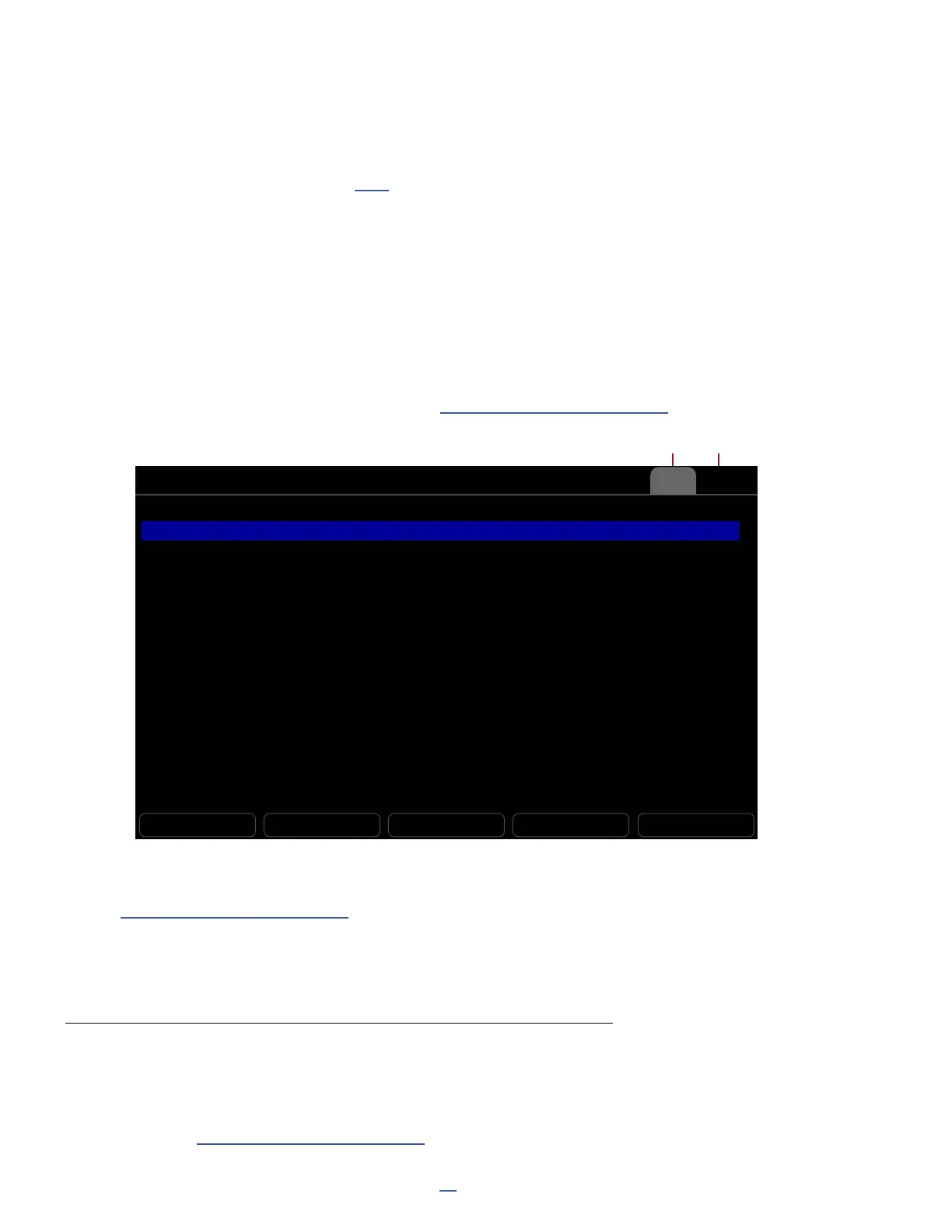
The Edit Switch view has two pages: one for its Tap function and one for its Hold function.
Each page shows the current Category and the Function for the switch, plus any and all parameters for the
current function.
Use the A, B, C, D, and E knobs or the NAV buttons and VALUE wheel to make changes.
On the Tap page, you can also change the Switch Ring Color for an
individual switch, overriding the usual default Category color.
You can select from different automatic “labels” for the Mini-Display, or even enter custom text.
Details on the various label options can be found in “The Footswitch Functions Guide”
Notice the Tap and Hold pages
RESET TAP
Edit Layout 1: PRESETS / Switch 5 Tap HoldTap
TAP FUNCTION
Category
Function
Preset
Mini-Display Label
Switch Ring Color
LAYOUT LINK
FM9 Layout
FM9 View
FC#1 Layout
FC#1 View
FC#2 Layout
FC#2 View
Preset
Select in Bank
5
Name
Default
--
--
--
--
--
--
The LAYOUT LINK parameters allow the Tap or Hold function of the switch to also
change the and Layout and View of the FM9 and up to two connected FC units.
See ”The Footswitch Functions Guide” for more on Layout Links.
The RESET button (Push-knob A) clears the function and all customization from the current page.
(A conrmation screen requires you to press ENTER rst.)
A NOTE ON PRESS & HOLD LABELS IN THE MINI DISPLAYS
The Mini-Display for each switch shows the label for its Tap function. When a switch is pressed down — even
briefly for a normal “tap” — it changes to show the label of the Hold function, even if you don’t keep holding the
switch down until its Hold function res.
A special “Reveal Hold” utility switch can also cause all mini-displays to persistently show the Hold functions for
their switches. See ”The Footswitch Functions Guide” for more on this.


 To Next Page