69
10 LAYOUTS & SWITCHES
CHANGING LAYOUTS
Changing from one layout to another is the key to the versatility of the FM9. There are many ways to do this:
On the home page of the home menu, use Knob E.
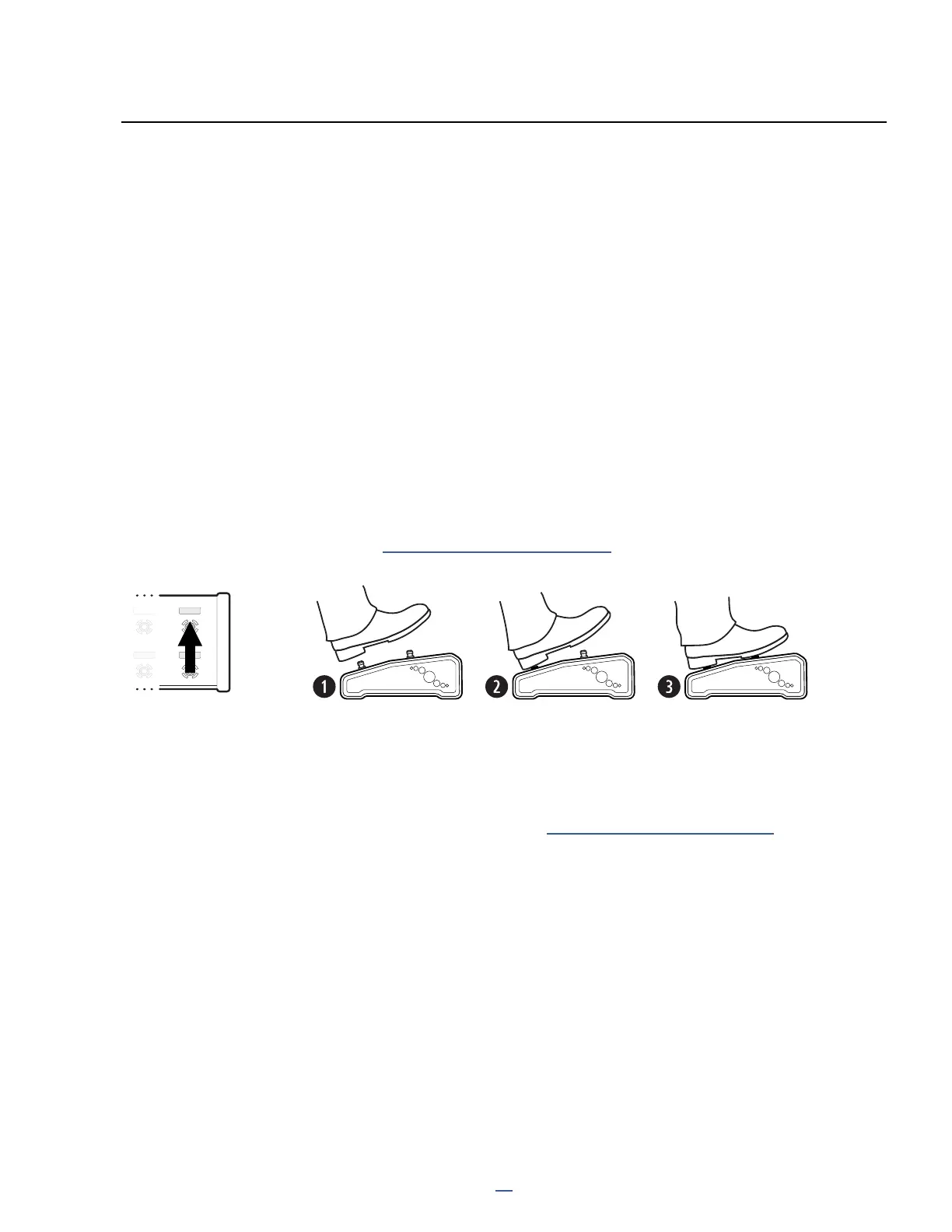
Use the Master Layout Menu (“MLM” for short). This special menu grants instant
access to other layouts, one per footswitch. To show the Master Layout Menu, use
the “combination stomp” shown in “The Master Layout Menu” on p. 8.
10 LAYOUTS & SWITCHES
Footswitch operation of the FM9 is based on Layouts. A layout is a set of footswitch denitions, each with one
Tap and one Hold function. You can change layouts on the fly to change what the footswitches do. For example,
one layout might be used to select Presets, while a different layout selects Scenes. The FM9 provides eight
layouts, plus one special “Master Layout Menu”. Any switch in any layout can be completely customized with your
choice of functions, colors, and more. Layouts even have their own names to make navigating easier.
While not performing, you can also easily change the layout on the FM9 itself by turning the FC Layout knob on
the Home page.
Use a footswitch whose function is set to change the layout. The factory default layouts use this
capability to provide an easy way to go from selecting Presets to selecting Scenes (and back).
Use Layout Links: this advanced feature allows you to piggyback a layout change on the regular tap
or hold function of a footswitch. You might use this, for instance, to change automatically to the
Scenes layout whenever you select a Preset. Learn more in ”The Footswitch Functions Guide”.


 To Next Page