118
“My Menu”
Selecting the E ( MY MENU) tab displays a personalized custom menu of frequently-used options (P 100).
Editing “My Menu”
1
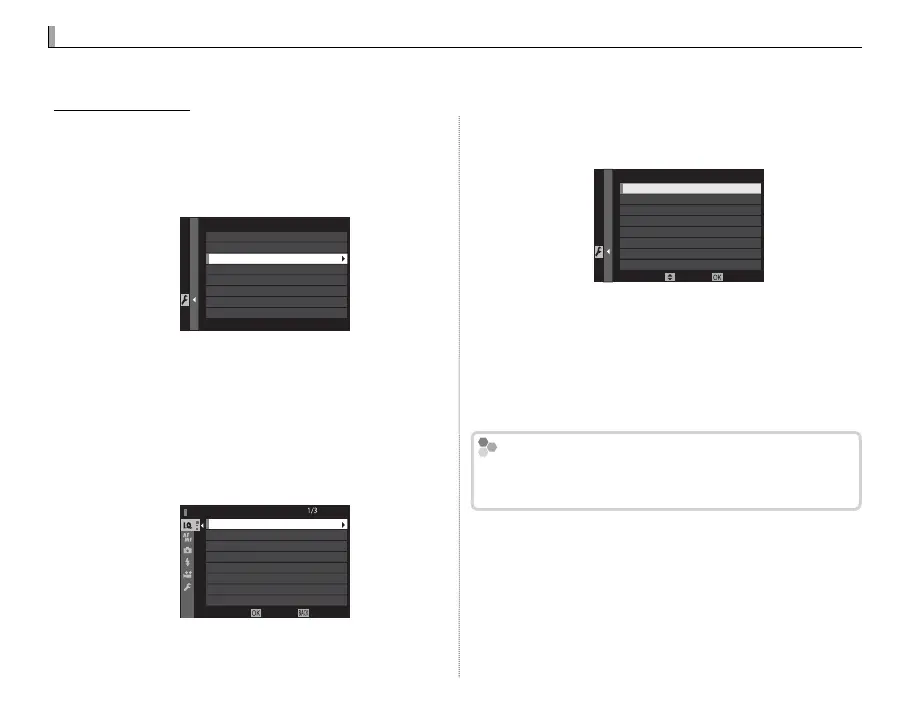
In the setup menu D USER SETTING tab,
highlight MY MENU SETTING and press
MENU/OK to display the following options
(P 106).
MY MENU SETTING
MY MENU SETTING
RANK ITEMS
REMOVE ITEMS
2
Press the selector up or down to highlight MY
MENU SETTING and press MENU/OK. Options
that can be added to “my menu” are highlight-
ed in blue.
R Options currently in “my menu” are indicated by
check marks.
IMAGE QUALITY
RAW RECORDING
FILM SIMULATION
GRAIN EFFECT
DYNAMIC RANGE
WHITE BALANCE
HIGHLIGHT TONE
MY MENU SETTING
IMAGE SIZE
CANCELSELECT
3
Highlight an item and press MENU/OK to add it
to “my menu”.
MY MENU SETTING
1 IMAGE SIZE
SAVEMOVE
4
Press MENU/OK to return to the edit display.
5
Repeat Steps 3 and 4 until all the desired items
have been added.
R “My menu” can contain up to 16 items.
Editing “My Menu”
To reorder or delete items, select RANK ITEMS or RE-
MOVE ITEMS in Step 1.


 To Next Page