33
First Steps
The DISP/BACK Button
■ Customizing the Standard Display
To choose the items shown in the standard display:
1
Display standard indicators.
Press the DISP/BACK button until standard indicators are displayed.
2
Select DISP. CUSTOM SETTING.
Select D SCREEN SET-UP> DISP. CUSTOM SETTING (P 111) in the setup menu.
3
Choose a display.
Highlight OVF or EVF/LCD and press MENU/OK.
4
Choose items.
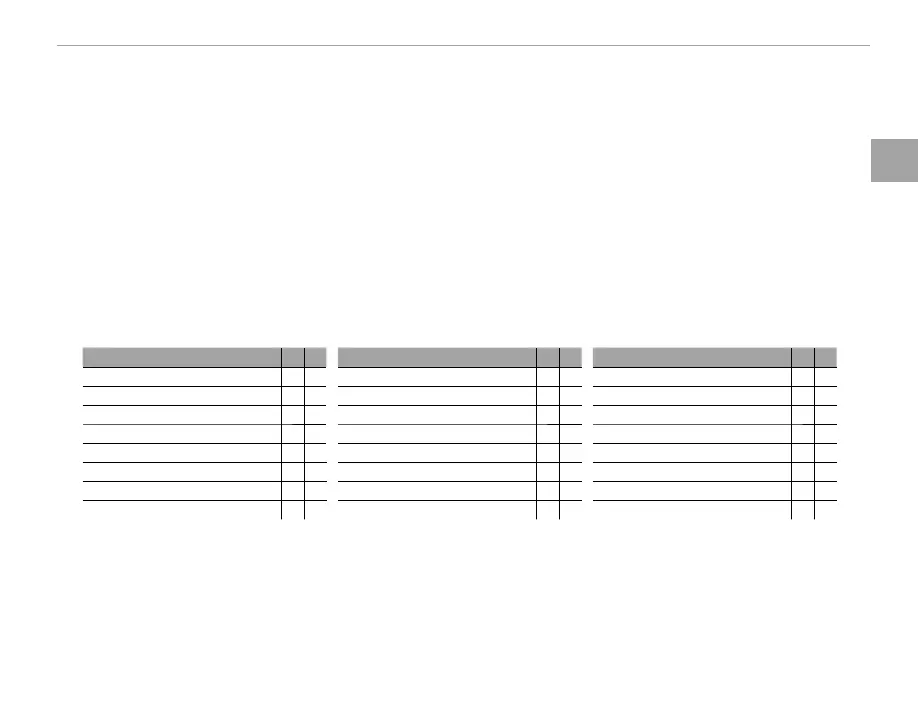
Highlight items and press MENU/OK to select or deselect.
Option
OVF
EVF
Option
OVF
EVF
Option
OVF
EVF
FRAMING GUIDELINE
ww
INFORMATION BACKGROUND
—
R
DUAL IS MODE
RR
ELECTRONIC LEVEL
ww
Expo. Comp. (Digit)
ww
WHITE BALANCE
RR
FOCUS FRAME
RR
Expo. Comp. (Scale)
RR
FILM SIMULATION
RR
AF DISTANCE INDICATOR
ww
FOCUS MODE
RR
DYNAMIC RANGE
RR
MF DISTANCE INDICATOR
RR
PHOTOMETRY
RR
FRAMES REMAINING
RR
HISTOGRAM
ww
SHUTTER TYPE
RR
IMAGE SIZE/QUALITY
RR
SHOOTING MODE
RR
FLASH
RR
MOVIE MODE & REC. TIME
w
R
APERTURE/S-SPEED/ISO
RR
CONTINUOUS MODE
RR
BATTERY LEVEL
RR
5
Save changes.
Press DISP/BACK to save changes.
6
Exit the menus.
Press DISP/BACK as needed to exit the menus and return to the shooting display.
R See page 8 for the locations of these items in the displays.


 To Next Page