CHAPTER 3: Setting Up and Getting Started
32
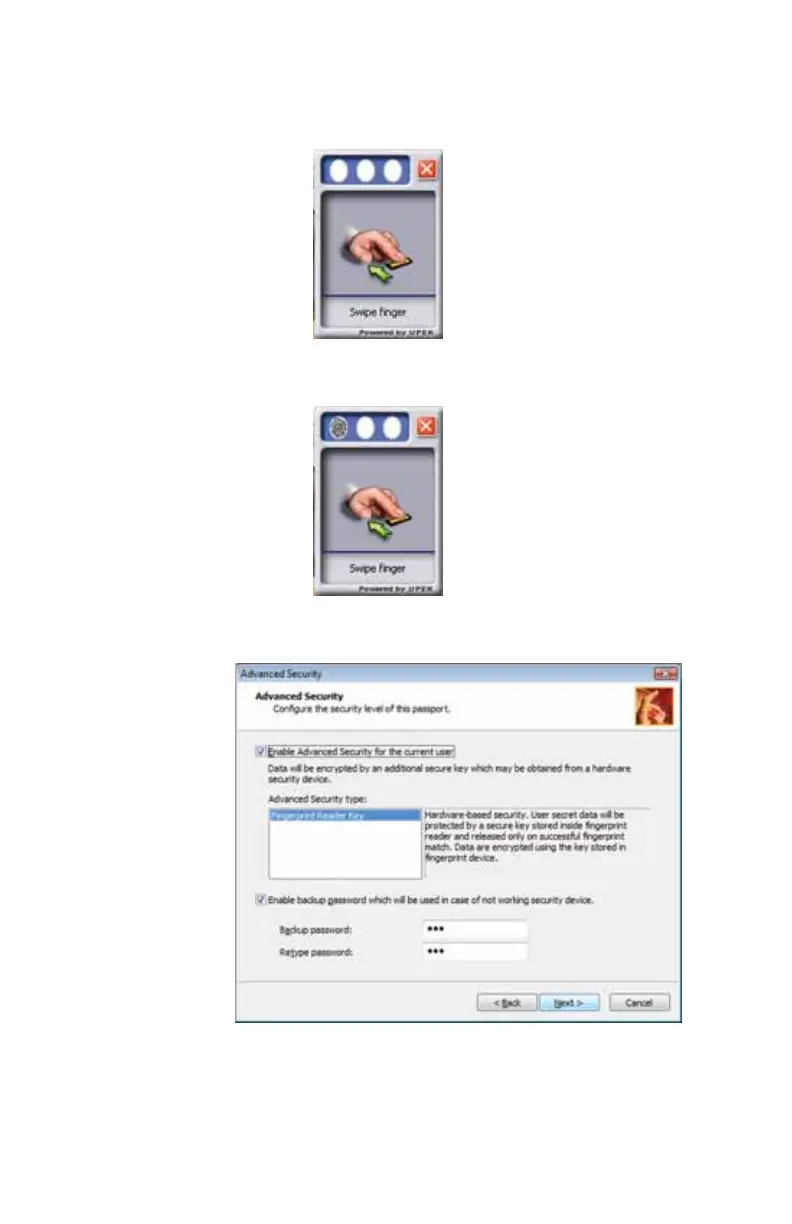
5 Click the button above the finger you are enrolling. A
new box appears with three empty circles in it.
6 Swipe your finger. A sample will be created and is
indicated by a fingerprint icon in one of the circles.
7 Repeat Step 6 two more times, then click Next. The
Advanced Security screen appears.













 To Next Page