23
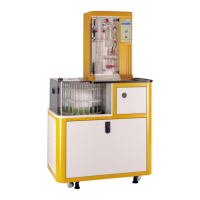
Vapodest 50s carousel
2. After selecting the language, select "Vapodest Manager Installation" from
the menu. The automatic installation routine will start. Please be kind enough
to follow the instructions on the screen and conrm the individual steps.
3. The installation is terminated successfully by pressing the key ‘Finish’. There
will be an automatic shortcut to your desktop.
5.11. Turn on apparatus
Always close the protection door before operating the distillation unit!
1. Turn on tap completely.
2. Start Vapodest by turning the mains switch on..
In the Vapodest display there will be info about the current software version.
Then the info about the present status of the instrument will be displayed.
After switching on the unit the pump to ll the steam generator starts immedi-
ately. The steam generator is lled with water up to the pre-set level, then the
heating starts. In order to run an analysis you have to wait for about 5 minutes
till the steam generator has reached its operating pressure. All other functions
are available right away.
3. Turn on the PC and start the program Vapodest-Manager by double-clicking
on the corresponding desk top symbol.
4. At the rst start after the initial installation, Vapodest-Manager will check the
following settings.
- Conrm selection of COM-Port with "OK" (see chap. 7.1.2. Select inter-
face).
- Select language. Choose your language from the menu bar.
Press button "Now" to enter further system settings (see chapter 7.1. Con-
guration) or press button "Later" if you like to make further system settings at
a later time (recommended).
- Run pH-calibration (see chapter 7.6. pH-calibration). An analysis can only be
run after a successfully done pH-calibration.
- Dene methods (see chapter 8 Create a method)
5. Now you can enter further system settings or start an already entered program.
Make sure to read the next chapter!
5 Assembly and installation
Vapodest 50s
01 Aug 2007
Vapodest 50s
Standby
Vapodest 50s
Firmware 1.17


 To Next Page