GSI Audera Pro User Manual
D-0129360 Rev A Page 94 of 231
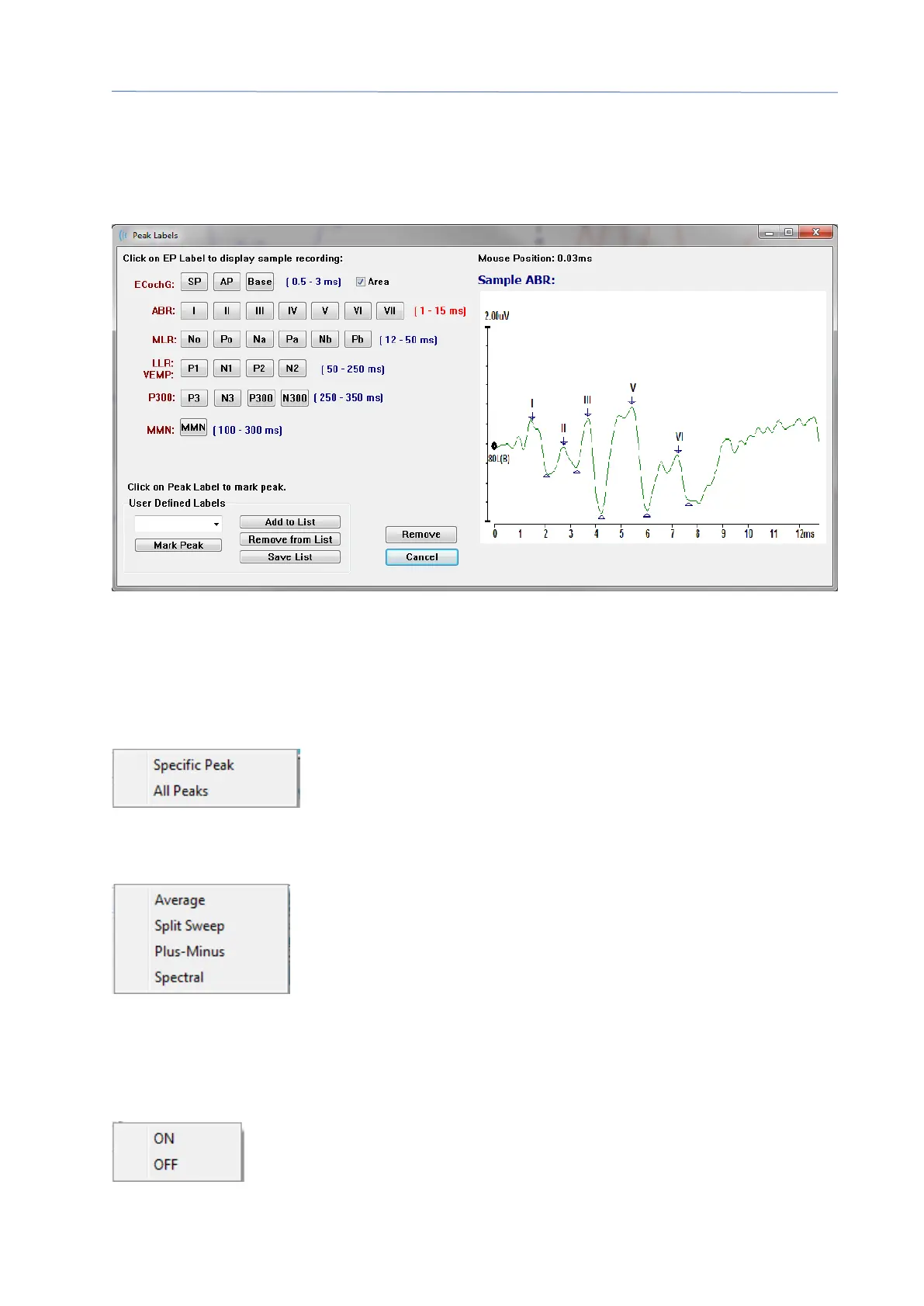
• Mark Other Peak – Displays a new dialog with the list of defined labels in the
program. The User Defined Labels text box is an option available to define a
custom label. The user defined labels may be added to the drop-down list and
the list saved with the buttons next to the text box.
If a marked peak is active when the dialog is presented, you can remove the label from
the waveform with the Remove button. If you select a label button or create a new label,
the label is placed on the waveform at the time position where the mouse location was
when the menu was opened with the Mark Peak button.
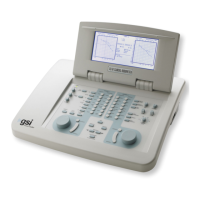
• Remove Peak – removes the label for a marked peak or all marked peaks. The
Specific Peak option will remove the peak closest to the mouse
location on the active waveform when the menu was
displayed. The All Peaks option removes all the marked peaks
on the active waveform.
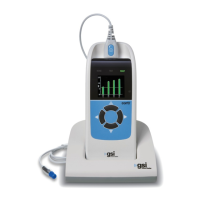
Plot Type – displays a sub-menu of options for the waveform data. Average is the
normal waveform with the results from the collection, an
average of the collected responses. Split Sweep shows two
overlapping averages from the two internal buffers of the
recording (even and odd sweeps). Plus-Minus shows the
difference between the two internal buffers of the recording.
Spectral performs a frequency analysis of the waveform and displays the waveform in
the frequency domain. The waveform is split into two curves, one for the response, and
one for the noise.
• Show Labels – provides the option to display or hide the labels on the marked
peaks of the active waveform. On displays the labels, Off hides the
labels (the waveform remains marked).


 To Next Page