TROUBLESHOOTING
Version 4.2.7.2, 05/2014. Copyright 2012 Hitron Technologies
112
Version 4.2.7.2, 05/2014. Copyright 2014 Hitron Technologies
112
Hitron CGNV User’s Guide
4
Disconnect and re-connect the power adaptor to the power source and the
CGNV.
5 If none of the above steps solve the problem, consult your vendor.
Problem: One of the LEDs does not Display as Expected
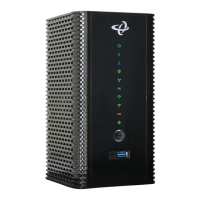
1 Ensure that you understand the LED’s normal behavior (see LEDs on page 19).
2 Ensure that the CGNV’s hardware is connected correctly; see the Quick
Installation Guide.
3 Disconnect and re-connect the power adaptor to the CGNV.
4 If none of the above steps solve the problem, consult your vendor.
Problem: I Forgot the CGNV’s IP Address
1 The CGNV’s default LAN IP address is 192.168.0.1.
2 You can locate the CGNV’s GUI by entering the LAN domain suffix into your
browser’s address bar (on a computer connected to the LAN). The default LAN
domain suffix is displayed in the Basic > LAN Setup screen’s Domain Suffix
field. See The LAN Setup Screen on page 52 for more information.
3 Depending on your operating system and your network, you may be able to find
the CGNV’s IP address by looking up your computer’s default gateway. To do
this on (most) Windows machines, click Start > Run, enter “cmd”, and then
enter “ipconfig”. Get the IP address of the Default Gateway, and enter it in your
browser’s address bar.
4 If you still cannot access the CGNV, you need to reset the CGNV. See Resetting
the CGNV on page 26. All user-configured data is lost, and the CGNV is
returned to its default settings. If you previously backed-up a more recent
version your CGNV’s settings, you can now upload them to the CGNV; see The
Backup Screen on page 87.
Problem: I Forgot the CGNV’s Admin Username or Password
1 The default username is admin, and the default password is password.


 To Next Page