FULLTEST3
EN - 15
5.2. OPERATOR MENU
In this section is possible to define the name of the operator who will be included
inside the final report of the data transferred to PC.
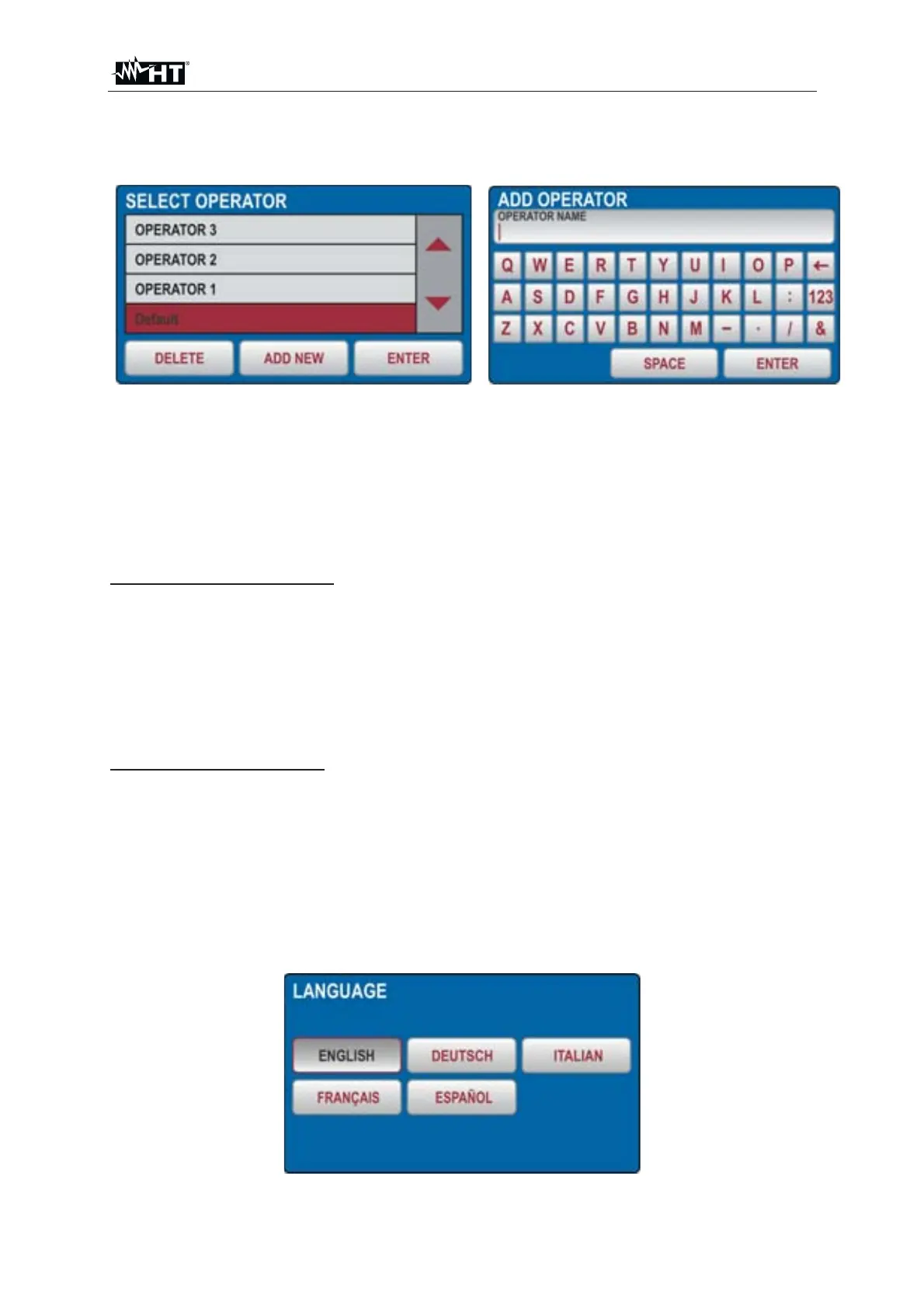
Fig. 8 : OPERATOR Menu
¾ Check the list of available operators by using the ź and Ÿ touch-screen keys (if
there are more than 4 operators entered)
¾ Select wished operator by pressing the operator’s touch-screen key, e.g. Default.
Marked operator is selected and will be used during the measurements.
¾ Press the ENTER touch-screen key to confirm the selection and to exit the
OPERATOR menu, MAIN MENU will be displayed again.
How to add a new operator
1. Open OPERATOR menu and press the ADD NEW touch-screen key. The screen
of Fig. 8 – right side will be shown
2. Create new operator’s name. Use the 123 / ABC key to select figure or character
selection screen
3. Confirm entered name by pressing the ENTER touch-screen key. OPERATOR
screen will appear again and last entered operator will be selected
How to delete an operator
1. Open OPERATOR menu, select the operator you wish to delete and press the
DELETE touch-screen key. Confirm the deletion by pressing the YES touch-
screen key.
5.3. LANGUAGE MENU
Select wished language by pressing appropriate touch-screen key, the menu will turn
to MAIN MENU
Fig. 9 : LANGUAGE Menu


 To Next Page