EasyManua.ls Logo

IBM TS4300 - User Manual

IBM TS4300
324 pages
Print Icon
To Next Page IconTo Next Page
Loading...
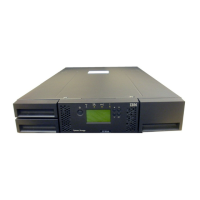
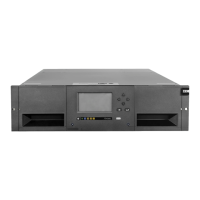
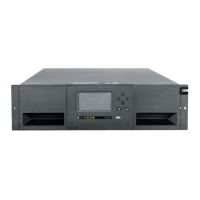
IBM TS4300 Tape Library
Machine Type 3555
User's Guide
IBM
IBM Condential
SC27-4629-08

Table of Contents

Other manuals for IBM TS4300

Questions and Answers

  • J
    Jason ThompsonNov 22, 2025
    How to fix IBM Network Hardware can’t connect to the Management GUI?
    • R
      Rebecca DukeNov 22, 2025
      To resolve connection issues with the Management GUI on your IBM Network Hardware, first, ensure the Ethernet cable is properly connected to both the Base Module's controller card and the LAN. Verify the link LED on the RJ45 connector is lit when the device is on; if not, it's not communicating with the LAN, and you should consult your network administrator. Confirm the device has a valid static network address or DHCP is enabled. If using DHCP, note the device's network address from the Operator Panel. If a valid DHCP address isn't available, the library isn't communicating with the DHCP server, so consult your network administrator. Finally, enter the library's IP address into a web browser on the same LAN. If the GUI doesn't appear, ping the device's IP address; if the ping fails, check...
  • S
    Stephanie MartinAug 25, 2025
    What to do if tape is stuck in drive in IBM Network Hardware?
    • D
      daniellerodgersAug 26, 2025
      If a tape is stuck in the drive of your IBM Network Hardware, first stop all host activity. Then, attempt to unload or move the cartridge to a slot. If that doesn't work, power down the library, disconnect the cable from the drive, power it back on, and wait until the tape drive is idle or ready before attempting to move the cartridge to a slot. As an emergency measure, attempt to eject the cartridge from the drive. Remember to inspect the tape cartridge for damage or misplaced labels, which could cause the issue, and discard any problematic cartridges.
  • D
    Diane GreeneAug 26, 2025
    How to troubleshoot IBM Network Hardware device doesn’t power on?
    • R
      Rachel KennedyAug 27, 2025
      To troubleshoot IBM Network Hardware that doesn't power on, start by checking all power cord connections and the LEDs on the power supplies. Ensure the power button on the front panel is pressed and the green Ready LED is lit. Verify the outlet has power by trying another working outlet. If none of these steps work, replace the power cord.
  • U
    usantosAug 27, 2025
    What to do if IBM Network Hardware device doesn't power off?
    • K
      Kathy MoralesAug 27, 2025
      If your IBM Network Hardware device doesn't power off, first press and hold the power button for 5 seconds. Check if the green LEDs on the power supplies are off; if not, press and hold the power button for 10 seconds. If that still doesn't work, disconnect the AC power cable on the base unit.
  • E
    Elizabeth DavisAug 29, 2025
    How to solve Fibre Channel connection problems IBM Network Hardware?
    • K
      kimberlywarnerAug 29, 2025
      To resolve Fibre Channel connection problems with your IBM Network Hardware, check the Drive Status screen for the tape drive's link connection. Run a drive Wrap Test for each available port by unplugging the Fibre Channel cable, plugging in the Fibre Channel wrap tool, and running the Fibre Channel wrap test via Library > Actions > Tests > Drive test. If the drive test fails, consult the “Pre-call checklist” on page 110. If the FC Wrap Test passes, ensure the Fibre Channel speed matches the HBA/switch speed or is set to Automatic. Verify cables aren’t damaged and are securely connected. Also, verify host connectivity and use ITDT to debug the problem.
  • O
    oblevinsSep 23, 2025
    How to resolve event code shown on IBM Network Hardware Management GUI?
    • J
      jmillerSep 23, 2025
      To address an event code shown on the Event Ticket on the Management GUI for IBM Network Hardware: Look up the error code in the Event Codes. Try to resolve the failure. If necessary, power cycle the library.
  • R
    richardtorresSep 16, 2025
    What to do if cleaning or data cartridge incompatible with drive in IBM Network Hardware?
    • M
      Marie WelchSep 16, 2025
      To resolve cleaning or data cartridge incompatibility issues with your IBM Network Hardware drive, check the event log to identify the incompatible cartridge. Ensure you’re using data and cleaning cartridges that are compatible with the drive and model of your device. Verify you’re using the correct cartridge type for the operation. The device automatically unloads incompatible cartridges, and the Attention LED flashes. Export the media.
  • J
    John GuerreroSep 18, 2025
    Why are the Attention LED and Cleaning LED lit on IBM Network Hardware?
    • D
      David ParkerSep 18, 2025
      If both the Attention LED and Cleaning LED are lit on your IBM Network Hardware, it is likely due to a drive that requires cleaning. Check the Event Ticket Log on the Management GUI for more details.
  • D
    David MeyerSep 8, 2025
    Why is Attention LED lit but not Cleaning LED after cartridge load on IBM Network Hardware?
    • C
      Christopher StephensonSep 8, 2025
      If the Attention LED is lit but the Cleaning LED isn’t lit after a cartridge load on your IBM Network Hardware, it means the library couldn't complete the requested operation with the selected tape cartridge. Ensure you're using cartridges compatible with the drive type and the correct type for the operation, such as a cleaning cartridge for cleaning. Make sure you’re using a Universal cleaning cartridge.
  • B
    brett68Sep 5, 2025
    How to remove a cartridge that is stuck in IBM Network Hardware?
    • T
      Tasha LawrenceSep 5, 2025
      To address an IBM Network Hardware cartridge that can’t be removed from the storage slot, first unlock the magazine and extend it to access the slot. Grasp the cartridge and try removing it. If it's stiff, insert and remove it several times to condition it for easier movement. Check the bar code label to ensure it’s secure and inspect the cartridge for any damage.

IBM TS4300 Specifications

General IconGeneral
Product TypeTape Library
Form FactorRack-mountable
Host Interface8 Gb Fibre Channel, 6 Gb SAS
Humidity20% to 80% non-condensing
Number of Drives SupportedUp to 3
Drive Type SupportedLTO Ultrium 8, LTO Ultrium 7
EncryptionYes
Remote ManagementYes (web-based interface)
Supported MediaLTO Ultrium 8, LTO Ultrium 7
Power Supply100-240 VAC, 50/60 Hz

Related product manuals