18
RDX A8 User and Service Guide — Version 1.0
3. Product configuration
a. Product configuration process
Once the RDX A8 unit has been powered up the unit may be configured to the user’s desired
network settings and operational mode. The unit may be configured via the built in RDX A8 Manager
(Remote Management Interface). The RDX A8 Manager is accessed over the customer’s local IP network
using an internet browser application.
The RDX A8 is compatible with the following internet browser applications:
• Mozilla Firefox
• Internet Explorer
• Google Chrome
b. Initial IP address assignment
The RDX A8 comes configured to communicate over Ethernet port 1 (Ethernet port 2 is disabled)
and will search for an IP address as follows:
1. During the power up sequence the RDX A8 will search the user’s local network for a DHCP server.
2. If a DHCP server is found it will receive the assigned IP address from the local DHCP server and
use this address for operations. The DHCP address will appear on the OCP.
3. If after 60 seconds no DHCP server is found the unit will use the APIPA protocol to assign a
static IP address. The assigned static IP address will appear on the OCP.
4. Once an IP address is assigned the unit may be reconfigured to a new static IP address
or redirected to a DHCP server by the system administrator logging into the unit via
RDX A8 Manager interface.
c. OCP – Operator Control Panel
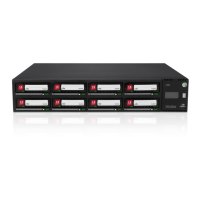
The RDX A8 unit includes an LCD based display located on the right side of the unit’s front bezel –
referred to as the Operator Control Panel or OCP. Highlights of the OCP are:
• 64 dot high by 128 dot width graphics display with color backlight
• Displays both text and icon based information
• Under normal conditions the backlight uses white light
• A flashing amber backlight is used to alert the user to error conditions. The errors may be
acknowledged and cleared via a long press of the Display Navigation button push on the
unit front panel. The error may also be cleared by reading the error message in the
System Information Block in the RDX A8 Manager.


 To Next Page