50
RDX A8 User and Service Guide — Version 1.0
k. Performing Diagnostic operations - The DIAGNOSTICS tab
i. Device Logs
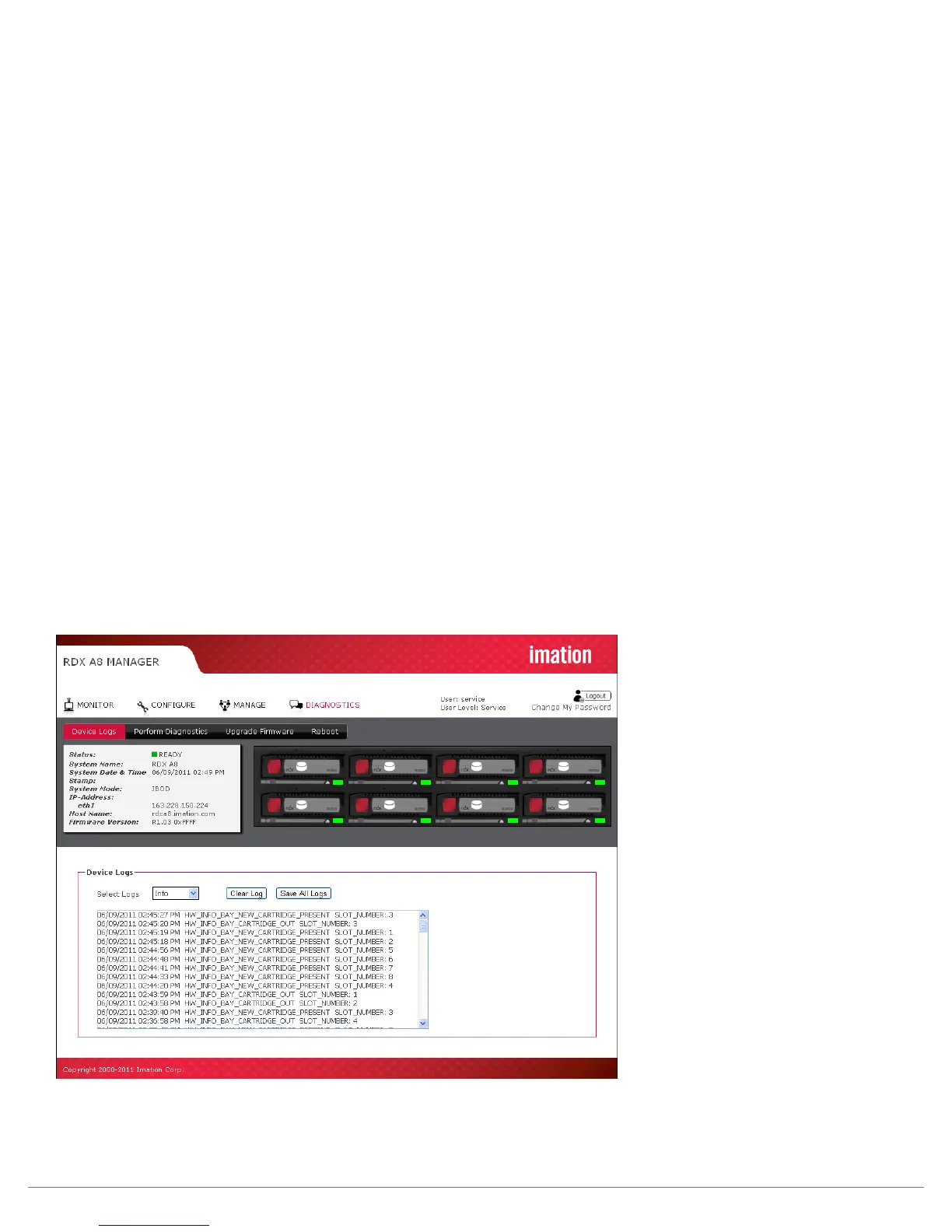
The RDX A8 unit supports a built in event logging feature designed to facilitate monitoring and trouble
shooting of the device. The logs are available for viewing under the “DIAGNOSTICS/Device Logs” tab.
Within the “Device Logs” tab the user has the option of filtering the log view as follows;
Errors:
Errors are critical events that indicate either a failure in hardware or a major software issue.
If an error is logged the RDX A8 unit is either non-functional or seriously degraded. Any reported
errors need investigation and resolution on a high priority basis.
Warning:
Warnings are events related to potential use problems or command failures. Warnings typically relate
to either mis-configuration of the RDX A8 device/cartridge format or attempts to perform operations
which are logically/physically prevented within the current device state.
Configuration:
Configuration log messages deal with system mode changes such as operation mode settings.
Info:
Info events log normal events indicating unit status changes which are part of normal operations.
For instance insertion and removal of RDX media form each slot is monitored and logged with
info events.
Clear Logs:
The Device Logs tab has a button to clear the logs in the display view. This function is only available
at the Service user level.
Figure 32—RDX A8 Manager Device Logs
Save All Logs:
The “Save all Logs” button provides the capability to save the logs to a user selected location.
The file is designed to be used by RDX A8 support personal to aid in problem diagnosis.


 To Next Page