34
RDX A8 User and Service Guide — Version 1.0
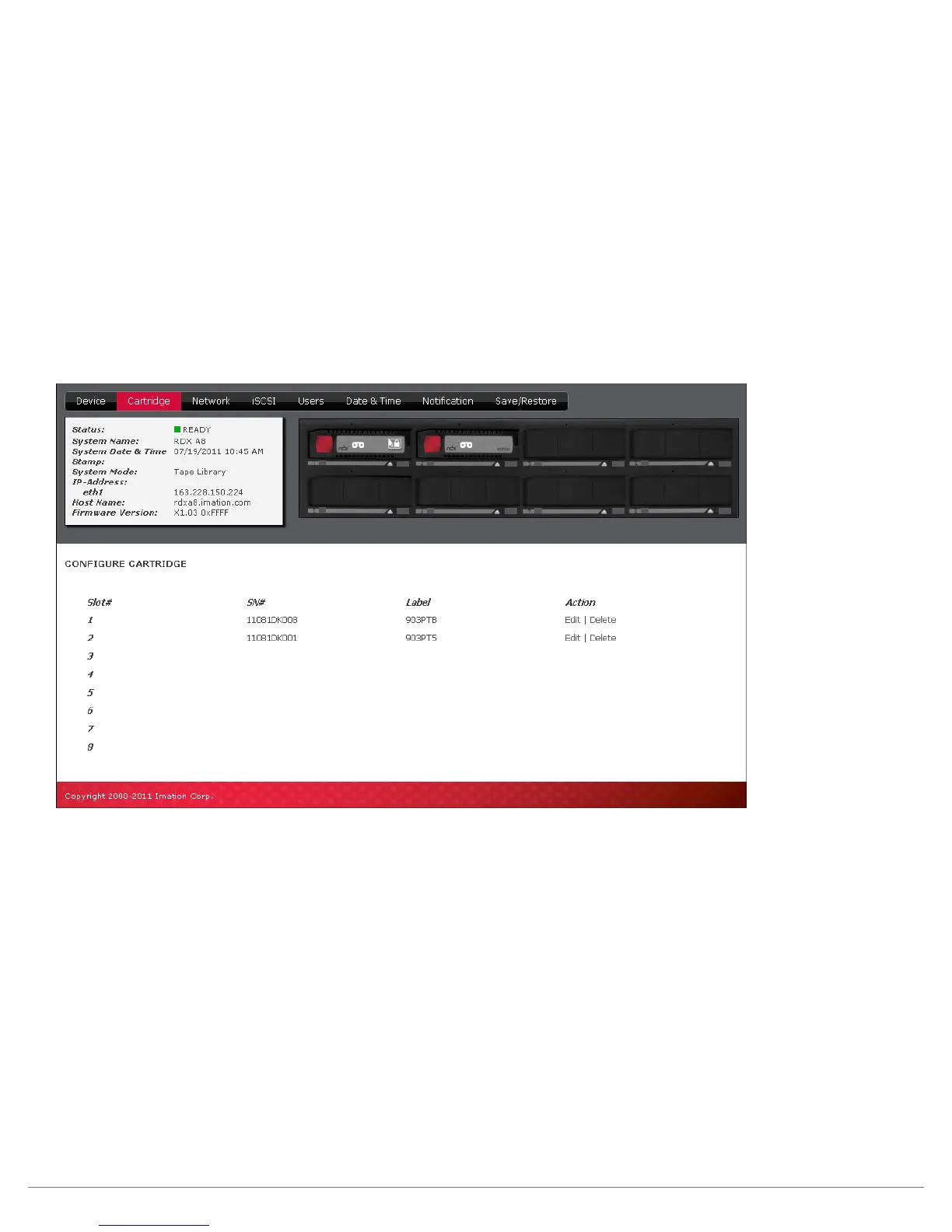
ii. Cartridge - Labeling tape format cartridges
If the RDX A8 system will be operated as a tape library and the user has already created tape format cartridges
they may optionally decide to assign custom labels. Custom RDX cartridge labeling may be created under the
“CONFIGURE/Cartridge” menu.
To alter the cartridge label, click Edit for the desired cartridge. There will be a pop up dialogue where the user
may enter a custom label up to 25 characters long.
This custom label will both be displayed in the RDX A8 Manager and shown as the volume label in the tape
backup application. It is strongly recommended that if the user intends to use custom labels they first assign
these labels before the RDX media is added to the tape application media set.
The custom assigned label will only be available in the tape emulation mode. The custom label may be deleted
at any time and the cartridge will revert back to the factory assigned cartridge label.
Figure 18—RDX A8 Manager Configure Cartridge


 To Next Page