26
RDX A8 User and Service Guide — Version 1.0
g. RDX A8 Manager Pages
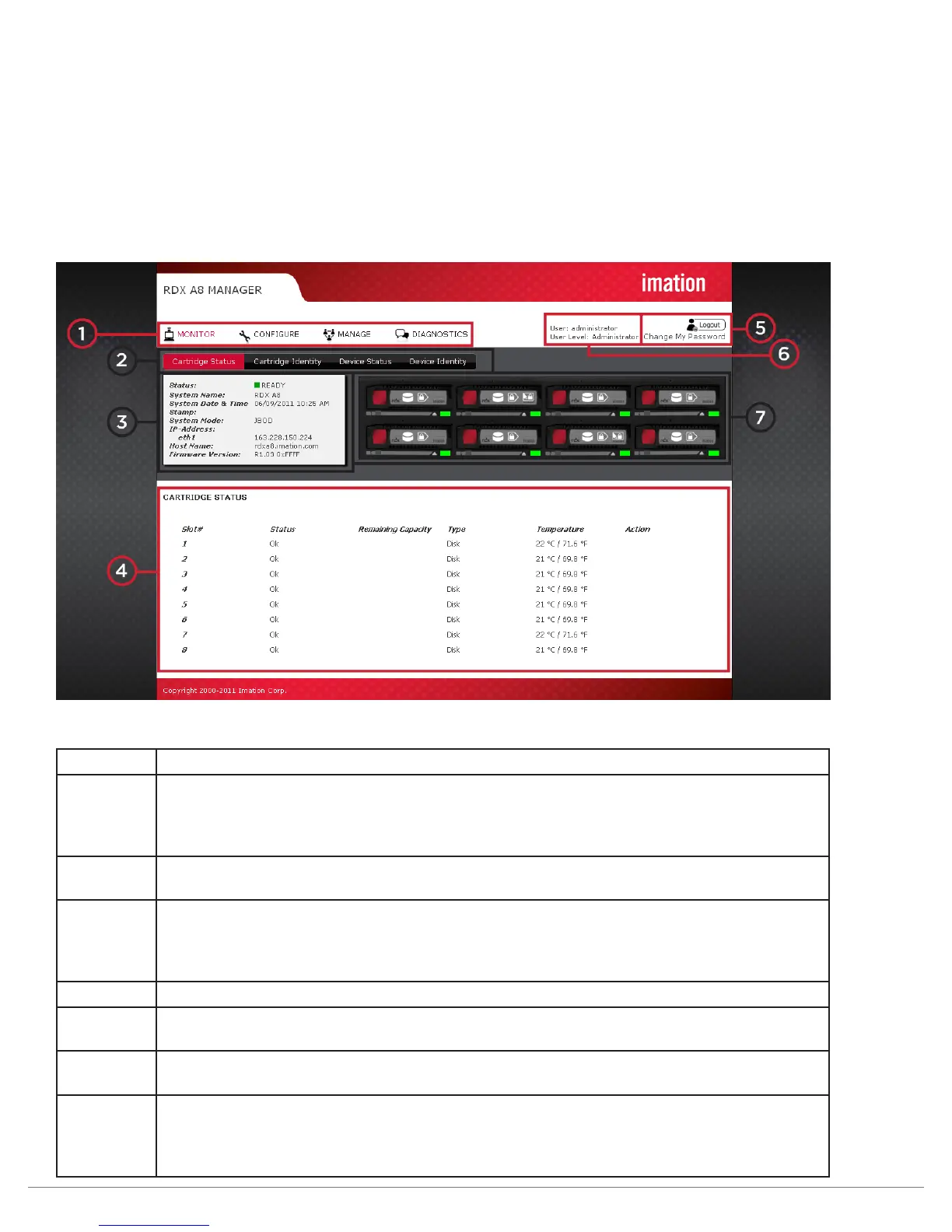
Upon a successful login into the RDX A8 Manager all users will be directed to the RDX A8 “MONITOR/Cartridge
Status” tab. An overview of the main graphic elements is displayed below. The main navigation is performed via
selection (via mouse click) of the Main Topic Bar (element 1 in the RDX A8 Manager page chart) and then
selection of the associated Sub Topics (element 2). Key elements are the Active System Graphic (element 7)
and the System Information Block (element 3) which are visible on all RDX A8 Manager pages.
i. RDX A8 Manager Page Chart
Figure 11—RDX A8 Manager Home page
Number Description
1 Main topic bar (selected in red): This field is visible on all pages. The four main
RDX A8 Manager menus are accessed from this set of choices by selecting with
a point and click. Operators with User level credentials will not have access to the
“CONFIGURE”, “MANAGE” and “DIAGNOSTIC” menus.
2 Sub topic bar (selected in red): This field is visible on all pages. The content of the
sub topic bar changes with the main topic selection.
3 System Information Block: This field is visible on all pages. The System Information
Block covers key global parameters related to overall system status and identification.
If the system has pending errors they will be indicated by the status icon and
additional information will be available under the associated information button.
4 Sub Topic details: The subtopic details change with the main topic selection.
5 Logout button / Change password: This field is visible on all pages. The user may
change their password (pop up dialog) or logout via point and click.
6 Logged in user / Login user level: This field is visible on all pages. It shows the current
user account name and user credential level
7 Active System Graphic: This field is visible on all pages. The status of individual
cartridge slots may be verified by the graphic. The system graphic and the OCP use
the same icon indications. Additional information is available via mouse over of each
cartridge graphic (for slots which have cartridges inserted).


 To Next Page