46
RDX A8 User and Service Guide — Version 1.0
j. Managing the unit – The MANAGE-tab
Access to the Manage functions is granted to Administrator and Service level account logins.
Following are the levels of the “MANAGE” tab.
i. Managing the library
The “MANAGE/Library” function is only available when the operation mode of the RDX A8 unit is set to
“Tape Library”. This feature allows the user to “manually move” tape format RDX cartridges from any
storage slot to the drive element. The drive element allows the cartridge to be visible to the host as an
emulated LTO tape within an emulated LTO tape drive and for the host to write or read data from the
cartridge with applications designed to support LTO tape drives.
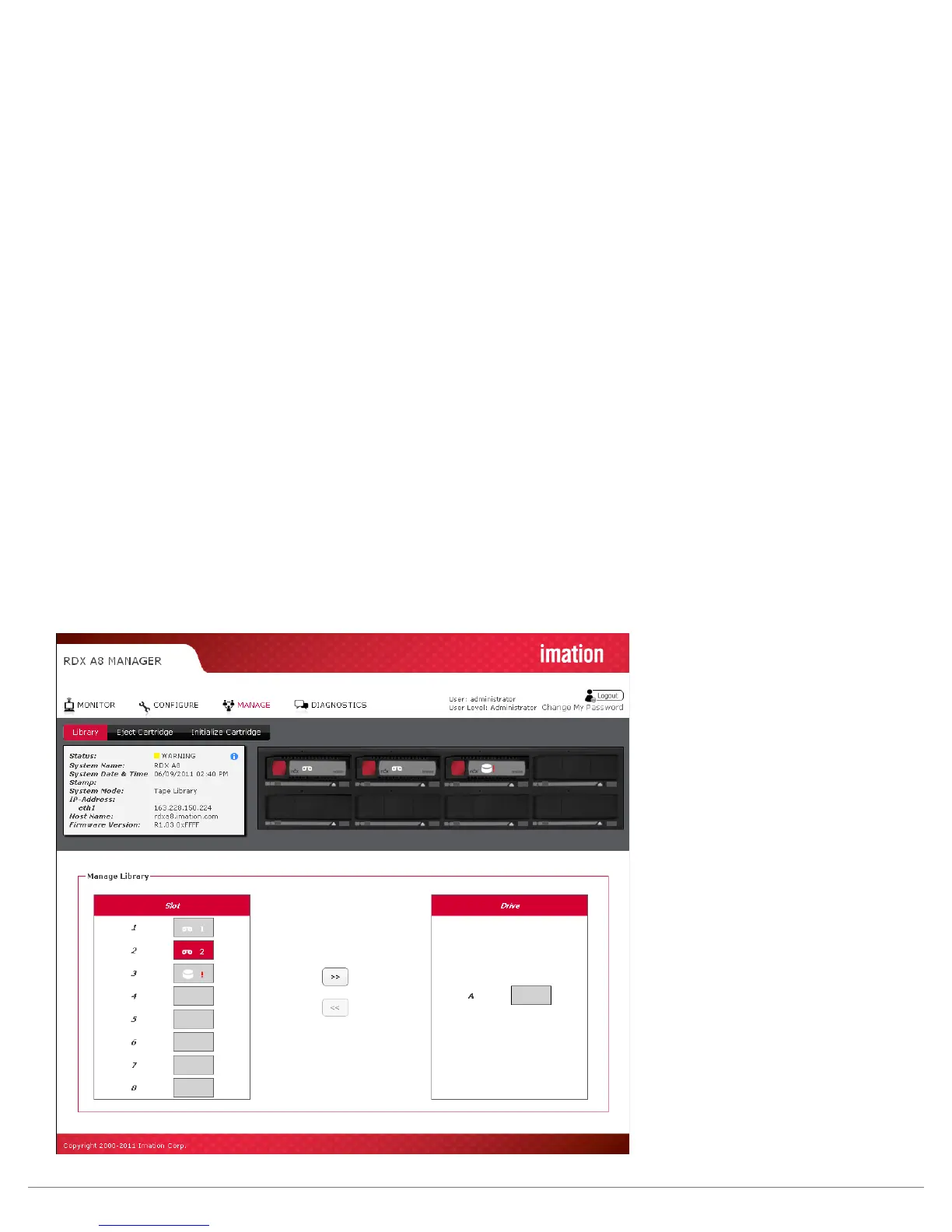
To move the cartridge the user highlights the cartridge on the storage slot side (left side of the page)
via a selection point and click with the mouse which highlights the selection, then selects the right
pointing arrow (load drive) operator in the center of the page to move the cartridge to the drive.
The cartridge will now become visible to the software application as being inserted inside the virtual
tape drive. Media access commands may now be executed (Write/read/rewind/etc.) to the cartridge.
The cartridge may be unloaded from the virtual drive by selecting the left pointing arrow (unload drive)
operator in the center. Also, selecting any other cartridge from the storage slot side and choosing the
load button will result in the automatic unload of the cartridge in the drive. The RDX A8 will only store
cartridges back into their original storage slot location (it is not possible to ‘move” cartridges to a
different storage slot.
Also the “MANAGE/Library” function will only allow movement of properly formatted (tape format)
cartridges into the virtual drive. Cartridge format is indicated by the icon in the image for each storage
slot location. Disk formatted cartridges will appear with the exception mark (red exclamation mark)
to indicate an abnormal condition.
Figure 29—RDX A8 Manager Manage Library


 To Next Page