20
RDX A8 User and Service Guide — Version 1.0
ii. OCP Icons
The RDX A8 makes use of graphic icons to indicate some conditions to the user. These icons are
used both on the local OCP display and in the Active System Graphic in the RDX A8 Manager.
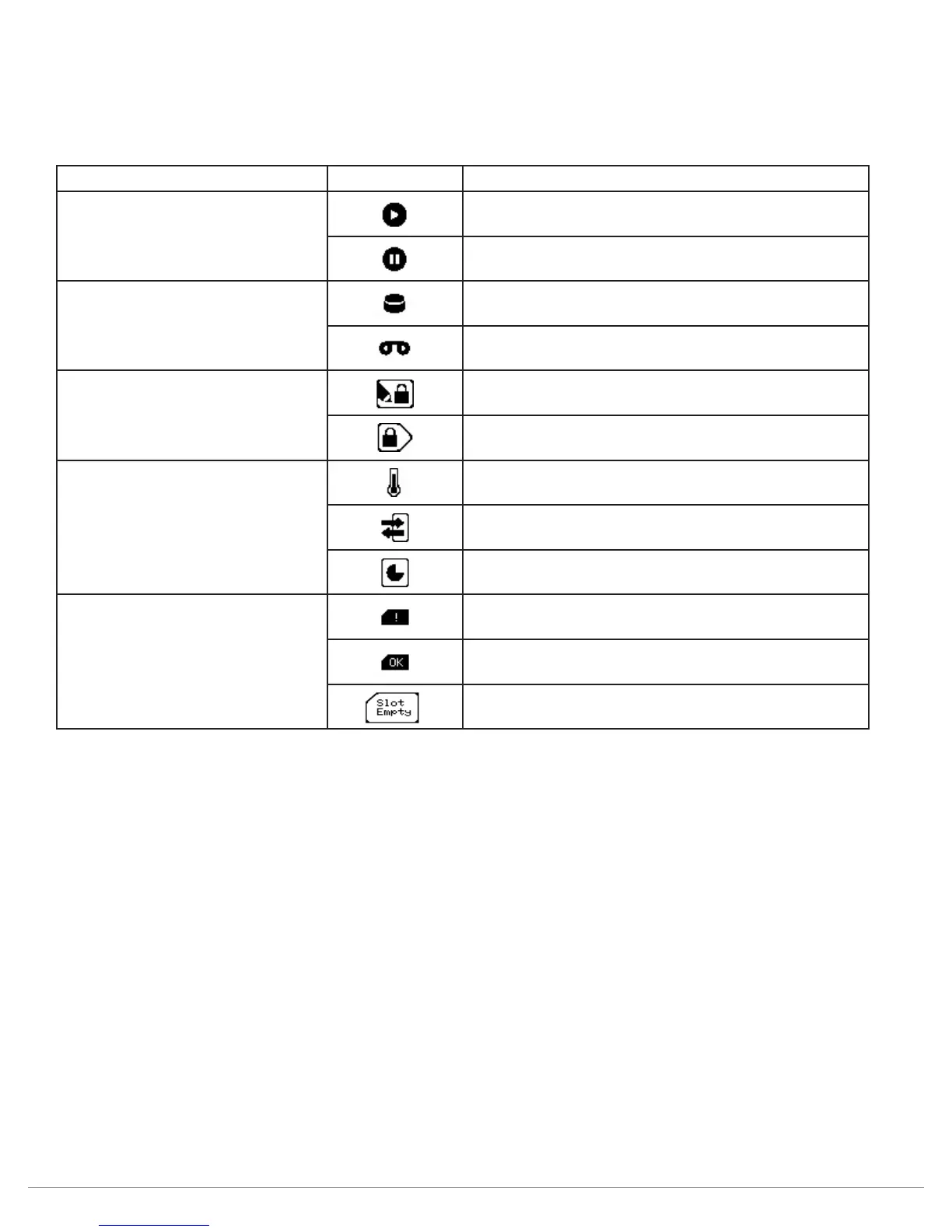
The RDX A8 icons in use are shown in the figure below.
Group Icon Meaning
OCP Navigation
Step to next bay/cartridge info
Pause at current screen
Cartridge Format
Disk standard format on cartridge
Tape format on cartridge (tape emulation)
Cartridge Status
Write to cartridge prevented (Write Protect)
Eject of cartridge prevented (Prevent Set)
Cartridge Metrics
(RDX A8 Manager)
Temperature
Number of insertion cycles
Accumulated operational time
Cartridge Status
(OCP only)
Cartridge status not OK
Cartridge status OK
No cartridge inserted
iii. OCP Navigation
The RDX A8 OCP supports the viewing option of pausing the display at any individual screen and
manually stepping through screens. The OCP navigation operates as follows:
• To pause the (currently cycling) display press and hold the OCP Navigation button
for approximately 3 seconds. The OCP will change to Pause mode indicated by the
OCP Navigation icon changing to the step icon.
• To step the OCP display to the next screen (when the OCP is in pause mode) press and release
(short button press) the OCP Navigation button. You may repeat this operation to step through
the OCP screen rotation until you reach the desired screen.
• To resume the normal OCP automatic cycling press and hold the OCP Navigation button
for approximately three seconds. The OCP Navigation will resume the auto rotation mode
indicated by the OCP icon changing to the pause icon.
• When in display rotation the RDX A8 OCP automatically cycles through the nine information
display screens unless there is a pending error condition. Any pending error will cause a local
alerting condition, indicated by a text message in display with a flashing amber backlight.
•
If there is a current error the error message may be acknowledged/cleared by pushing and releasing
the OCP Navigation button. Errors may also be cleared remotely in the RDX A8 Manager interface.
• Multiple errors will queue so it may be necessary to push the OCP Navigation button multiple
times to clear errors. Each push will update any pending error message to indicate the
condition which triggered the error.


 To Next Page