Settings
114 USER MANUAL FPC 200 - 3/2017
LCD
The device is provided with a monochromatic backlighted 128x64 pixel display installed. Character length are in
accordance with using different fonts and languages. Pressing any key while backlight is turned off will switch it on and
will not take any other action. The backlight turn off automatically after user adjustable time (1 min to 60 min). It is also
possible to activate backlight using one of the digital inputs.
4.2.2.1 LED indicators
LED indicators consists of 3 different types of LEDs:
- READY LED (Green) shows status and power of
the FPC.
- ALARM LED (Red) indicates tripping circuit.
- Programmable LEDs (Red) can be controlled
using matrix by HMI or designated software
MiQen.
Programmable LEDs can be set on latched, latched-
blinking and non-latched option. The LEDs can be used
to indicate information about alarm, acknowledgement
or operation. For indication purpose it is possible to
insert a sheet of paper into a designated space next to
LEDs.
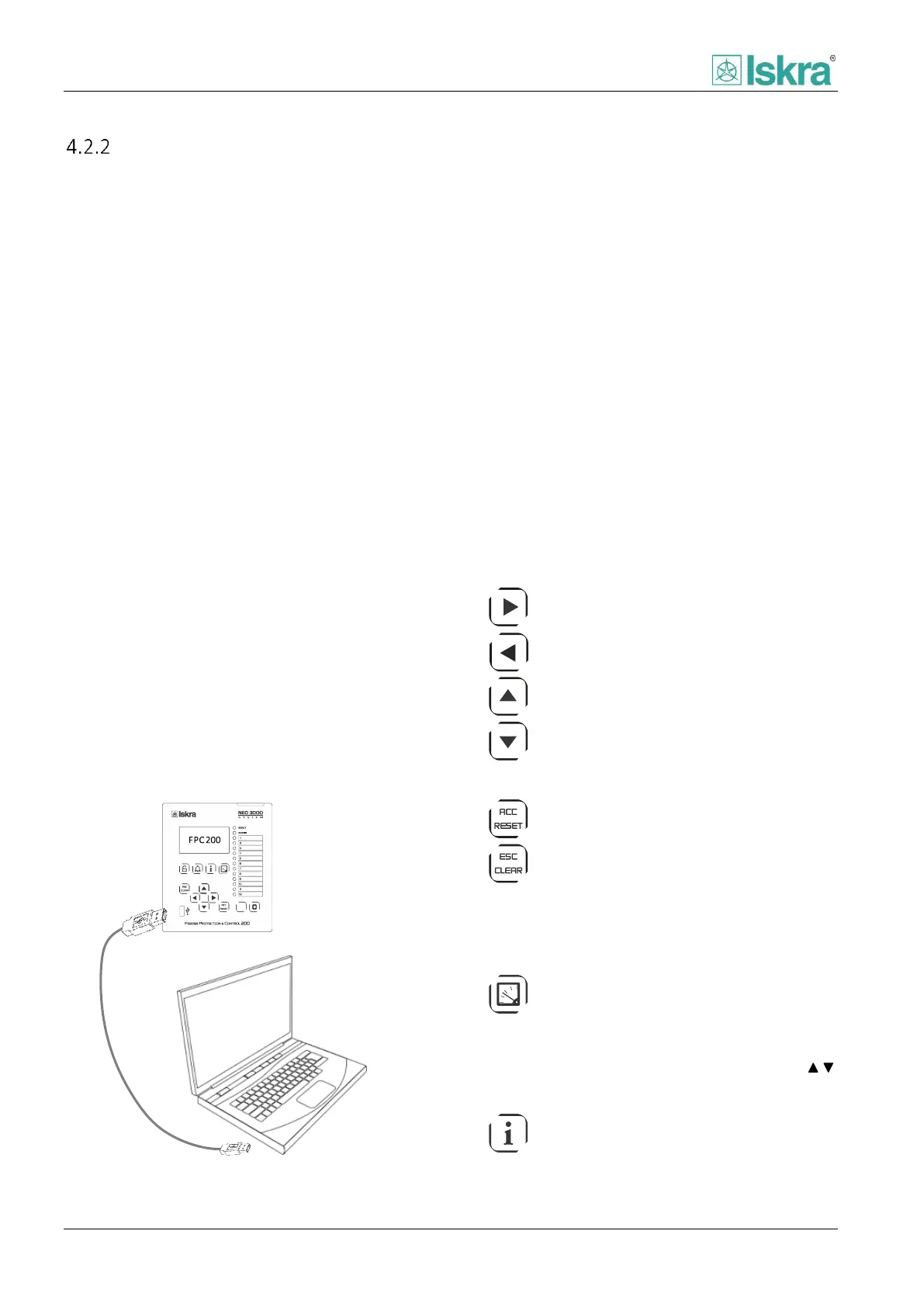
4.2.2.2 USB communication port
FPC is provided with type A USB communication port,
which can be either used directly with USB storage
device or by using designated Male-A type to Male-A
type USB cable to connect device to PC. Additionally the
connector is protected by an external rubber cover.
Figure 4.2: Connection using USB cable
4.2.2.3 HMI keypad
Using only control buttons it is possible to navigate,
view and set all the functions of FPC only by using
control buttons on local HMI. With shortcuts it is
possible to access all of the important menus as they
would be accessed using control keys.
4.2.2.3.1 Navigation keys
Up on the presenting menu, also
increment numerical value
Down on the presenting menu, also
decrement numerical value.
4.2.2.3.2 Control keys
Accept, confirm key and also reset function
in measurements menu. (ACC)
Return to main menu, cancel current
operation. (ESC)
4.2.2.3.3 Quick keys
By using quick keys it is possible to easily access alarms,
events, measurements and lock or unlock device.
All of the measurement screens can be accessed
sequentially by pressing measurement quick key. It is
also possible to navigate measurement screens with ,
navigational keys.
All of the diagnostic screens can be accessed
sequentially by pressing diagnostic information quick



 To Next Page