Basic Operations 1 41
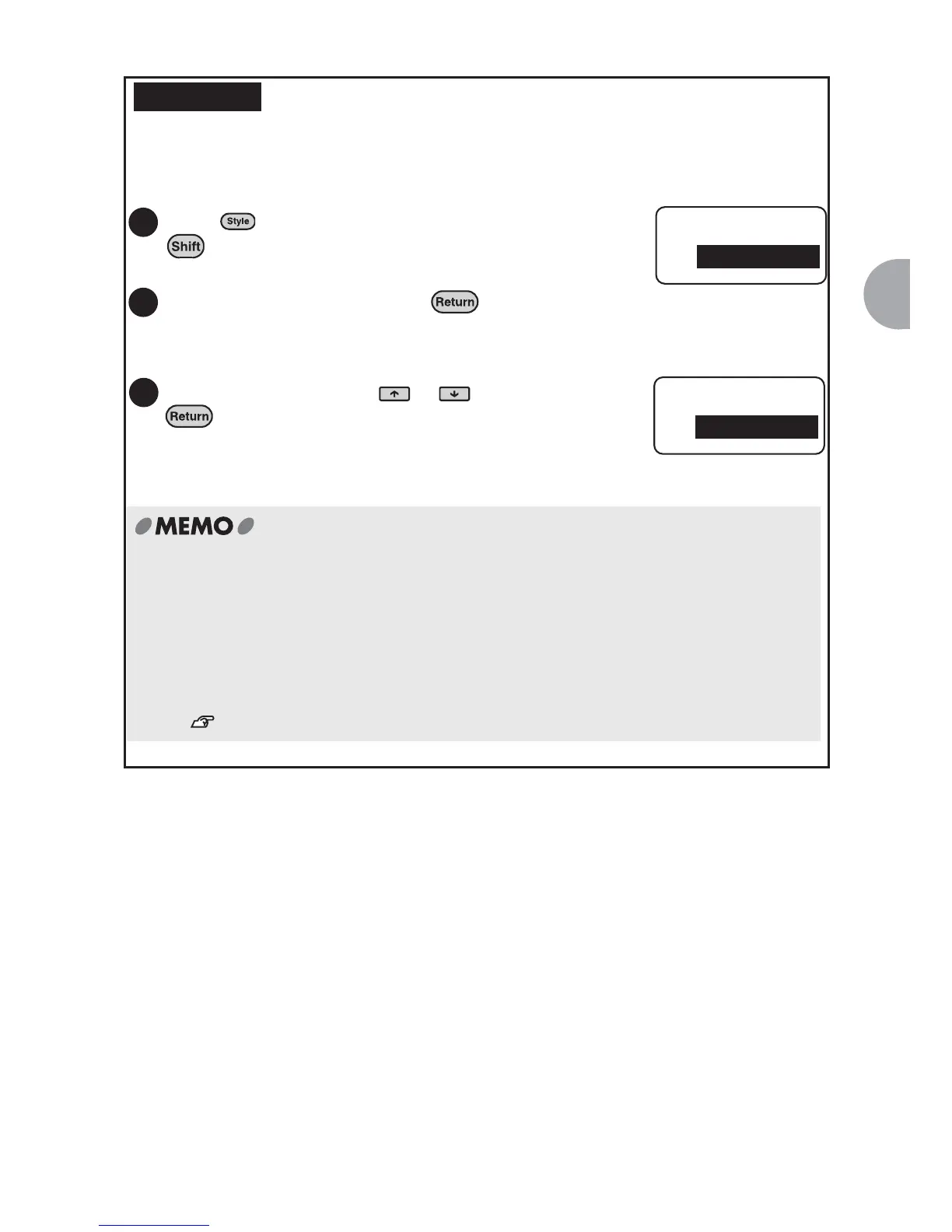
Adjusting the Print Density
Print density is adjustable in seven levels. Adjust the printing density if you find that the
printing is too light or dark. Usually use "0".
REFERENCE
Press (=Condition) while holding down
.
The "Condition" menu will be displayed.
Select "PrnDensity" and press .
"PrnDensity" menu will be displayed.
1
2
Condition
PrnDensity
Adjust the density using or and press
.
The density is adjusted.
x LABELShop
£
BEE3 is equipped with a temperature sensor, the print density is
automatically adjusted to match the printing head.
x Specifying a density level other than "0" consumes more electricity and can result in
distorted characters being printed. Very rarely label characters may peel off, exercise
caution.
x Printing density settings are not initialized when the device is turned off. Use this
procedure to correct settings or initialize the device.
See "Resetting LABELShop
£
BEE3" (p.95).
3
PrnDensity
0



 To Next Page