Kavo 3D eXam ® Operators’ Manual
K990400 16 April 2008
8-10
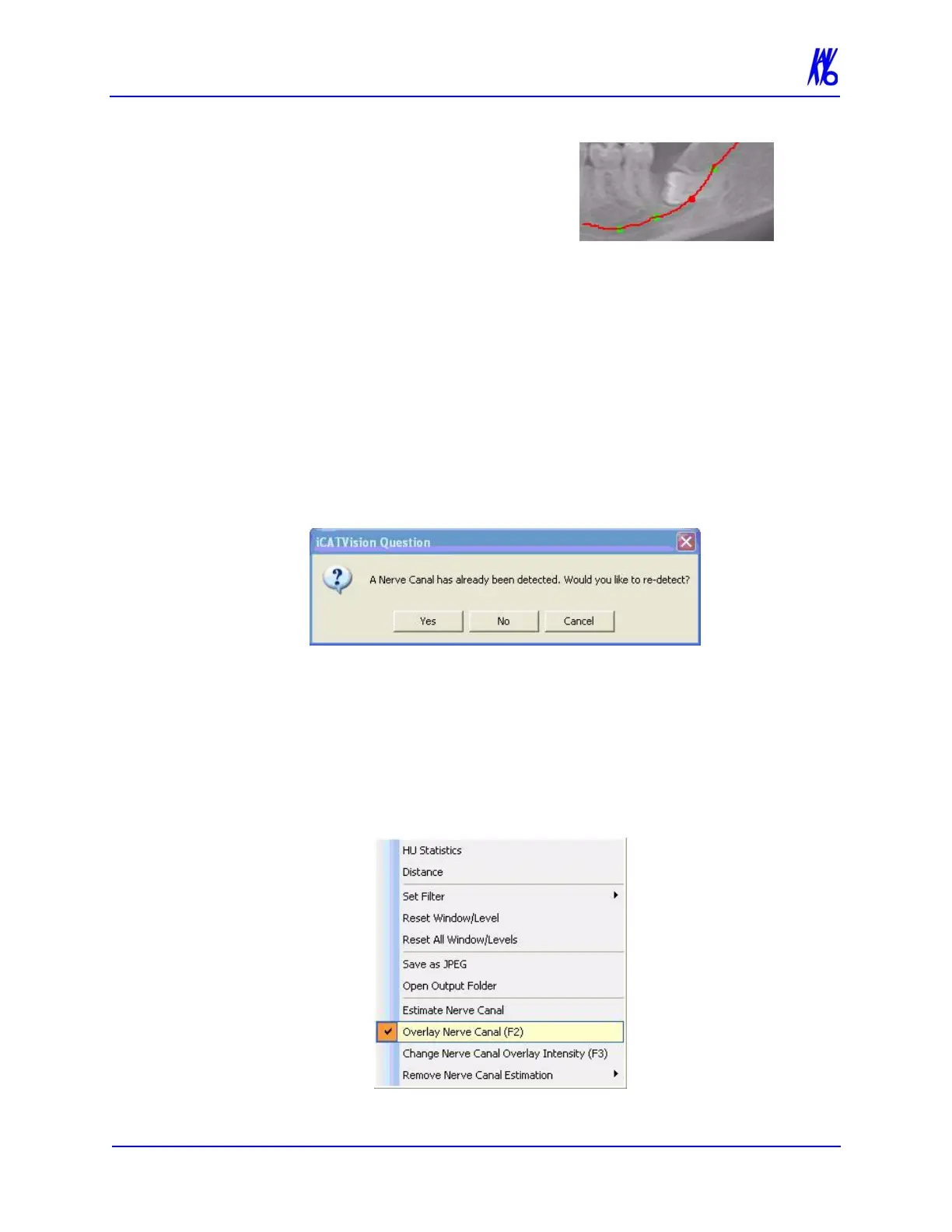
9. To adjust the path, click and drag
circles to the desired locations. A
red line is displayed to highlight
the new canal estimation.
10. To reset any adjustments to the
nerve canal estimation, click Reset. The panoramic map view is
reset to the state before positions were verified.
11. To confirm a nerve canal estimate after position of circles are
verified, click Confirm. The marked canals can be viewed on
the axial, panoramic map and cross section views.
12. To save the workup:
a. Click Screen and select Preview Screen.
b. On Preview screen, right-click to select Save this Workup.
13. If a nerve canal is detected by the system when the Estimate
Nerve Canal option is selected, a dialog is displayed:
• Click Yes to remove current estimation and begin nerve
canal estimation from scratch.
• Click No or Cancel to cancel the action.
To overlay the nerve canal:
1. Right-click and select Overlay Nerve Canal, or press F2 key.
Nerve canal is overlaid in pink.


 To Next Page
 Loading...