50 Laborie alpHaONE User & Service Manual LBL-01791 [B]
Table4-1providesdescriptionsofeachtypeofmarker.
Table4-1: MarkerTypesandDescriptions
Marker Description
Artifact Youcaninsertartifactmarkersthatarevalidforallcurves.Alldataofallcurvesisnottakenfortheautomatic
analysis and the calculation of the results.
Event Marksapointofinterestduringaninvestigation.Thismarkerhasnoinuenceonparametercalculations.
Afterplacingthemarker,right-clickthemarkerandthen,onthecontextmenu,selectComment.
pHArtifact WiththepHartifactmarker,youcanexcludethemeasuredpHfromanalysisforacertaintimewhilekeeping
the other data for analysis (see the section “InsertingapHArtifactMarker” on page 52).
pHAverage CalculatetheaveragepHoveracertainperiod.Whenplacingthesecondmarker,youareaskedforthedesired
interval,withamaximumof60minutes.Youcanmarkuptovedifferentperiodsandintervals.
pHReux This is available only when the option EnablepHreuxmarkers is selected in the pH analysis settings (see
the section “pHAnalysisSettings” on page 60).YoumarkapHreuxeventonapHchannel.
Tracing clip-out
(xed,variable)
Usethistomarkinterestingpartsoftheinvestigationcurvesthatmustbeincludedinthereport.Fixedwilluse
the tracing clip-out time as set in the System settingsdialogbox.Usevariabletomarkthestartandendofthe
clip.
Marker Hints
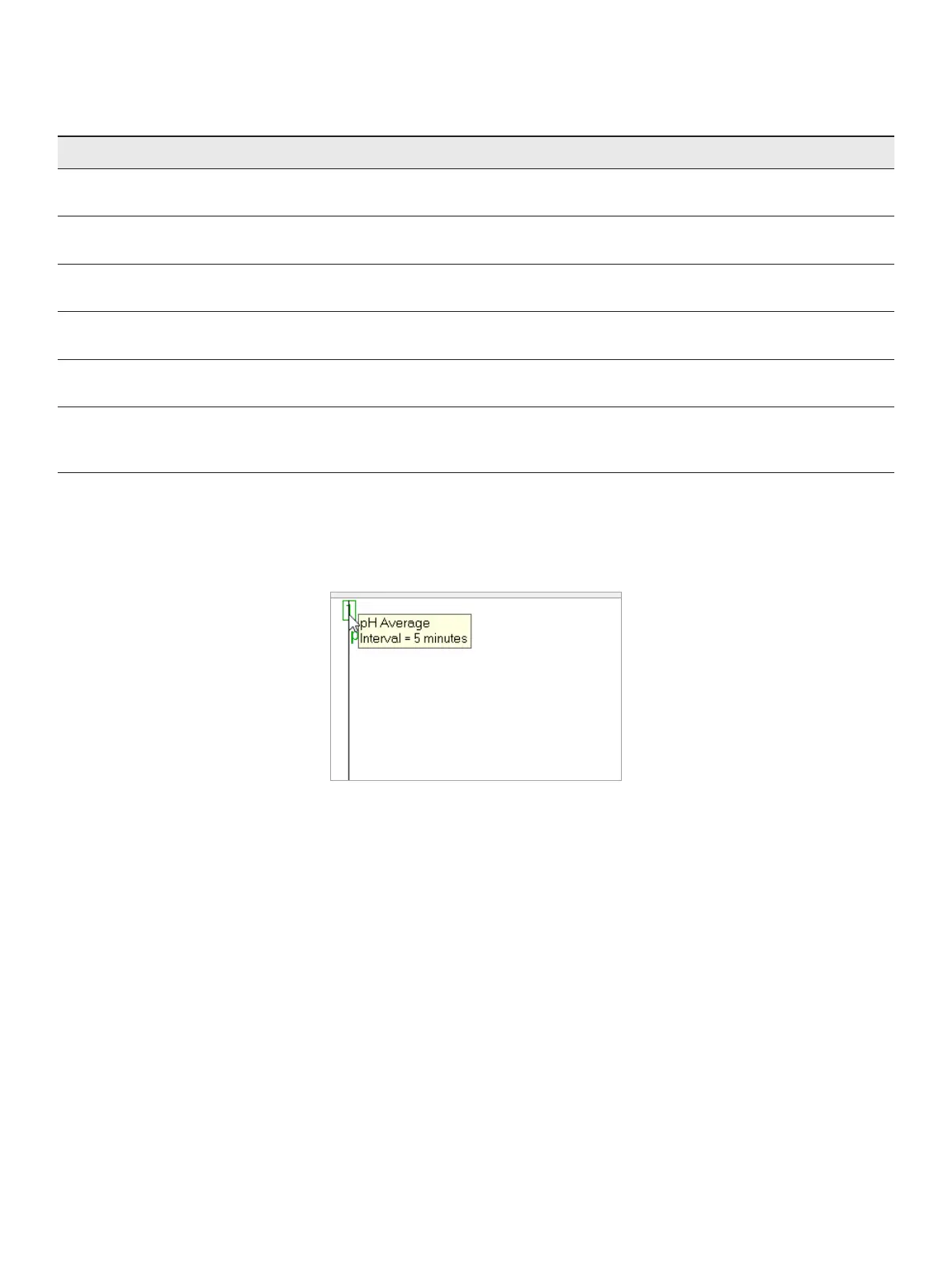
Movingyourmousepointeroveramarkerlabelopensahintthatdisplaysinformationaboutthemarker,as
demonstrated in Figure4-11.Thisinformationcontainsthefullmarkernameandthecalculatedparameters.
Figure4-11: Figure 4.13Markerhint
Changing the Marker Colors
Tochangethecolorofthemarkersquaresandcorrespondingpoles(atthetopofthescreen),right-clickthetopofthe
markerandthenselectColor.Tochangethebackgroundcolorofthereuxes,seethesection“SystemSettings” on
page 57.
Inserting pH Reux Markers
YoucaneasilyaddpHreuxmarkerstotheinvestigationbyCtrl-clickingonapHgraph.Notethatthisispossibleonly
when the EnablepHreuxmarkers option has been selected in the pH analysis settings (see the section “pHAnalysis
Settings” on page 60).
ToaddapHreuxmarker,holddowntheCtrlkeyonthekeyboardandthenclicktwotimesinthepHgraphsarea,
oncetomarkthebeginningofthepHreux,andthesecondtimetomarktheendofthepHreux.



 To Next Page