13/14
Camera
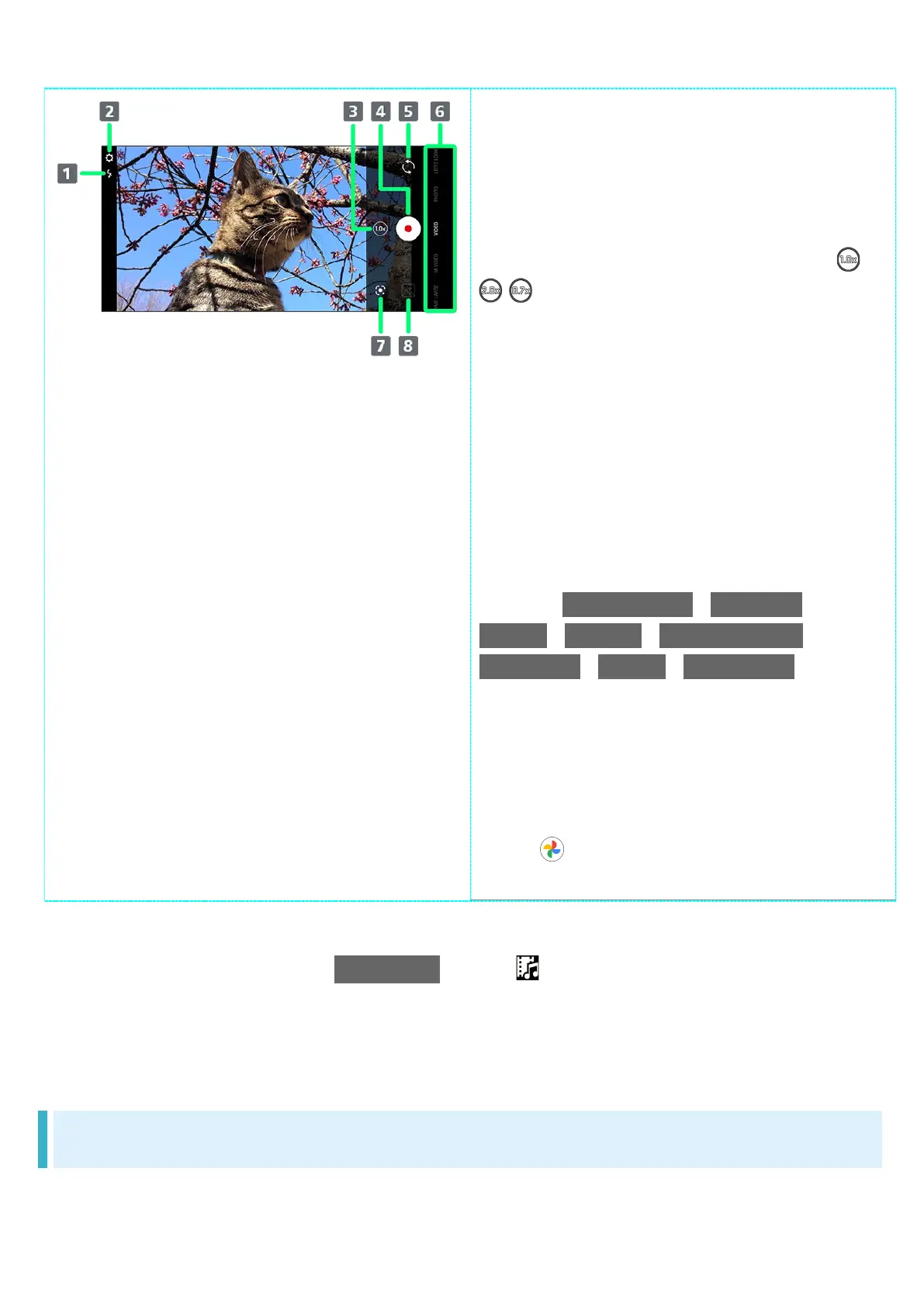
Mobile Light
Change Mobile Light setting.
Settings
Access various Camera settings.
Zoom magnification
1
Tap to toggle zoom magnification ( /
/ ).
Touch & Hold for adjustment bar. Drag
up/down to adjust
2
zoom
magnification.
Capture video
Front/Back Camera switch
Switch between Front Camera and
Back Camera.
Shooting mode
Drag up/down to change shooting
modes (TIME LAPSE / M.VIDEO /
VIDEO / PHOTO / LEITZ LOOKS /
M.PHOTO / NIGHT / PORTRAIT).
Google Lens
Use Google Lens to copy text captured
with Camera and to search for
products.
Photos/thumbnail
3
Open (Photos), or view immediately
1 Available angles of view are limited with some shooting modes.
2 Alternatively, in Video Viewfinder, Pinch/Spread.
3 If AI creates a short movie with AI Live Story enabled appears on thumbnail. Tap icon to open
Short Movie Playback screen.
Indicators shown in Viewfinder and available functions/settings vary depending on Camera type
and shooting mode.
Video Viewfinder Layout While Capturing
Operation in landscape orientation is described as an example.


 To Next Page