17/18
Music & Images
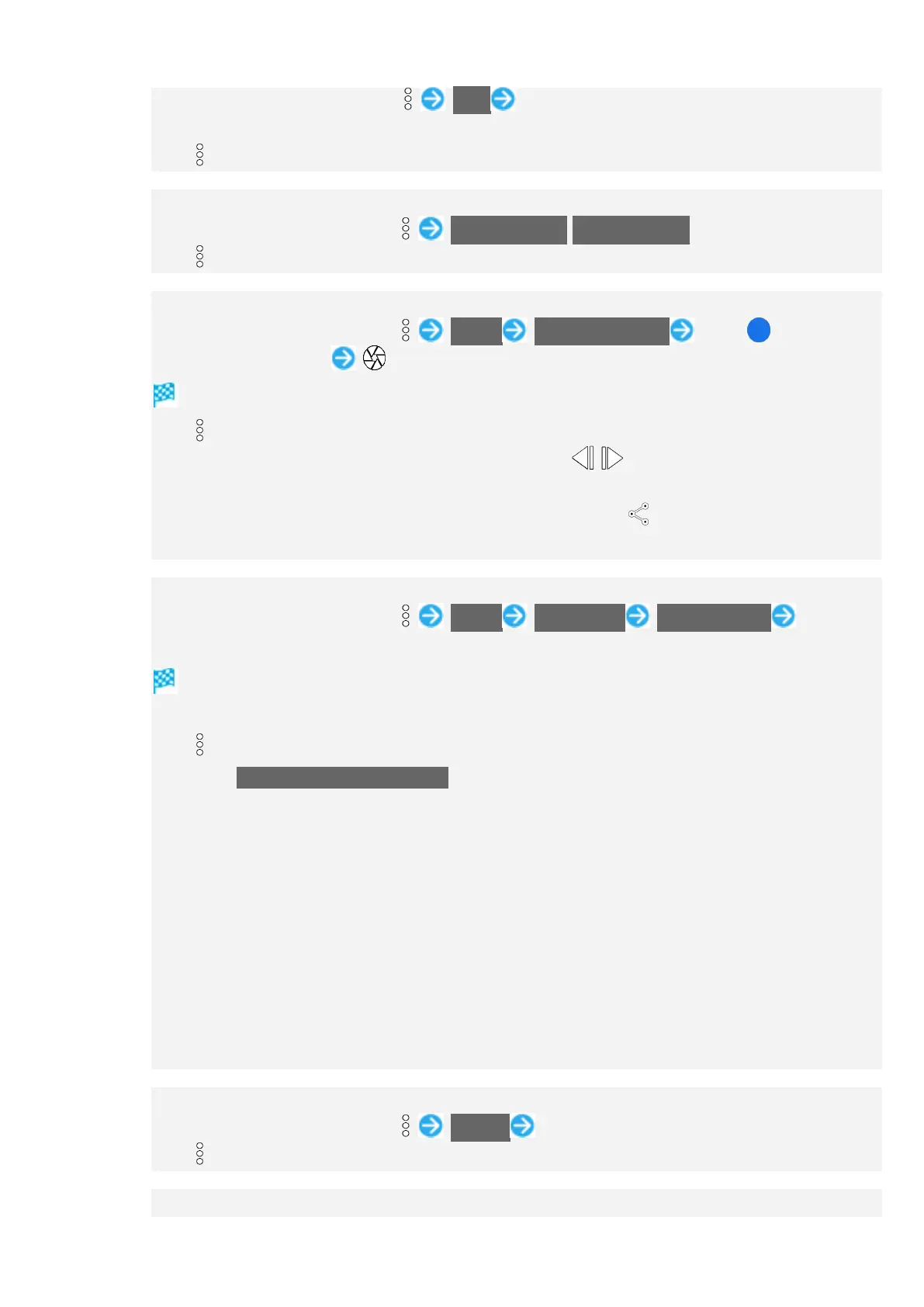
In file view window for photo, Print Follow onscreen prompts
Also use to save images to internal storage or SD Card in PDF format.
If is hidden, Tap Display first.
Setting Whether to Play Back Videos in Loop
In file view window for video, Loop video off/Loop video on
If is hidden, Tap Display first.
Saving Frame from Video as Photo (Atokara Capture)
In file view window for video, Edit in Atokara Capture Drag left/right to
view frame to capture
Shown frame is saved to internal storage/SD Card.
If is hidden, Tap Display first.
To move backward/forward frame by frame, Tap / or Drag frame left/right.
Frame may not be shown depending on the video size.
To save the current image as a photo and share it, Tap . Follow onscreen prompts.
Install additional application capable of image editing to change shown content.
Up-Converting Video Saved on Handset to Higher-Resolution Video
In file view window for video, Edit in Up-convert START NOW. Follow
onscreen prompts
After up-converting, a converted video is saved separately from the original video.
If confirmation appears, follow onscreen prompts.
If is hidden, Tap Display first.
Enable Up-convert to HDR video. and then start up-conversion to convert a standard
video to an HDR video.
Playing video or using Camera while up-converting may interrupt up-converting.
It may not be possible to record the screen or capture video while up-converting.
It may not be possible to up-convert video other than that captured with handset
Camera.
Converting a video longer than 1 minute results in a converted video shortened to 1
minute starting from the beginning of the video.
Video with a resolution higher than 4K cannot be converted.
The frame rate of a converted video is up to 30 fps. Up-converting a video of 60 fps
results in a converted video of 30 fps.
Selecting Video Playback Application
In file view window for video, View in Tap application
If is hidden, Tap Display first.
Zooming In/Out on Photos


 To Next Page