165/178
Handset Settings
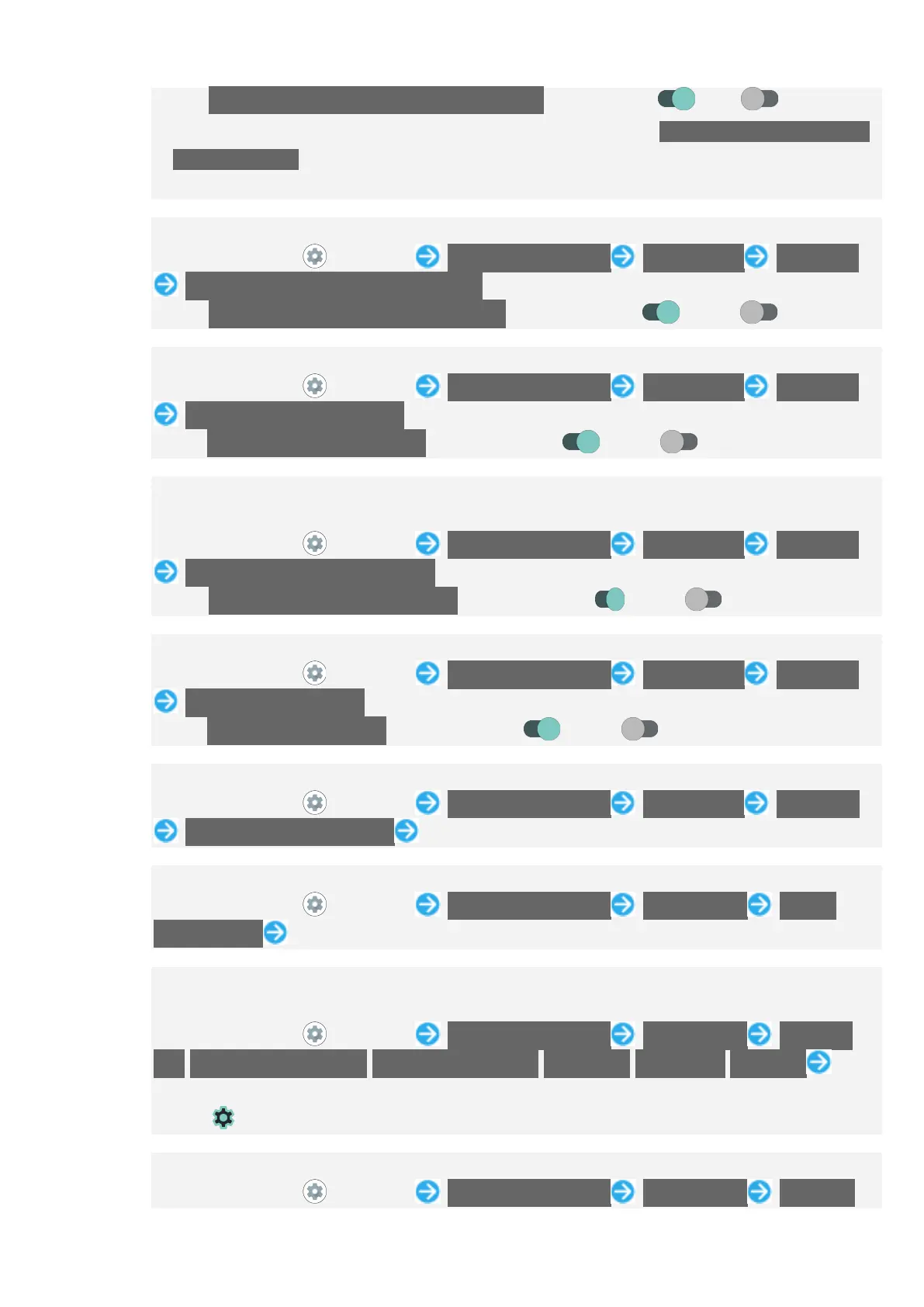
Tap Organize notifications on the lock screen to toggle on ( )/off ( ).
Notifications that cannot be deleted still appear even when Organize notifications on
the lock screen is on.
Notification Indicators on Status Bar are not hidden.
Setting Whether to Hide Silent Notification on Status Bar
In Home Screen, (Settings) Apps & notifications Notifications Advanced
Hide silent notifications in status bar
Tap Hide silent notifications in status bar to toggle show ( )/hide ( ).
Setting Whether to Allow Notification Snoozing
In Home Screen, (Settings) Apps & notifications Notifications Advanced
Allow notification snoozing
Tap Allow notification snoozing to toggle show ( )/hide ( ).
Setting Whether Show Suggested Actions and Replies Automatically when
Notifications Arrive
In Home Screen, (Settings) Apps & notifications Notifications Advanced
Suggested actions and replies
Tap Suggested actions and replies to toggle show ( )/hide ( ).
Showing/Hiding Notification Dots
In Home Screen, (Settings) Apps & notifications Notifications Advanced
Allow notification dots
Tap Allow notification dots to toggle show ( )/hide ( ).
Setting Sound for Notifications
In Home Screen, (Settings) Apps & notifications Notifications Advanced
Default notification sound Follow onscreen prompts
Setting Digital assistant Applications
In Home Screen, (Settings) Apps & notifications Default apps Digital
assistant app Follow onscreen prompts
Setting Default Applications for Browser, Home Screen, Phone, Caller ID/Spam
Applications, SMS, etc.
In Home Screen, (Settings) Apps & notifications Default apps Browser
app/Caller ID & spam app/Digital assistant app/Home app/Phone app/SMS app Tap
application name
Tap for "Home app" to set Home Screen application.
Setting Integration with Other Applications, Etc.
In Home Screen, (Settings) Apps & notifications Default apps Opening


 To Next Page
 Loading...