172/178
Handset Settings
Dashboard
1
Check history of total duration of handset use. Also restrict usage of
1
Activate Bedtime Mode at specified time.
Focus mode
1
Pause applications that might be a distraction. Also specify day and
1
Manage application notifications.
Do Not Disturb
1
Make Do Not Disturb settings.
See "Sound Settings" for details.
Show icon in the app list
1
Set whether to show Digital Wellbeing as application in app list.
Set controls on usage as a parent/guardian.
1 If hidden, Tap Show your data first.
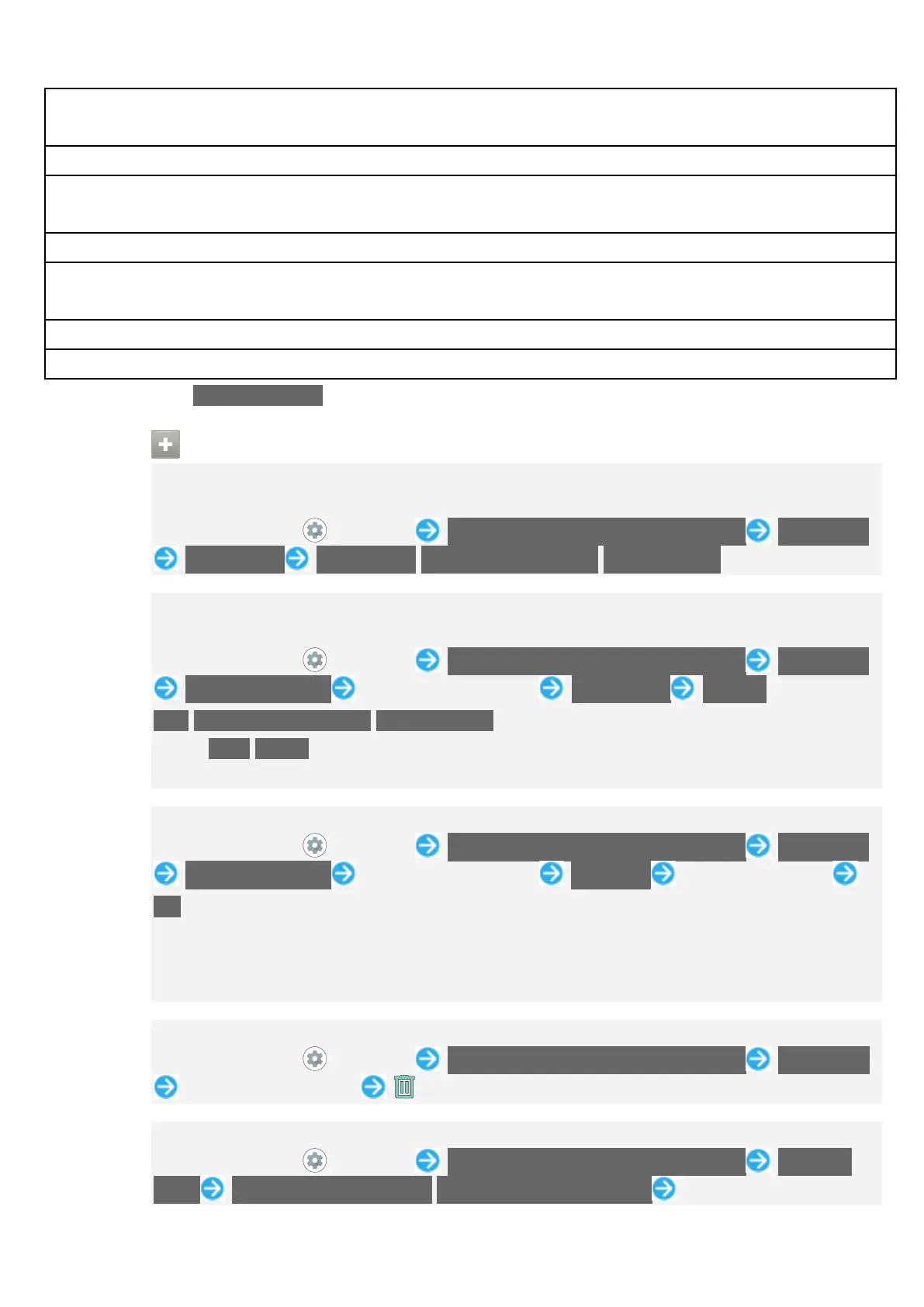
Digital Wellbeing & Parental Controls Operations
Checking Handset Use Time, Frequency of Notifications, and Frequency of
Screen Unlocking
In Home Screen, (Settings) Digital Wellbeing & parental controls Dashboard
Screen time Screen time/Notifications received/Times opened
Checking Handset Use Time, Frequency of Notifications, and Number of
Activations for Each Application
In Home Screen, (Settings) Digital Wellbeing & parental controls Dashboard
Show all XX apps Tap application name Screen time Screen
time/Notifications received/Times opened
Tap Daily/Hourly to check use time, frequency of notifications, and number of
activations per day or per hour.
Setting Limit on Daily Use Time for Each Application
In Home Screen, (Settings) Digital Wellbeing & parental controls Dashboard
Show all XX apps Tap application name App timer Set hours/minutes
OK
As set limits are then reached, icons for the applications turn gray and applications
cannot be used until next day.
May not be usable with some applications.
Removing Set Limit on Use
In Home Screen, (Settings) Digital Wellbeing & parental controls Dashboard
Tap application name
Setting Bedtime Mode
In Home Screen, (Settings) Digital Wellbeing & parental controls Bedtime
mode Based on your schedule/While charging at bedtime Follow onscreen


 To Next Page