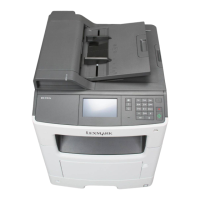
Scanner disabled error service check
Actions Yes No
Step 1
POR the machine into Configuration menu > Disable Scanner. From there,
select Enabled to change the setting to re-enable the scanner module and
then save the setting.
POR the MFP to operating mode. Try running a copy from the ADF and
flatbed.
Did the 840.xx error reoccur?
Go to step 2. The problem is solved.
Step 2
Re‑enter the Configuration mode, and scroll to and select the Disable
Scanner menu item.
Does the screen display ADF disabled or Auto Disabled?
Go to step 3. Go to step 8.
Step 3
Check the ADF cable connections on the ADF relay card and connector
JADF1 on the controller board. Also inspect the cable connections
JHOME1, JFBM1, JPLEN1, and JCIS1 on the controller board.
Are the connections properly connected?
Go to step 5. Go to step 4.
Step 4
Properly connect the connections on the ADF relay card and controller
board.
POR the machine into Configuration menu > Disable Scanner. From there,
select Enabled to change the setting to re-enable the scanner module and
then save the setting.
POR the MFP to operating mode. Try running a copy from the ADF and
flatbed.
Did the 840.xx error reoccur?
Go to step 5. The problem is solved.
Step 5
Check the continuity on the ADF cable.
Is there continuity?
Go to step 7. Go to step 6.
Step 6
Replace the ADF cable.
POR the machine into Configuration menu > Disable Scanner. From there,
select Enabled to change the setting to re-enable the scanner module and
then save the setting.
POR the MFP to operating mode. Try running a copy from the ADF and
flatbed.
Did the 840.xx error reoccur?
Go to step 7. The problem is solved.
7015
Diagnostic information
127

 To Next Page
 Loading...