2-6 MAX TNT Hardware Installation Guide
Preparing for Installation
Understanding the shelf-controller back panel
Status lights on the shelf-controller back panel
The status lights (also called LEDs) on the MAX TNT back panel can be helpful if you
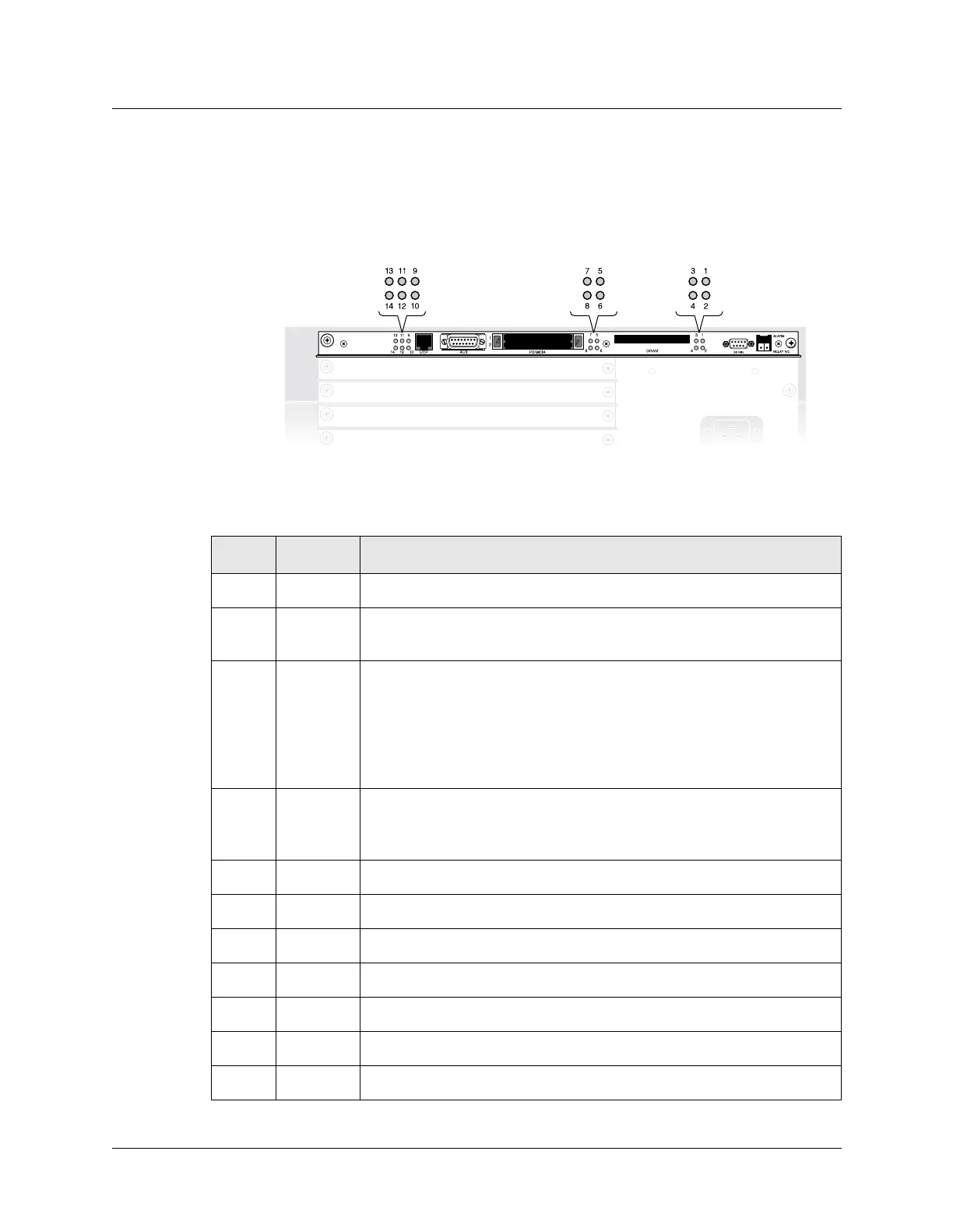
experience a problem, especially if it occurs shortly after power on. Figure 2-4 shows the
location of the status lights on the back panel and Table 2-2 describes them.
Figure 2-4. Location of the MAX TNT status lights
Table 2-2. MAX TNT status lights
Light Color Description
1 Green On when the unit has power.
2 Green On for any functioning shelf in a multishelf system, whether it is
configured as master or slave.
3 Yellow Behaves as follows:
• Illuminated when you restart the unit
• Goes out after the unit passes its power-on self test (POST) and is
running
• Blinks if a fatal error has occurred
4 Yellow This is the multishelf alarm light. If the master shelf stops operating, this
light illuminates on each slave shelf for about 9 seconds. It does not
illuminate on the master shelf during a multishelf alarm condition.
5 Green On when power supply A is installed and working.
6 Green On when power supply B is installed and working.
7 Yellow On when power supply A is installed and a fault occurs.
8 Yellow On when power supply B is installed and a fault occurs.
9 Green On when an Ethernet 10BaseT link has been established.
10 Green On when an Ethernet AUI link has been established.
11 Green On when the Ethernet link is active.


 To Next Page