LX iris EFIS
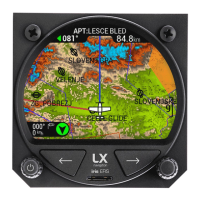
APT navigation page
Document name: LX HUM
Document revision: R1
6.4 Zoom level
While on navigation page, use left-hand push-rotary knob to Zoom in and out. By rotating the
left-hand push-rotary knob pilot will move through predefined Zoom levels.
6.4.1 Map scale bar
LX horizon will display a “Map scale bar” in the lower right corner of the display while on
navigation page.
The marker will show the length of the bar is equal to the value in the pilot defined units (kilo-
meters (km), nautical miles (nm) or miles (mL)).
6.4.2 Zoom level appearance
Zoom level appearance will can be adjusted with left-hand push-rotary knob on navigation
pages (APT page, RTE page) by rotation of the knob.
6.4.3 Zoom level marked with Map scale bar: 0.2 / 0.5 / 1 / 3 / 5 / 9
3D terrain map is displayed with airspace and airports marked with APT icon and name of
airport. Edit graphic settings in setup page, user section, “Graphic” and enter the “Map”.
Edit airspace appearance in setup page, user section, “Graphic” and enter the “Airspace”.
6.4.4 Zoom level marked with Map scale bar: 12 / 25 / 50 / 125
3D terrain map is not displayed. Black background appears with airspace and airports marked
with APT icon and name of airport. Edit graphic settings in setup page, user section, “Graphic”
and enter the “Map”.
Edit airspace appearance in setup page, user section, “Graphic” and enter the “Airspace”.
6.5 Aircraft icon
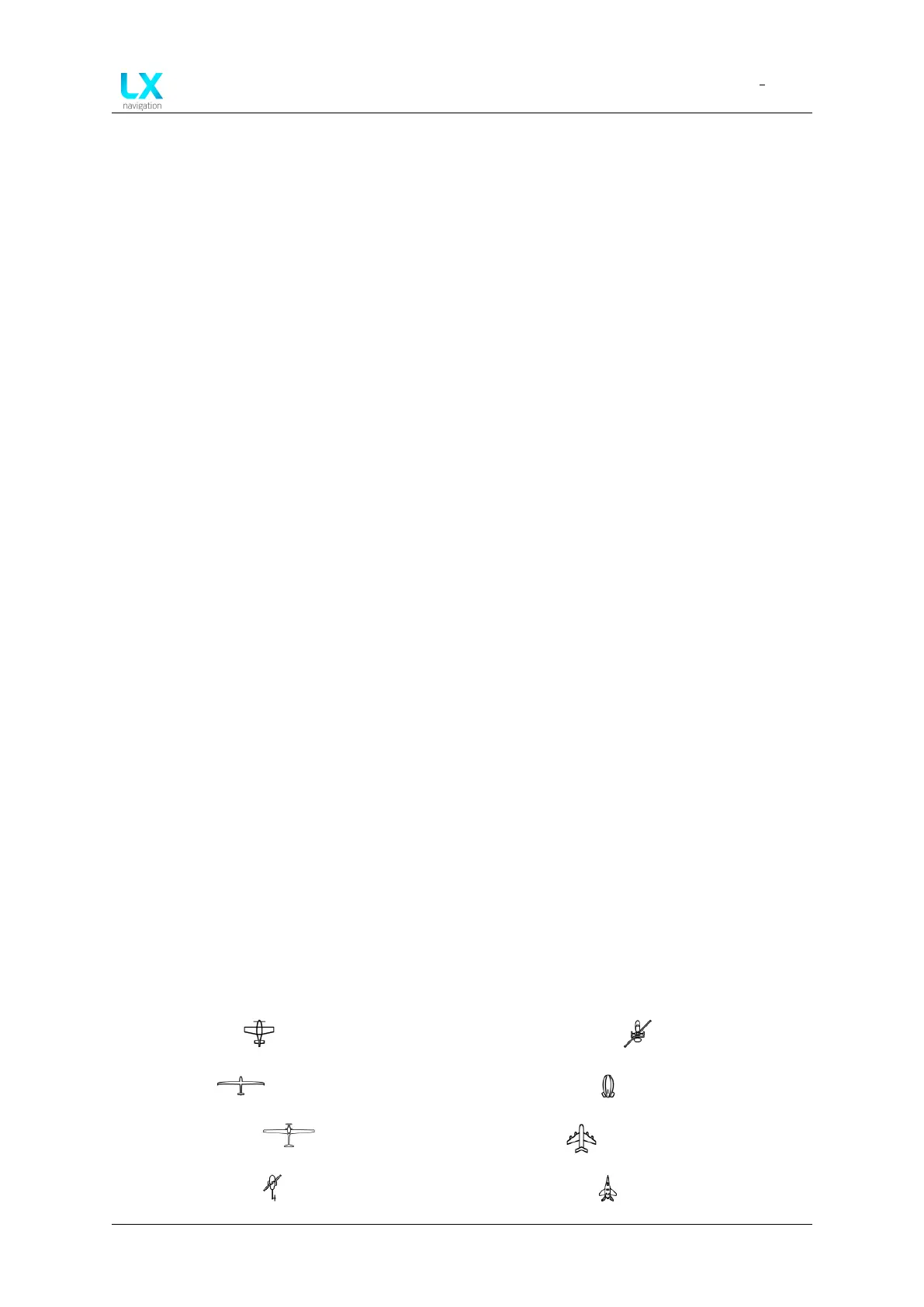
Aircraft is displayed at the bottom of the page with icon. To change the aircraft icon, go to
setup, system section and select “Aircraft”.
Go to “Category” and select from the list:
• Airplane -
• Glider -
• Motor glider -
• Rotorcraft -
• Gyrocopter -
• Airship -
• Jet -
• Fighter -
Device manual Public 29


 To Next Page