S
ection
5
SECTION 5 • MARATHON-DVR2000E-32 SOFTWARE
FOR WINDOWS
®
OS
INTRODUCTION
MARATHON-DVR2000E-32 software provides a communication link between the DVR2000E and the user. This
software enables the user to enter all DVR2000E settings and read all system metering values through an easy
to use graphical interface. PID (Proportional + Integral + Derivative) software within the application enables the
user to establish proper PID parameters based on a specied generator and/or exciter time constants. Within
MARATHON-DVR2000E-32, unit settings can be saved in a computer le and used later to congure other units
with the same settings.
INSTALLATION
MARATHON-DVR2000E-32 software operates with IBM compatible personal computers (PCs) using Microsoft®
Windows® 95, 98 or NT operating systems. The minimum recommended operating require-ments are listed
below.
• IBM compatible PC, 486DX2 or faster (100 MHz or higher microprocessor is recommended)
• CD-ROM drive
• One available serial port
Installing MARATHON-DVR2000E-32
MARATHON-DVR2000E-32 software contains a setup utility that installs the program on your PC. An uninstall
utility is loaded with the program that can be used to remove the software from your PC if desired. Use the
following procedure to install MARATHON-DVR2000E-32.
1. Insert the CD-ROM into the PC CD-ROM drive.
2. Select Start, then Run in Windows. In the “Open:” box, type d:\setup.exe, where d is the letter designator for
your CD-ROM drive. Press the Enter key. The setup utility automatically installs MARATHON-DVR2000E-32
on your PC.
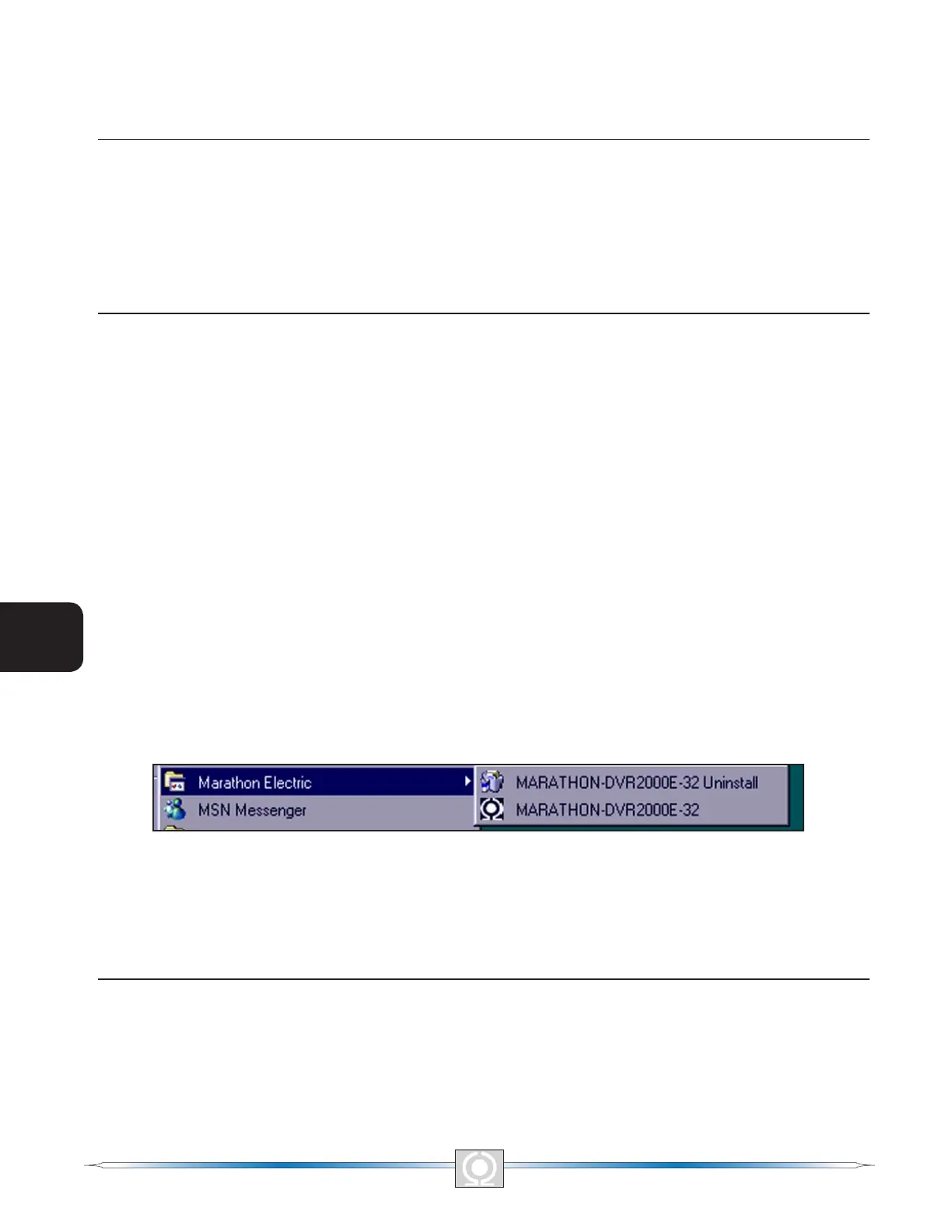
When the software is installed, a Marathon Electric folder is added to the Windows
®
program menu. This folder
is accessed by clicking the Start button and pointing to Programs. As illustrated in Figure 5-1, the Marathon
Electric folder contains icons for the MARATHON-DVR2000E-32 program and a MARATHON-DVR2000E-32
uninstall utility.
Figure 5-1. Marathon Electric Folder
Connecting the DVR2000E and PC
Connect a communication cable between the rear RS-232 connector of the DVR2000E and the appropriate
communication port of the PC. Refer to Figure 2-2 for the location of the DVR2000E RS-232 connector and Figure
4-5 for the required connections between the DVR2000E and a PC.
STARTING THE MARATHON-DVR2000E-32 APPLICATION
The MARATHON-DVR2000E-32 application is started by clicking the Windows® Start button, pointing to
Programs, the Marathon Electric folder, and then clicking the MARATHON-DVR2000E-32 icon. At startup, a dialog
box with the program title and version number is displayed briey (Figure 5-2). After this dialog box is displayed,
the System Conguration screen is displayed (Figure 5-3).
40
3
Main Index
5
Section 5 Index
41
3
Main Index
5
Section 5 Index


 To Next Page