S
ection
6
Changing Settings
When a setting screen is selected and displayed, the description for each setting is listed in the Item column. The
value for each setting is listed in the Value column. And the range for the highlighted setting is listed in the Settings
Range box.
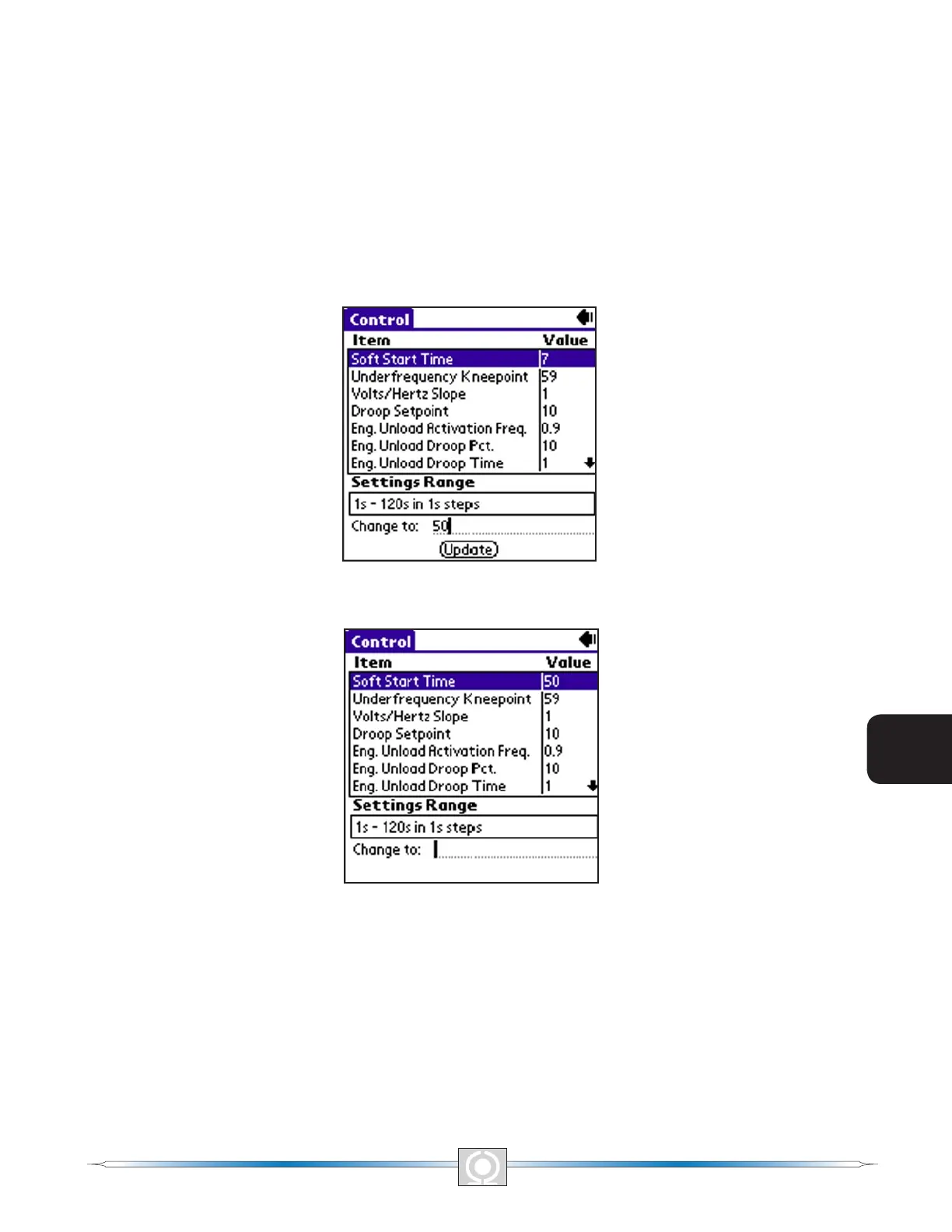
To change a setting, highlight the desired setting by tapping it. Ensure that the cursor is on the Change to: line and
enter the new value in the Grafti® writing area of the handheld. In the example of Figure 6-18 (Setting Change
– Part 1 Screen), the Control screen Soft Start Time setting of 20 seconds is being replaced with a new setting of
50 seconds. Once the new value is entered in the Change to: line, the Update button is tapped to send the setting
to the DVR2000E. When the handheld conrms the DVR2000E setting change, the handheld emits a two-tone
beep, the new setting is displayed in the Value column, and the Save to DVR button appears in the lower, right-
hand corner of the screen. See Figure 6-19, Setting Change – Part 2 Screen.
Figure 6-18. Settings Change - Part 1 Screen
Figure 6-19.Setting Change – Part 2 Screen
Multiple changes can be made before saving the DVR2000E settings. Settings are saved by tapping the Save to
DVR button on any of the screens that display the button.
Alarm and Contact Input Status
The Alarm/Contact Status Screen (Figure 6-20) is accessed from the software Main Screen (Figure 6-14). Tap the
down arrow (6) on the Other Pages: line and then select Alarm/Contact Status from the drop-down menu. Figure
6-21 (Reading Data Screen) shows how the screen will look while the Palm is polling the DVR2000E for data.
78
3
Main Index
5
Section 6 Index
79
3
Main Index
5
Section 6 Index


 To Next Page