S
ection
5
PASSWORD PROTECTION
Password protection guards against unauthorized changing or viewing of DVR2000E settings. A single password
protects all DVR2000E settings. The DVR2000E is delivered with a default password of dvr. Changing the
password provides security against unauthorized changes to settings. Once changed, the password should be
stored in a secure location. If the user-dened password is lost or forgotten, MARATHON-DVR2000E-32 must be
reloaded to restore the default password.
Changing the Password
NOTE
A password change can be made only after communication between MARATHON-
DVR2000E-32 and the DVR2000E is established.
A new password can be programmed by performing the following steps.
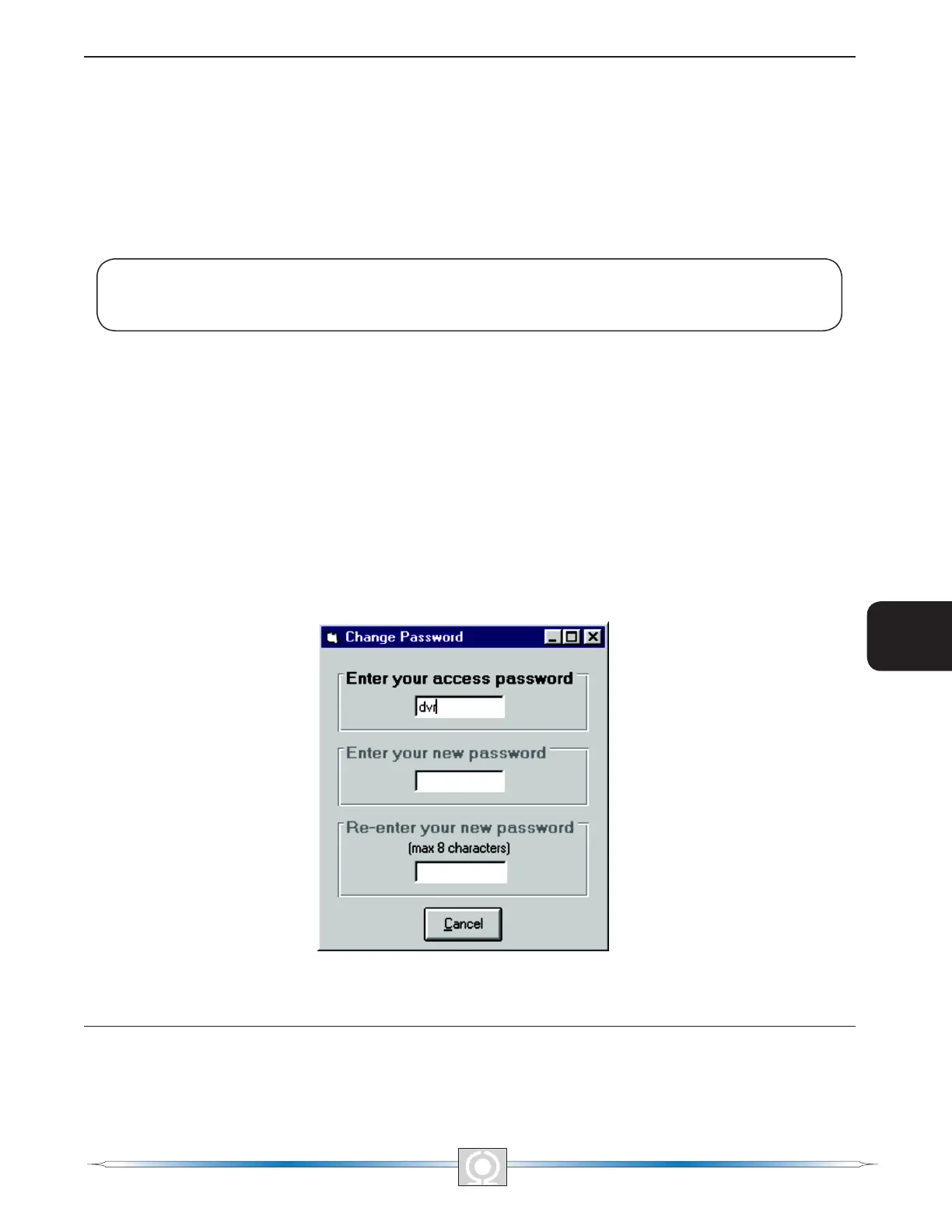
1. Click Communications on the menu bar and click Password Change on the drop-down menu. The Change
Password dialog box of Figure 5-27 appears.
2. Type the current password in the “Enter your access password” eld of the Change Password dialog box and
press the Enter key on your keyboard.
3. Another dialog box will appear with instructions for making the password change. Click the OK button and type
a new password (8 alphanumeric characters, maximum) in the “Enter your new password” eld.
4. Press the Enter or Tab key on your keyboard to advance the cursor into the eld labeled “Re-enter your new
password”. Type the new password again to conrm the changed password and press the Enter key. When
the Enter key is pressed, the new password is enabled and a dialog box appears to remind you to keep your
password in a secure location.
Figure 5-27. Password Dialog Box
UPDATING EMBEDDED FIRMWARE
The DVR 2000E uses non-volatile ash memory for storing its embedded rmware (operating program) and
can be reprogrammed by connecting the RS-232 port, located on the on the back of the device, to a Windows®
62
3
Main Index
5
Section 5 Index
63
3
Main Index
5
Section 5 Index


 To Next Page