S
ection
6
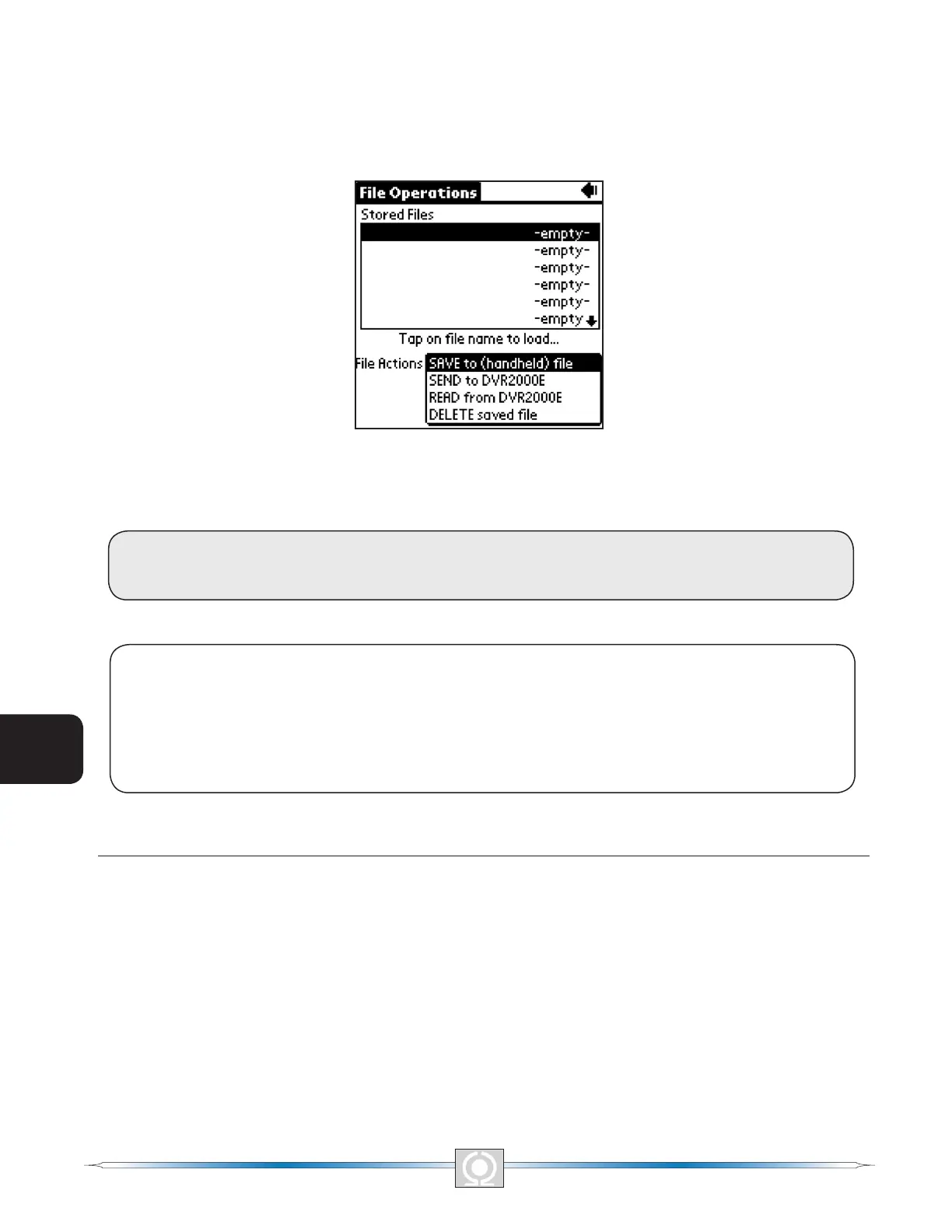
Tapping the Open button displays the File Operations Screen of Figure 6-13. One of 10 user-created settings
les or the factory-default settings le can be selected from the list displayed on this screen. When the settings
le name is tapped, the settings are retrieved. A screen similar to the one shown in Figure 6-12 is displayed while
the software retrieves the factory-default settings or user-created settings le. When the settings le has been
retrieved, a dialog box appears and conrms that the settings were loaded. Tapping the OK button displays the
Main Screen shown in Figure 6-14.
Figure 6-13. File Operations Screen
More information about the File Operations Screen is provided in the software File Operations Screen
subsection.
CAUTION
Do not disconnect the communications cable while the DVR2000E and handheld are communicating.
NOTE
The Save to DVR button of the main screen, system status screen, and all of the settings group screens,
is not always present. See Figure 6-14. It is displayed only in On-Line mode when settings have been
changed but not saved to the DVR2000E. If the software is exited (either by turning off the handheld or
switching to another application) without tapping the Save to DVR button, setting changes are not saved in
the DVR2000E and may be erased if the DVR2000E loses operating power.
MAIN SCREEN
The software Main Screen of Figure 6-14 is the gateway to other software screens where settings changes can
be made. The status of DVR2000E alarms, outputs and system parameters can be viewed, the software version
level is stated, and contact information for Marathon Electric is provided.
76
3
Main Index
5
Section 6 Index
77
3
Main Index
5
Section 6 Index


 To Next Page