S
ection
5
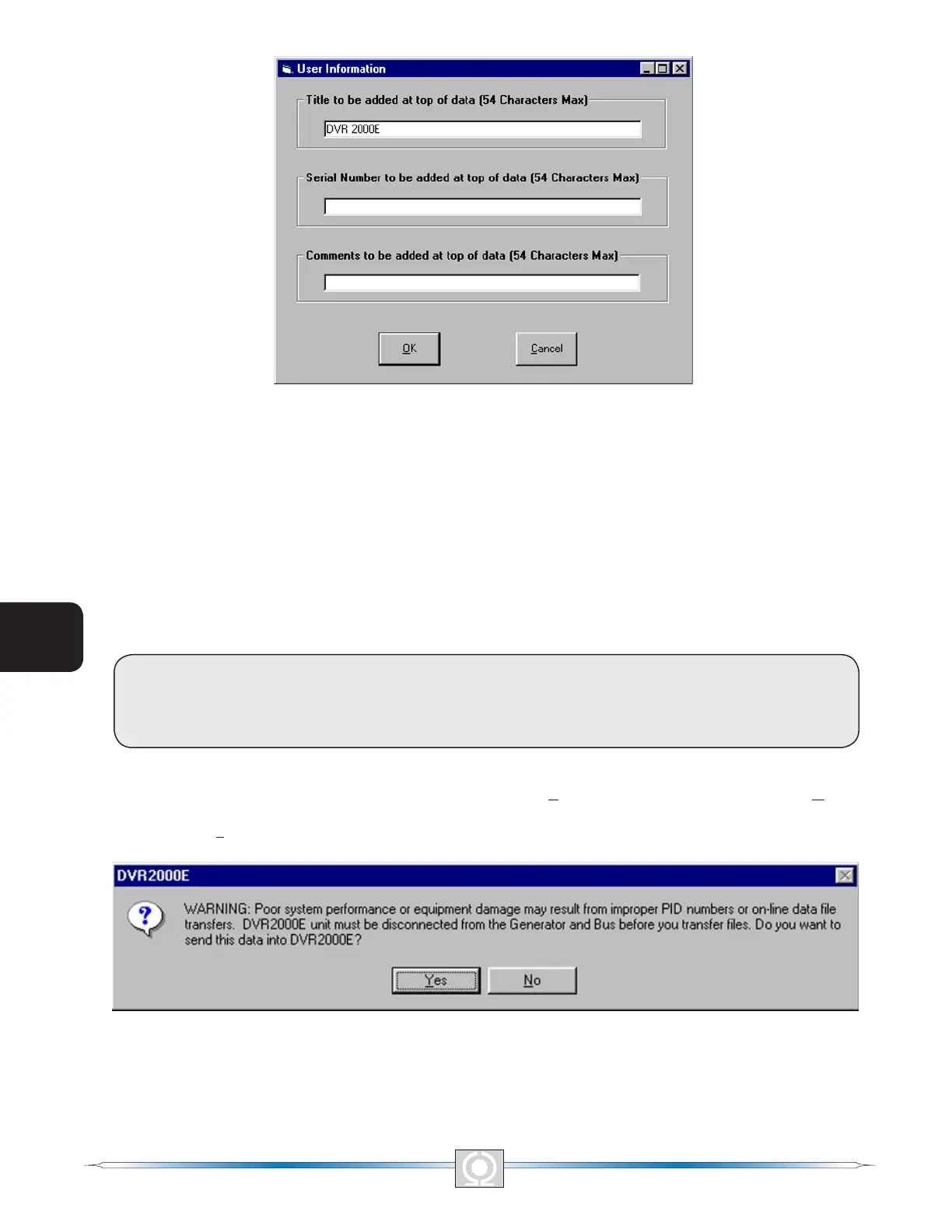
Figure 5-25. User Information Dialog Box for Settings List
A settings le is created by clicking the save icon or by clicking File on the Menu bar and then clicking Save.
When the le command is given, a dialog box asks if you want to save the current settings into a DVR2000E data
le. Clicking Yes displays a Save As dialog box where the settings are assigned a le name and then saved. All
DVR2000E settings les are automatically given a .de1 extension by MARATHON-DVR2000E-32.
Uploading Settings Files
A DVR2000E settings le downloaded from a DVR2000E or created within MARATHON-DVR2000E-32 can be
uploaded to multiple DVR2000E units. Only a DVR2000E settings le with a .de1 extension can be uploaded to
a DVR2000E unit. Before uploading a le, communication must be initiated with the DVR2000E that is to receive
the settings. Refer to the paragraphs under the headings Starting MARATHON-DVR2000E-32, Establishing
Communication.
CAUTION
Before uploading a settings le, remove operating power from the DVR2000E,
disconnect the eld wiring from terminals F+ and F- and re-apply operating power to
the DVR2000E.
The upload process is started by clicking the open icon or clicking File on the menu bar and then clicking Open. A
dialog box is then displayed (Figure 5-26) reminding you that the DVR2000E should be off-line before uploading
settings. Clicking Yes loads the settings into DVR2000E memory.
Figure 5-26. Settings Upload Dialog Box
62
3
Main Index
5
Section 5 Index
63
3
Main Index
5
Section 5 Index


 To Next Page