95
This allows you to export all the saved processed graphics: select the file of interest and press “Export” or
“Export All” to copy the whole Hard Disk content.
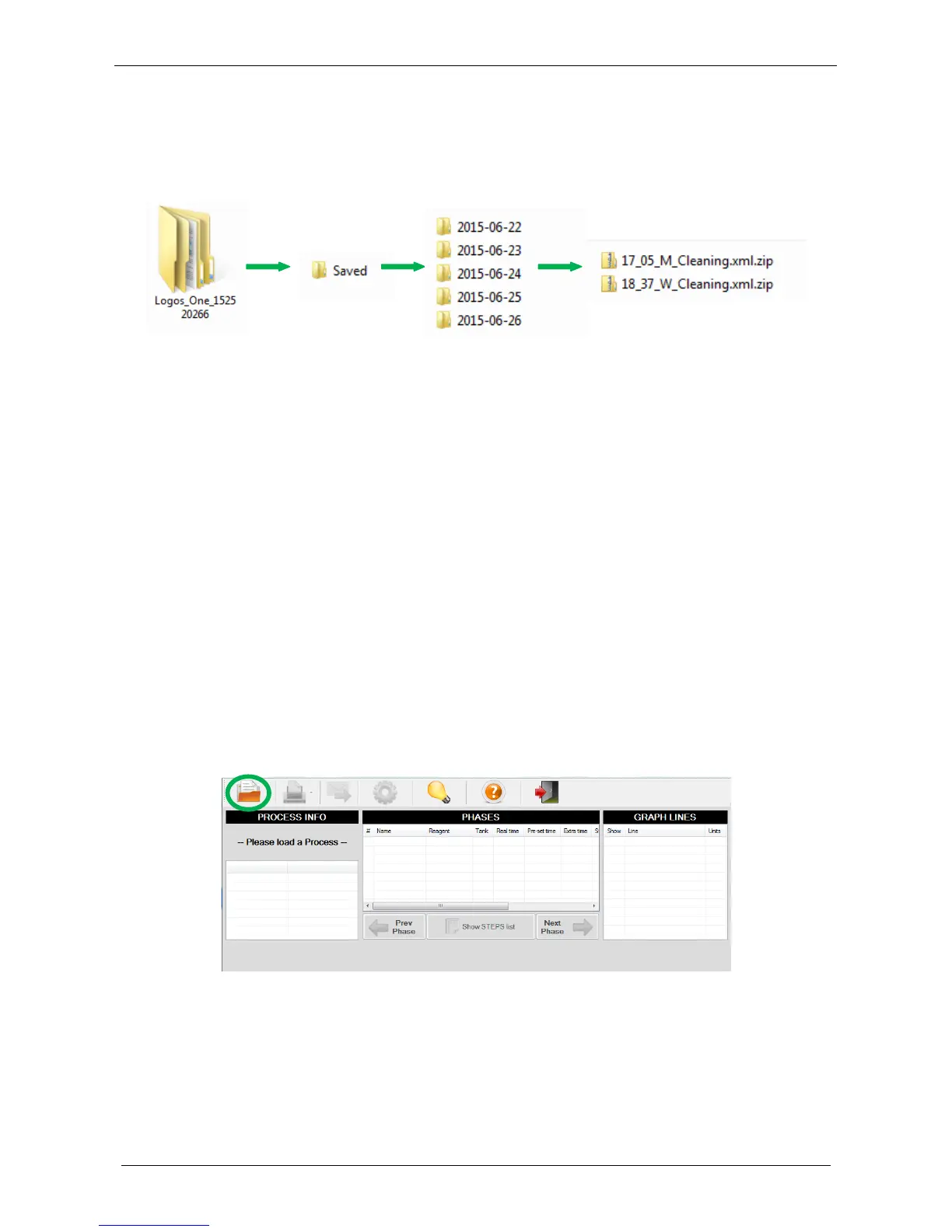
After exporting plug the USB in a PC, a folder named “Logos_ONE_S.N.” is present containing the folder
“Saved”: here are the folders listed by date including all the processes saved of that day.
Alternatively choose “Delete” or “Delete All” if you want to definitely eliminate one file only or every file
saved, respectively.
6.2 Install and operate with the LogViewer
The USB key provided with the unit contains the LogViewer folder. Double click on the
“SetupLogViewer.exe” icon to install the program. The LogViewer software is now ready to work.
Microsoft.NET Framework 4.0 is a prerequisite to this application, the setup will install it if not present on
your PC.
Christal Report Runtime is a prerequisite to this application the setup will install it if not present on your PC.
6.2.1 Open process
Plug the USB memory stick on the LOGOS ONE terminal where all processes are stored and export them on
the key, as described in chapter 6.1.
• Open the LogViewer software (go to “Start Menu\All programs\Milestone srl\Milestone LogViewer” or
click on the “LogViewer” icon created on your desktop).
• Plug the USB key in your PC and “Open” a process by clicking on the relative icon (green circle).
• Select the USB folder with saved processes of interest (see the example below).


 To Next Page