EasyManua.ls Logo

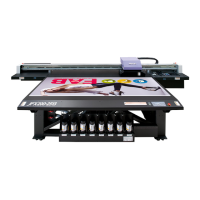
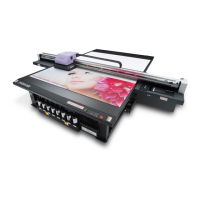
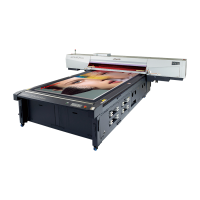
MIMAKI JFX550-2513 - User Manual

MIMAKI JFX550-2513
164 pages
Print Icon
To Next Page IconTo Next Page
Loading...
You can also download the latest manual from official website.
MIMAKI ENGINEERING CO., LTD.
https://mimaki.com/
D203593-15
Original instructions

Table of Contents

Other manuals for MIMAKI JFX550-2513

Questions and Answers

  • T
    Terry WhiteAug 17, 2025
    How to fix a MIMAKI Printer that does not turn on?
    • E
      Eileen SimsAug 17, 2025
      If your MIMAKI Printer isn't turning on, try these steps: * Ensure the power socket is fully inserted until it clicks into place. * Turn on the main power switch. * Turn the power on.
  • T
    Tina WallaceAug 20, 2025
    What to do if my MIMAKI JFX550-2513 is not printing?
    • M
      Mary FigueroaAug 20, 2025
      If your MIMAKI Printer is not printing, try the following: * Ensure the LAN cable connector is fully inserted into the LAN port until it clicks. * Replace the ink with a new cartridge. * Take action according to the message displayed on the printer.
  • S
    Shelby HarveyAug 22, 2025
    What to do if printing is not possible with my MIMAKI JFX550-2513?
    • M
      mmitchellAug 22, 2025
      If printing is not possible, ensure the LAN cable connector is securely inserted into the LAN port until it clicks. Also, if an “Ink end” message appears in SYSTEM ALARM on the touch panel, replace the ink with a new one. In other cases, take appropriate measures based on the message displayed in "SYSTEM ALARM" or "Warning/Error Messages".
  • T
    Theresa NicholsonAug 25, 2025
    What to do if image defects occur on my MIMAKI Printer?
    • S
      Steven MeyerAug 26, 2025
      If image defects occur, follow these steps: 1. Remove any paper scraps or debris from areas the print head passes over. 2. Perform head cleaning. 3. Perform wiper cleaning. 4. Perform cap rubber cleaning. 5. Perform carriage underside cleaning.
  • L
    lisadavisAug 28, 2025
    Why does a pressure error occur on my MIMAKI JFX550-2513?
    • R
      raymondlambertAug 28, 2025
      If a pressure error occurs on your MIMAKI Printer, it might be because the pressure controlled by the machine has exceeded its normal range due to the usage environment or the machine's service life. To fix this, adjust the pressure as soon as possible to restore normal conditions.
  • D
    Denise GatesAug 30, 2025
    What to do if touch panel operation is not possible on MIMAKI Printer?
    • S
      Stephen OliverAug 30, 2025
      If the touch panel on your MIMAKI Printer isn't working, first check if there are any objects like tape or labels stuck to the screen or the black outer frame and remove them. If the touch panel is dirty, gently wipe it with a soft cloth.
  • C
    Carla WyattSep 2, 2025
    Why does the media jam or get dirty on my MIMAKI JFX550-2513 Printer?
    • C
      Calvin MontoyaSep 2, 2025
      If your MIMAKI Printer is causing media jams or the media is dirty, consider the following: * Use the recommended media. * Avoid using curled media or media with folded ends.
  • T
    Teresa NielsenSep 5, 2025
    How to resolve image defects on MIMAKI JFX550-2513 Printer?
    • D
      Daniel BooneSep 5, 2025
      If you notice image defects occurring with your MIMAKI Printer, follow these steps: 1. Remove any paper scraps or debris from areas where the print head passes. 2. Perform head cleaning. 3. Clean the wiper. 4. Clean the cap rubber.
  • J
    Jennifer PittmanSep 7, 2025
    What to do if the light-blocking cover comes off MIMAKI JFX550-2513 Printer?
    • D
      davisbenjaminSep 8, 2025
      If the light-blocking cover of your MIMAKI Printer comes off, insert the lug on one side of the cover into the corresponding hole in the tank.
  • N
    Nancy ChaseSep 10, 2025
    What to do if the ink has leaked from MIMAKI Printer?
    • J
      jhenrySep 12, 2025
      If ink has leaked from your MIMAKI Printer, immediately turn off the main power, unplug the power cable, and contact your local dealer or our service office.

Summary

Introduction

DISCLAIMERS

Legal disclaimers regarding liability for product use and damages.

TV and Radio Interference

Information about potential interference from the machine's electromagnetic radiation.

To Ensure Safe Use

Symbols

Explanations of symbols used to denote warnings, cautions, and important information.

Usage Precautions

General safety guidelines for handling the machine and its components.

Hazardous and Prohibited Actions

Identification of actions that pose significant risks during operation.

Usage Restrictions

Limitations and restrictions on machine operation due to safety hazards.

Connecting the Power

Power Connection Procedure for JFX600-2513 Machine Numbers 1 to 20

Steps for power connection for specific machine models and serial number ranges.

Power Connection Procedure for JFX600-2513 Machine Number 21 and Later, and the JFX550-2513

Instructions for power connection for later models and the JFX550-2513.

Ink or Any Other Liquid Used with the Machine

Precautions for Ink and Liquids

Safety guidelines for handling ink, maintenance liquid, and other solutions.

Ink Specifications

Details on ink types, colors, capacity, and storage requirements.

Installation Precautions

Environmental Restrictions

Guidelines on safe installation environments, avoiding flammables, flames, and humidity.

Installation Space Requirements

Specifies the necessary clearance around the machine for safe operation and maintenance.

Chapter 1 Before Use

1.1 Part Names and Functions

Identification and overview of the main physical components of the printer.

1.3 Preparing the RIP PC

Steps to set up the RIP PC, including network and driver installation.

1.4 Ink Replacement Method

Procedures for replacing ink bottles when ink levels are low or depleted.

Chapter 2 Printing

2.1 Print Process

A comprehensive overview of the steps involved in the printing workflow.

2.2 Load the media

Detailed instructions and precautions for loading media onto the printer.

2.5 Test Printing

Performing test prints to verify ink discharge and identify print issues.

2.6 Head Cleaning

Procedures for cleaning print heads to resolve nozzle clogging and deflection.

Chapter 3 Settings (MPC)

3.1 Mimaki Printer Controller

Detailed explanation of the MPC interface, including status indicators and menus.

3.3 Maintenance menu

Access to various machine maintenance operations and settings.

3.4 Setting 1 Menu

Configuration options for print-related operations like logical seek and UV conditions.

Chapter 4 Maintenance

4.1 Maintenance Precautions

Crucial safety warnings and precautions before performing maintenance.

4.3 Performing Maintenance

Step-by-step guides for performing routine maintenance tasks.

4.4 Consumable Item Replacement

Instructions for replacing parts like wipers, filters, and ink pads.

Chapter 5 Troubleshooting

5.1 Troubleshooting

Common problems, their causes, and corrective actions.

5.2 Problems Indicated by Messages

A detailed list of error messages and their corresponding solutions.

Chapter 6 Appendix

6.1 Specifications

Technical specifications for the JFX600-2513 and JFX550-2513 printers.

MIMAKI JFX550-2513 Specifications

General IconGeneral
BrandMIMAKI
ModelJFX550-2513
CategoryPrinter
LanguageEnglish

Related product manuals