EasyManua.ls Logo

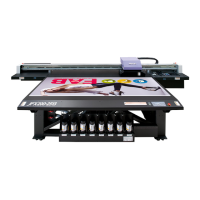
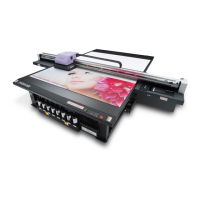
MIMAKI JFX200-2513EX - User Manual

MIMAKI JFX200-2513EX
176 pages
Print Icon
To Next Page IconTo Next Page
Loading...
You can also download the latest manual from our website.
MIMAKI ENGINEERING CO., LTD.
https://mimaki.com/
D203431-12
Original instructions

Table of Contents

Other manuals for MIMAKI JFX200-2513EX

Questions and Answers

  • N
    Nancy WardAug 14, 2025
    What to do if my MIMAKI Printer image quality is poor?
    • C
      Christopher MooreAug 14, 2025
      If the image quality of your MIMAKI Printer is poor, consider the following: * If you notice white lines, blur, or dark lines in the direction of head movement: * Execute head cleaning. * Perform maintenance inside the station. * Clean any dirt, pieces of paper, or trash along the area where the head passes. * If there is misalignment in reversible printing, correct the drop position. * If ink drips during printing: * Clean the wiper. * Clean the ink cap. * Clean around the head. * Execute head cleaning [NORMAL].
  • R
    rcollinsAug 17, 2025
    What to do if my MIMAKI JFX200-2513EX does not start printing?
    • L
      Lisa RayAug 17, 2025
      If your MIMAKI Printer does not start printing, it could be due to: * The data not being transmitted properly. Use the cable exclusive for this machine. * The printing function not working correctly or the media not installed correctly. Securely connect the interface cable. * The ink has run out. Replace the ink bottle with a new one.
  • P
    Paige MoraAug 20, 2025
    What to do if MIMAKI JFX200-2513EX Printer nozzle is clogged?
    • A
      Andrew PhillipsAug 20, 2025
      If the nozzle on your MIMAKI Printer is clogged, try the following: 1. Perform maintenance daily. 2. Execute head cleaning (NORMAL). 3. Execute head cleaning (HARD). 4. If the nozzle remains clogged after head cleaning, perform the steps mentioned for when nozzle clogging cannot be restored.
  • M
    Margaret LarsenAug 25, 2025
    What to do if MIMAKI JFX200-2513EX Printer detects ink bottle error?
    • S
      Stephanie MartinAug 25, 2025
      If your MIMAKI Printer detects an ink bottle error: * Check that the ink IC chip in the ink cover is set correctly. * Replace the ink bottle with a new one immediately. * Perform the operation to check the details of the ink bottle error.
  • B
    bwoodwardAug 27, 2025
    Why MIMAKI JFX200-2513EX Printer power does not turn on?
    • E
      eric25Aug 27, 2025
      The MIMAKI Printer may not power on due to several reasons: * The power cable might not be properly connected to the machine or the computer. Ensure the power cable is securely connected. * The power cable may not be connected at all. Connect the power cable securely. * The main power might not be turned on. Turn the main power on. * The power button on the front of the machine might not be pressed. Press the power button located at the front of the machine.
  • J
    Jennifer ChandlerAug 31, 2025
    What to do if pressure abnormality occurs in MIMAKI JFX200-2513EX Printer?
    • A
      Angela AdamsAug 31, 2025
      If a pressure abnormality occurs in your MIMAKI Printer, it may be because the pressure controlled in the machine exceeds the control range due to environment and aging. Adjust the pressure immediately using the provided procedure to return the pressure to its normal value.
  • J
    jorgemitchellSep 2, 2025
    What to do if MIMAKI JFX200-2513EX negative pressure sensor is abnormal?
    • D
      Dana GrossSep 3, 2025
      If the negative pressure sensor of your MIMAKI Printer is abnormal because its value is abnormal, adjust the pressure.
  • T
    terrance40Sep 6, 2025
    What to do if there is ink overflow from the sub tank of MIMAKI Printer?
    • D
      Deborah JohnsonSep 6, 2025
      If there is ink overflow from the sub tank of your MIMAKI Printer, perform sub tank maintenance.
  • C
    Christine WalkerSep 9, 2025
    What to do if there is ink leakage in MIMAKI JFX200-2513EX Printer?
    • S
      Shawn JohnsonSep 9, 2025
      Switch off the main power of the MIMAKI Printer, disconnect the power plug, and contact your local distributor, or our sales office or call center.

Summary

Foreword

Warranty and Usage Guidelines

Covers limited warranty terms, user requests, and manual usage.

Regulatory Compliance and Interference Information

Details FCC compliance and potential radio/TV interference.

For Safe Operation

Understanding Safety Symbols

Explains the meaning of various safety symbols used in the manual.

General Warnings and Precautions

Provides essential safety instructions for machine operation and handling.

Specific Safety Hazards and Precautions

Addresses risks from moving parts, UV light, and electrical components.

Installation Environment Safety Measures

Guidelines for safe installation location and operating environment.

Warning Labels

Warning Labels Overview

Identifies warning labels affixed to the machine and their importance.

Chapter 1 Before Use

Usage Restrictions and Area Control

Defines who can operate and access the machine, and restricted zones.

Machine Installation and Fixing Procedures

Covers environmental requirements and securing the printer.

Operating Safety and Hazard Avoidance

Highlights actions to avoid during printer operation to prevent injury.

Machine Parts and Operation Panel Identification

Identifies key components and explains the control panel layout.

Ink Bottle Handling and Setup

Instructions for setting up and safely handling ink bottles.

Chapter 2 Basic Usage

Overview of Basic Printing Workflow

Outlines the essential steps from power-on to printing data.

Powering the Machine On and Off

Step-by-step guide for turning the printer on and off safely.

Media Loading and Preparation

Procedures for correctly placing and securing media on the table.

UV Lamp Position Adjustment for Printing

How to set UV lamp positions based on ink and printing methods.

Test Printing and Head Cleaning Procedures

Performing tests to check nozzle status and cleaning methods.

Sending Print Data and Starting Operations

Instructions for transferring data and initiating the printing process.

Chapter 3 Convenient Usage

Setting the Print Origin Point

Adjusting the starting position for printing using JOG keys or menu.

Media Thickness and Head Gap Configuration

Registering media thickness and setting the head gap for optimal print quality.

Function List and Setting Reference

Details various functions and their available settings for machine customization.

Bidirectional Print Drop Position Correction

Adjusting ink drop alignment for improved print accuracy.

UV Level and MAPS Function Settings

Configuring UV irradiation intensity and stripe reduction features.

Machine Settings and Configuration

Covers language, network, auto power-off, and other machine configurations.

Chapter 4 Maintenance

Routine Machine Maintenance Procedures

Daily cleaning, exterior care, and liquid compatibility.

Capping Station and Ink Path Cleaning

Maintaining the capping station, NCU, and ink discharge passage.

Solving Persistent Nozzle Clogging Issues

Procedures for ink head filling and nozzle recovery when standard cleaning fails.

NOZZLE RECOVERY Functionality

Using the function to select alternative nozzles for printing.

Automatic Maintenance Function Setup

Configuring automated refresh and cleaning intervals.

Consumables Replacement and Waste Ink Disposal

Procedures for replacing wipers, filters, and disposing of waste ink.

Cooling System Maintenance and Refilling

Refilling coolant and replacing flushing filters.

Chapter 5 Troubleshooting

General Troubleshooting Approach

Initial steps for diagnosing and resolving common machine issues.

Nozzle, Ink, and Print Quality Problems

Solutions for clogged nozzles, ink errors, and poor print quality.

Ink Leakage, Sub Tank, and Pressure Issues

Addressing ink leaks, sub tank errors, and pressure abnormalities.

Warning and Error Message Interpretation

Explains system messages and their corresponding causes and solutions.

Chapter 6 Appendix

Machine and Ink Technical Specifications

Detailed specifications for the printer and its ink.

List of Available Accessories and Parts

Catalog of optional accessories and replacement parts with part numbers.

Ink Bottle Configuration and Inquiry Sheet

Guide for ink bottle order and a sheet for reporting issues.

MIMAKI JFX200-2513EX Specifications

General IconGeneral
BrandMIMAKI
ModelJFX200-2513EX
CategoryPrinter
LanguageEnglish

Related product manuals