10. Usage
MiR200 User Guide (en) 10/2020 - v.3.1 ©Copyright 2017-2020: Mobile Industrial Robots A/S. 130
5. Select OK to create the position. The position is now visible on the map.
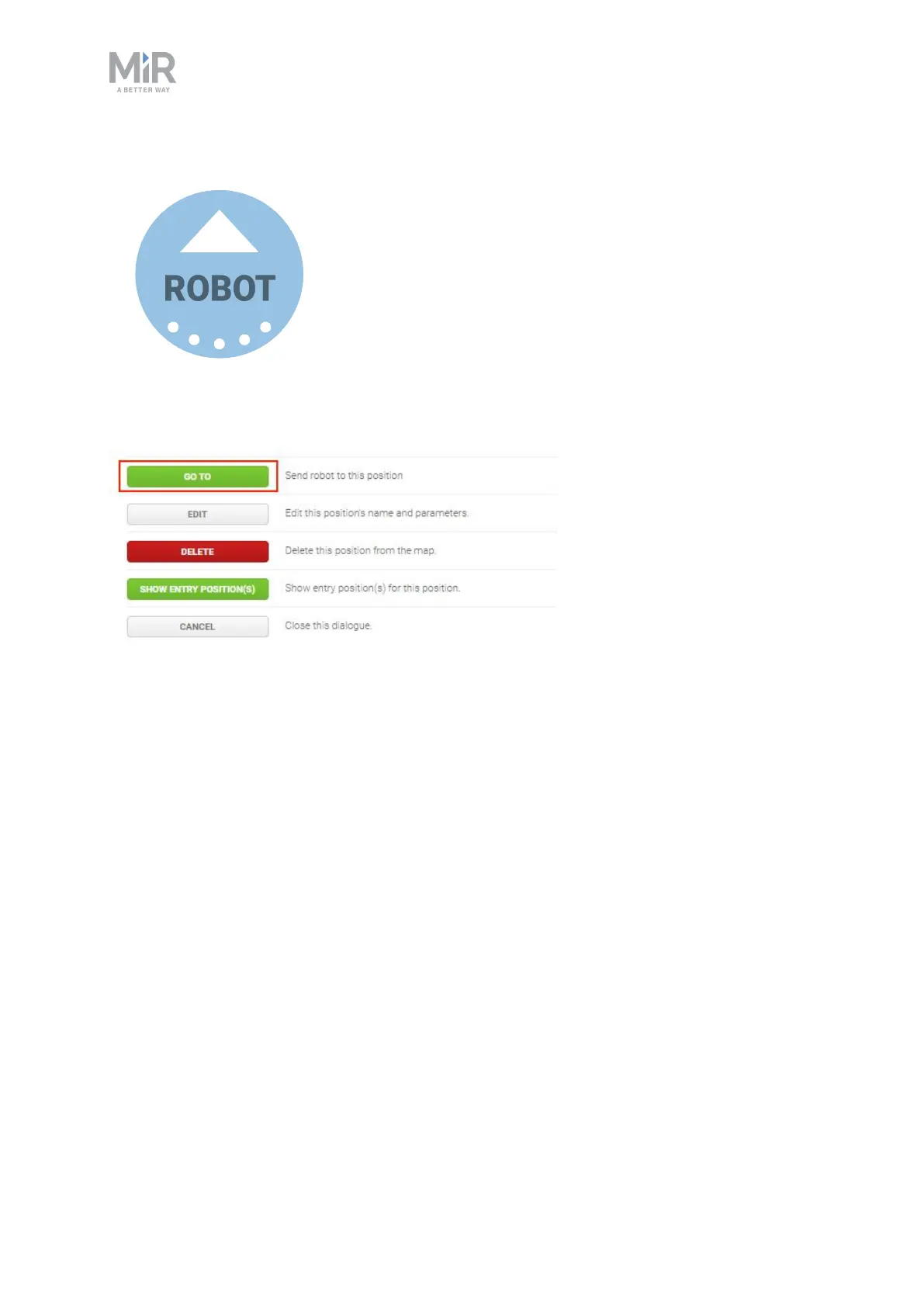
You can send the robot to the position by selecting it on the map and selecting Go to. The
position can also be used in missions.
10.3 Creating the mission Prompt user
Prompt user actions are used for prompting the user with a question on how the robot
should proceed. Prompt user is an example mission that uses a Prompt user action that lets
you choose whether to send the robot to one position or another.
Before you create the mission Prompt user, it is assumed that you have completed the
following:
• Created two robot positions named p1 and p2 as described in Creating positions on
page128.
• Defined a user group named Users.


 To Next Page